A SIM card that is inserted correctly should allow your iPhone to connect to your carrier’s network. When that doesn’t happen, the sim card inserted but no service iPhone error can prevent calls, texts, and mobile data from working properly.
Fortunately, the problem is often easier to fix than many users expect. Below, we’ll cover 9 common solutions that can help restore service and get your iPhone back online.
1. Why Your iPhone Says “No Service” with a SIM Inserted
If you’re experiencing a sim card inserted but no service iPhone issue, the problem may be related to your carrier, network settings, software, or the SIM card itself.
Even when a SIM card is inserted correctly, your iPhone may still be unable to connect to the cellular network.
Some cases are caused by temporary network glitches, while others stem from damaged SIM cards, inactive carrier accounts, or outdated carrier settings.
Fortunately, most issues can be resolved with a few simple troubleshooting steps.
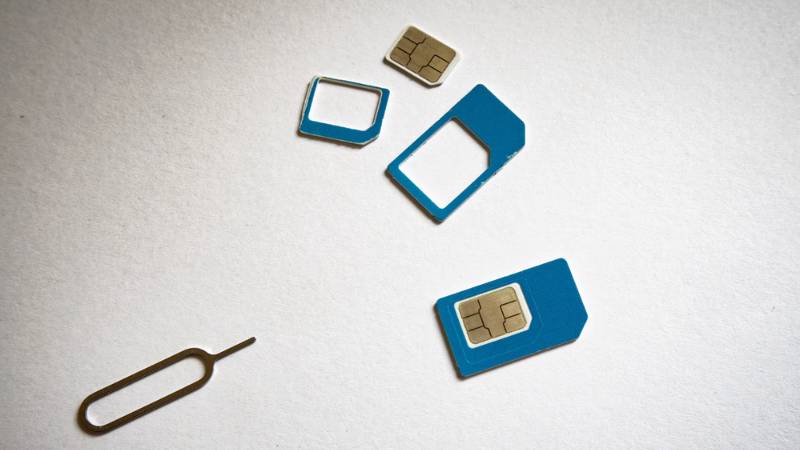
2. How to Fix SIM Card Inserted But No Service on iPhone
Work through the following fixes in order. Many users regain service before reaching the final steps.
Step 1: Toggle Airplane Mode On and Off
Open Control Center or go to Settings -> Airplane Mode.
Turn Airplane Mode on, wait about 10 seconds, then turn it off again. This forces the iPhone to disconnect from and reconnect to nearby cellular towers.
Step 2: Restart Your iPhone
A simple restart can clear temporary software glitches that interfere with network connectivity.
Turn the iPhone off completely, wait a few seconds, then power it back on. Once the device finishes loading, check whether the carrier name and signal bars return.
Step 3: Check for Carrier Settings Update
Carrier settings updates help your iPhone communicate properly with the carrier network.
Go to Settings -> General -> About and wait a few seconds. If an update is available, you’ll see a prompt to install it.
Step 4: Reseat the SIM Card
Remove the SIM card and inspect it for dirt, dust, or visible damage.
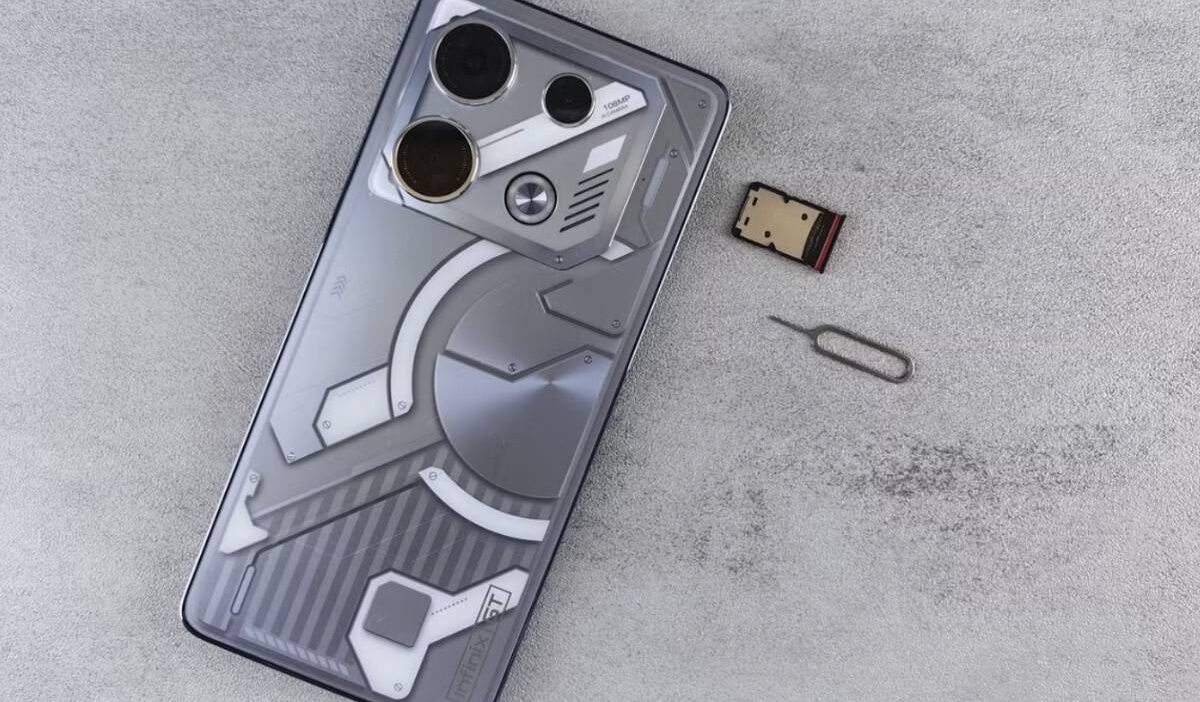
Reinsert the card carefully and make sure it sits properly in the SIM tray before placing the tray back into the iPhone.
If you’re unsure whether the SIM is being detected correctly, you can also review the SIM number on iPhone information under Settings -> General -> About. Missing SIM details may indicate that the device isn’t reading the card properly.
Step 5: Reset Network Settings
If you’re dealing with a sim card inserted but no service iPhone issue, incorrect network settings may be preventing the device from connecting to your carrier.
Go to: Settings -> General -> Transfer or Reset iPhone -> Reset -> Reset Network Settings
Keep in mind that this will remove saved Wi-Fi passwords and other network-related settings.
Step 6: Update iOS to the Latest Version
Outdated software can occasionally create connectivity issues.
Open Settings -> General -> Software Update and install any available updates. After updating, restart the device and check for service again.
Step 7: Check Your Carrier Account Status
Sometimes the issue isn’t the phone at all.
A suspended account, billing issue, incomplete activation, or recently transferred number can all cause service interruptions. Logging into your carrier account or contacting customer support can help verify that the line remains active.
Step 8: Test the SIM Card in Another Phone
Testing the SIM card in another device can help determine whether the sim card inserted but no service iPhone problem is caused by the SIM card or the iPhone itself.
If the SIM works normally in a different device, the issue is likely related to the iPhone. If it fails in both phones, the SIM card or carrier account may be the source of the problem.
Step 9: Try Another SIM Card in the iPhone
Testing a different working SIM card can help isolate the cause.
If another SIM connects successfully, your original SIM card may be damaged, deactivated, or no longer functioning correctly. If neither SIM works, the iPhone itself may require further troubleshooting.
3. When the Problem Is a Damaged SIM Card
SIM cards can wear out over time due to repeated handling, exposure to moisture, or physical damage.
Common signs of a damaged SIM card include:
- Intermittent service
- Frequent “No SIM” messages
- Inconsistent network connections
- Complete failure to connect to the carrier network
If the card appears scratched, cracked, bent, or fails when tested in another phone, replacing it is usually the best solution.
Most carriers can issue a replacement SIM card or transfer your service to an eSIM-compatible device.
4. When to Contact Your Carrier or Apple Support
If you’ve tried all of the fixes above and the sim card inserted but no service iPhone issue still hasn’t been resolved, it’s time to seek additional help.
Contact your carrier first if you suspect an account issue, activation problem, network outage, or SIM replacement is needed.
Carrier representatives can verify whether the line is active and confirm that the SIM is provisioned correctly.
If the carrier confirms everything is working on their end, Apple Support may be able to help identify hardware issues involving the SIM reader, antenna system, or other components that affect cellular connectivity.
At that point, professional diagnostics are often the fastest path to a solution.
5. Get a Free eSIM Replacement Plan (If You Qualify)
If you’ve completed the troubleshooting steps above and still sim card inserted but no service iPhone, switching to eSIM may be worth considering.
Because eSIM is installed digitally, it eliminates many of the issues associated with damaged or improperly seated physical SIM cards.
Many newer iPhone models support eSIM activation, allowing you to connect to a carrier without inserting a physical SIM card.
For qualifying low-income households, the federal Lifeline program may help reduce the cost of phone service through participating providers such as AirTalk Wireless.
Eligible users may be able to activate service on a compatible iPhone using eSIM. Before applying, check whether your device supports eSIM activation.
Benefits may include:
- Free monthly talk, text, and data
- Bring Your Own Device (BYOD) support
- eSIM activation on compatible iPhones
- Discounted smartphones, when available
Read more: How to Find SIM Number on iPhone? It’s Easier Than You Think
6. FAQs
Why does my iPhone say No Service even though the SIM card is inserted?
This can happen because of network issues, outdated carrier settings, account problems, a damaged SIM card, or software-related connectivity issues.
Can a damaged SIM card cause No Service on iPhone?
Yes. A damaged or worn SIM card may prevent the iPhone from connecting to the carrier network, even when the card is properly inserted.
How do I check if my SIM card is being detected?
Go to Settings -> General -> About and look for SIM information such as the ICCID or SIM details. If the information is missing, the iPhone may not be reading the SIM correctly.
Will resetting network settings delete my data?
No. Resetting network settings does not remove photos, apps, or personal files. However, it does erase saved Wi-Fi networks, Bluetooth connections, and cellular settings.
7. Conclusion
A sim card inserted but no service iPhone issue can be caused by anything from a temporary network glitch to a damaged SIM card or carrier-related problem.
Working through the troubleshooting steps one by one can often restore service without needing professional repair.
If the SIM card is no longer functioning properly, replacing it or moving to eSIM may be the next step toward getting your iPhone connected again.