If you’re wondering how to find SIM number on iPhone, the information is typically available in your device settings or on the SIM card itself. Knowing where to locate it can help when activating service, transferring a line, or resolving carrier-related issues.
Below, we’ll show the easiest ways to find your SIM number and explain what to do if it isn’t displayed.
1. What Is a SIM Number and Why You Might Need It
A SIM number is a unique identifier assigned to your SIM card. On an iPhone, it is usually listed as the ICCID (Integrated Circuit Card Identifier), which carriers use to identify and manage your mobile service.
While most users rarely need this information, it can be useful when activating a new line, transferring service, switching carriers, or troubleshooting account issues.
If your iPhone uses eSIM, you may also see an EID, a separate identifier used for eSIM activation and management.
Because these identifiers are stored on the device, iPhone users can usually find them directly in Settings without contacting their carrier.
2. How to Find SIM Number on iPhone Step-by-Step
The easiest way to find your SIM number on an iPhone is through the Settings app. Depending on whether you use a physical SIM or eSIM, there are several ways to view related identifiers such as the ICCID, IMEI, and EID.
Quick Comparison
| Method | Shows ICCID | Best For |
| Settings > About | Yes | Most users |
| Physical SIM Card | Sometimes | Identifying inactive SIMs |
| Dial *#06# | No | Finding IMEI or EID |
Method 1: Check the ICCID in Settings
For most users, this is the fastest and most reliable method.
- Open Settings.
- Tap General.
- Select About.
- Scroll down to find ICCID.
The ICCID (Integrated Circuit Card Identifier) is your SIM card number. You may also see other identifiers, such as the carrier name, IMEI, and EID.
Method 2: Check the Physical SIM Card
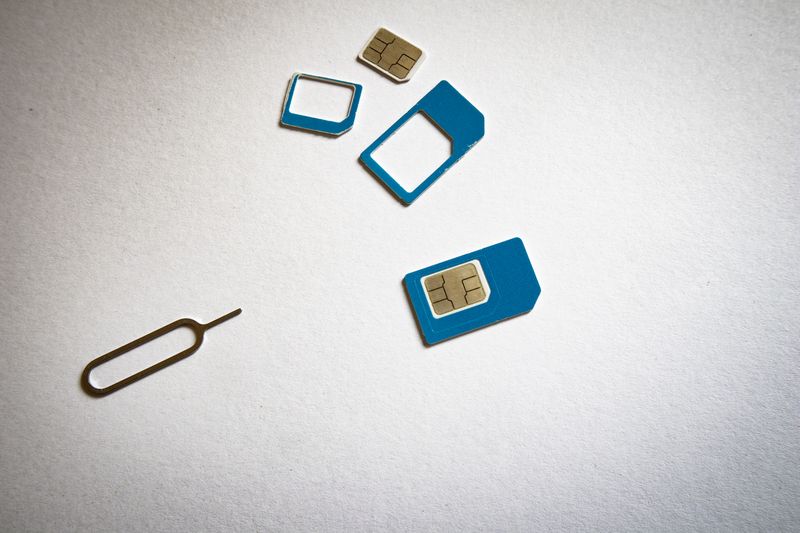
If your iPhone uses a physical SIM card, you may find the SIM number printed on the card itself.
While the Settings app is usually the easiest way to learn how to find SIM number on iPhone, checking the physical SIM card can be helpful if the device is unable to read the card.
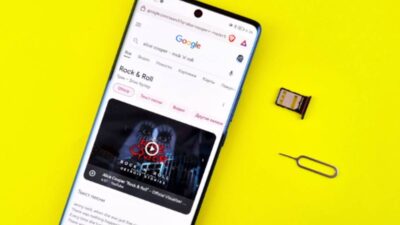
- Remove the SIM tray using a SIM eject tool.
- Carefully inspect the SIM card.
- Look for the ICCID or SIM identifier printed on the surface.
Keep in mind that some carriers print only part of the SIM number, making the Settings app a more reliable option.
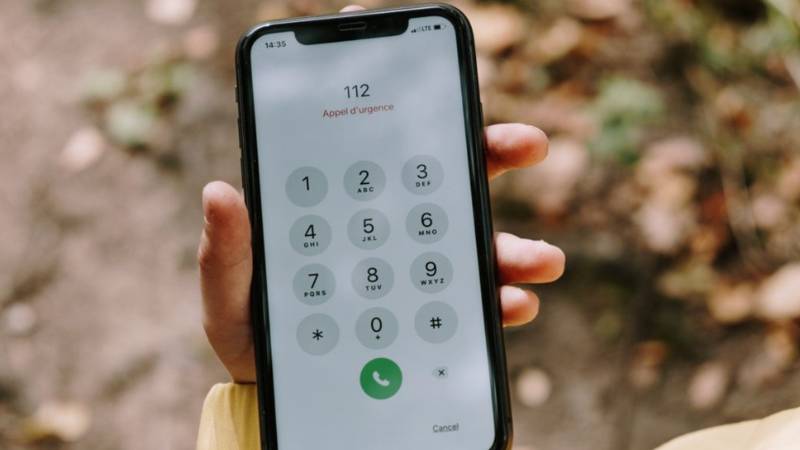
Method 3: Dial *#06#
You can also view device-related cellular information by dialing *#06# in the Phone app.
Depending on your iPhone model, you may see:
- IMEI
- IMEI2
- EID
While this method does not usually display the ICCID, it can be useful when a carrier requests your IMEI or EID for activation or troubleshooting.
>>> You might be interested in: Does iPhone SE 3rd Gen Have eSIM? Full Guide & How to Use It
3. How to Find Your eSIM Number on iPhone
If your iPhone uses eSIM, learning how to find SIM number on iPhone is slightly different because there is no physical SIM card to remove or inspect. Instead, the relevant identifiers can be viewed directly in Settings.
Find the EID
- Open Settings.
- Tap General > About.
- Scroll down to locate the EID.
The EID (Embedded Identity Document) is the unique identifier assigned to your iPhone’s eSIM hardware.
Find the eSIM ICCID
- Open Settings.
- Tap Cellular.
- Select your active cellular plan.
Depending on your carrier and iOS version, you may see the ICCID and other details associated with that eSIM profile.
EID vs. ICCID
- EID: Identifies the eSIM chip built into the iPhone.
- ICCID: Identifies a specific SIM profile or cellular plan.
Your carrier may request either number when activating service, transferring a line, or troubleshooting connectivity issues.
4. What If Your iPhone Shows No SIM Number?
Even after following the steps for how to find SIM number on iPhone, some users may find that no SIM information appears on their device.
If your iPhone does not display a SIM number in Settings > General > About, the issue is usually related to your carrier, SIM card, or eSIM setup rather than the device itself.
- Carrier Activation Issue
A SIM number may not appear if your line has not been fully activated. Restart your iPhone, check for carrier settings updates, and contact your carrier if the issue persists.
- SIM Card Not Detected
If you use a physical SIM card, remove and reinsert it to ensure it is seated correctly. A damaged or inactive SIM card can also prevent SIM information from appearing.
Testing the SIM in another compatible phone can help identify the cause.
- Missing eSIM Profile
For eSIM users, a missing SIM number may indicate that the eSIM profile was not installed correctly or is no longer active.
Go to Settings > Cellular and verify that an active cellular plan is listed. If not, contact your carrier to reactivate or reinstall the eSIM.
Read more: First iPhone with eSIM Revealed: Surprising Model That Changed
5. FAQs
Is the SIM number the same as the phone number?
No, a SIM number is not the same as a phone number. A SIM number, usually listed as the ICCID, identifies the SIM card itself, while a phone number is assigned by your carrier. Although they are linked to the same mobile service, they serve different purposes.
Where can I find the ICCID on my iPhone?
You can find the ICCID on an iPhone by going to Settings > General > About. Scroll down until you see the ICCID field, which displays the unique identifier associated with your physical SIM card or eSIM profile.
Can I find my SIM number without removing the SIM card?
Yes. Most iPhone users can find their SIM number directly in Settings > General > About without removing the SIM card. This is the quickest and easiest way to view the ICCID on an iPhone.
Does *#06# show my SIM number?
No, dialing *#06# does not usually display your SIM number. Instead, it typically shows device identifiers such as the IMEI, IMEI2, and EID. To find your SIM number (ICCID), check the About section in Settings.
How do I find my eSIM information?
To find eSIM information on an iPhone, go to Settings > General > About to view the EID or Settings > Cellular to see details about your active eSIM plan. The information available may vary by carrier and iOS version.
6. Conclusion
Finding how to find SIM number on iPhone is usually straightforward once you know where to look. Whether you’re using a physical SIM card or an eSIM, the necessary information can typically be found through the Settings app, the SIM card itself, or your device’s cellular details.
If the SIM number isn’t showing, checking your carrier status, SIM card condition, or eSIM setup will often help identify the issue and get your service working properly again.