Setting up a new or reset iPhone usually feels straightforward until you reach the activation screen and realize there’s no SIM card available.
At that point, many users start wondering how to activate iPhone without SIM card and whether it’s even possible.
In this guide, we’ll walk through the most reliable ways to activate an iPhone without a SIM card and what to do if the process doesn’t go as planned.
1. Can You Really Activate iPhone Without SIM Card?
Yes, in many cases you can. Modern iPhones are far less dependent on physical SIM cards than older models, especially now that eSIM has become widely available.
Whether activation works without a SIM card depends on factors such as your iPhone model, carrier status, and iOS version.
Newer devices can often be activated through Wi-Fi, eSIM, or a computer connection, while some older or carrier-restricted models may still require a SIM card during setup.
That’s why the best activation method varies from one device to another.
If you’re activating a used or reset iPhone, the same rules generally apply. As long as the device can connect to the internet and isn’t blocked by Activation Lock or carrier restrictions, activation without a physical SIM card is often possible.
2. How to Activate iPhone Without SIM Card Using Wi-Fi
For many users, Wi-Fi is the easiest way to activate an iPhone without a SIM card.
- Step 1: Connect to a Stable Wi-Fi Network
Turn on your iPhone and start the setup process. When prompted, connect to a stable Wi-Fi network so the device can reach Apple’s activation servers.
- Step 2: Choose “Set Up Manually”
Select Set Up Manually if necessary, then proceed through the setup screens. Once connected to the internet, the iPhone may automatically begin the activation process.
- Step 3: Follow the Activation Prompts
Follow the on-screen prompts and wait while the iPhone verifies the device with Apple. After activation, you can finish setup by signing in with your Apple ID, creating a passcode, and restoring your data if needed.
Once setup is complete, you’ll be able to access the Home Screen without a physical SIM card installed.
3. How to Activate iPhone Without SIM Card Using iTunes
If Wi-Fi activation doesn’t work, you may be able to activate your iPhone using a computer.
- Step 1: Connect Your iPhone
Use a Lightning or USB-C cable to connect your iPhone to a Mac or Windows PC. Make sure the computer has an internet connection and is running the latest version of Finder (Mac) or iTunes (Windows).
- Step 2: Activate the Device
Open Finder or iTunes and select your iPhone. If activation is required, the software will usually display on-screen instructions automatically. Follow the prompts and wait for the verification process to finish.
- Step 3: Complete Setup
Once activation is successful, disconnect the iPhone and continue the remaining setup steps on the device.
Tip: This method can be helpful if Wi-Fi activation fails or your iPhone has trouble connecting to Apple’s activation servers.
4. How to Activate iPhone with eSIM Instead of a Physical SIM
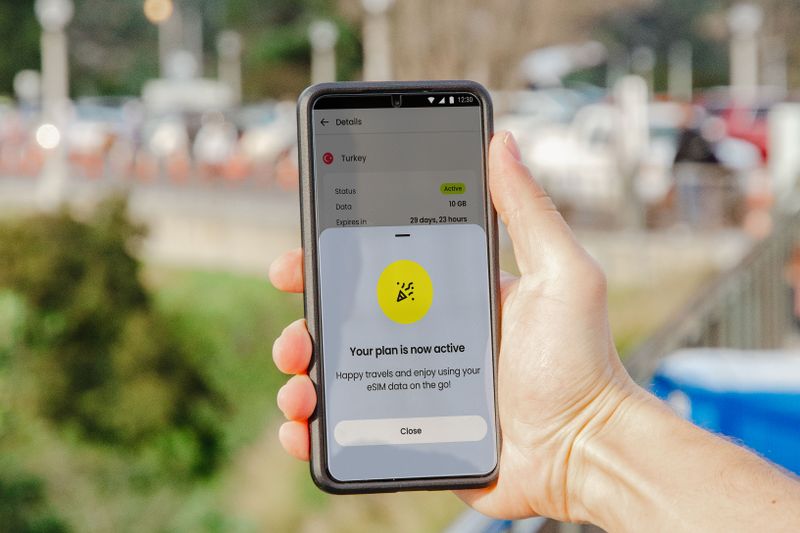
If you’re researching how to activate iPhone without SIM card, eSIM may be the easiest solution. On compatible devices, eSIM allows you to activate cellular service digitally without inserting a physical SIM card.
This has become especially important for newer iPhone models, including U.S. versions of the iPhone 14, iPhone 15, and 16, which rely primarily on eSIM activation.
To activate an iPhone using eSIM:
- Complete the initial setup process until you reach the cellular configuration screen.
- Connect the iPhone to Wi-Fi.
- Select Set Up Cellular or Add eSIM when prompted.
- Scan the QR code provided by your carrier or follow the carrier’s activation instructions.
- Wait for the eSIM profile to download and install.
- Restart the iPhone if requested.
Once activation is complete, the iPhone can connect to the carrier network without requiring a physical SIM card.
5. What to Do If Activation Without a SIM Fails
If your iPhone won’t activate without a SIM card, try the following troubleshooting steps:
- Check your internet connection. Reconnect to Wi-Fi or try a different network.
- Restart your iPhone. A simple reboot can resolve temporary activation issues.
- Verify Apple’s activation servers are available. Temporary server outages can prevent activation.
- Check for carrier restrictions. Some carrier-locked devices may require a SIM card from the original provider.
- Confirm eSIM compatibility. Make sure your carrier supports eSIM activation on your iPhone model and that your activation details are valid.
- Try activating through Finder or iTunes. A computer connection can sometimes complete activation when Wi-Fi activation fails.
If the issue persists, contact your carrier or Apple Support for additional assistance.
>>> Read more: Best Free Phone Plans in 2026: What You Actually Get
6. FAQs
Can I activate an iPhone without any SIM card installed?
In many cases, yes. Newer iPhones can often be activated using Wi-Fi, eSIM, or a computer connection without a physical SIM card.
Do all iPhones support activation without a SIM card?
No. Some older models and certain carrier-restricted devices may still require a SIM card during activation.
Can I use an iPhone after activation without cellular service?
Yes. Once activated, the iPhone can connect to Wi-Fi and use apps, FaceTime, iMessage, email, and web browsing without an active cellular plan.
Can eSIM replace a physical SIM card completely?
Yes. On compatible devices and supported carriers, eSIM can provide full cellular service without requiring a physical SIM card.
Why is my iPhone stuck on the activation screen?
Common causes include poor internet connectivity, carrier restrictions, activation server issues, or incomplete eSIM setup.
7. Conclusion
Understanding how to activate iPhone without SIM card can save time when setting up a new device, restoring an old one, or switching to eSIM. In many cases, Wi-Fi, Finder, iTunes, or eSIM activation can get the job done without a physical SIM card.
If activation doesn’t work immediately, checking your internet connection, carrier status, and device compatibility will usually point you toward the right solution.