Getting a new Samsung phone is exciting, but figuring out which SIM card it needs can be confusing. Different Galaxy devices support different SIM configurations, and newer models increasingly rely on eSIM technology alongside traditional physical SIM cards.
This Samsung SIM card guide covers everything you need to know, including supported SIM sizes, Galaxy model compatibility, eSIM options, and step-by-step setup instructions.
1. What Type of SIM Card Does a Samsung Phone Use?
Most modern Samsung Galaxy phones use a nano-SIM card, which is the standard SIM size used in today’s smartphones. If you’re transferring service from another recently released phone, your existing SIM card will likely be compatible.
However, Samsung SIM card support can vary depending on the device model and region. In addition to a standard nano-SIM, some Galaxy phones may support:
- A single nano-SIM card
- Dual nano-SIM cards
- eSIM technology
- A combination of a physical SIM card and eSIM
Because Samsung offers different SIM configurations across the Galaxy S, Galaxy A, Galaxy Z Fold, and Galaxy Z Flip series, it’s important to verify your specific model before purchasing a new SIM card or switching carriers.
This can help prevent activation issues and ensure your phone supports the SIM option you plan to use.
2. Samsung SIM Card by Model
Not every Samsung Galaxy phone supports the same SIM configuration. While most modern devices use a nano-SIM card, support for dual SIM and eSIM varies by series, model, and region.
| Galaxy Series | Typical SIM Support |
| Galaxy S Series | Nano SIM + eSIM (many recent models) |
| Galaxy A Series | Nano SIM, some newer models support eSIM |
| Galaxy Z Fold / Z Flip | Nano SIM + eSIM |
| Older Galaxy Models | Nano SIM or Micro SIM |
Galaxy S Series
Samsung’s flagship Galaxy S lineup offers the most flexible SIM options. Recent models often support both a physical nano-SIM card and eSIM technology, allowing users to manage multiple numbers or carrier plans on a single device.
Depending on the region, some Galaxy S phones can also store multiple eSIM profiles, making them a convenient choice for international travel.
Galaxy A Series
The Galaxy A series is designed for affordability and broad availability. Most Galaxy A phones use a physical nano-SIM card, while select newer models also include eSIM support.
For many users, Galaxy A devices provide a simple SIM setup process without requiring additional carrier configuration.
Galaxy Z Fold and Z Flip
Samsung’s foldable devices typically include the company’s latest connectivity features. Many recent Galaxy Z Fold and Galaxy Z Flip models support both nano-SIM and eSIM, giving users greater flexibility for work, travel, and dual-line use.
Because SIM capabilities can vary by country and carrier, it’s always a good idea to verify your device’s specifications before activating service.
3. How to Insert or Remove a Samsung SIM Card
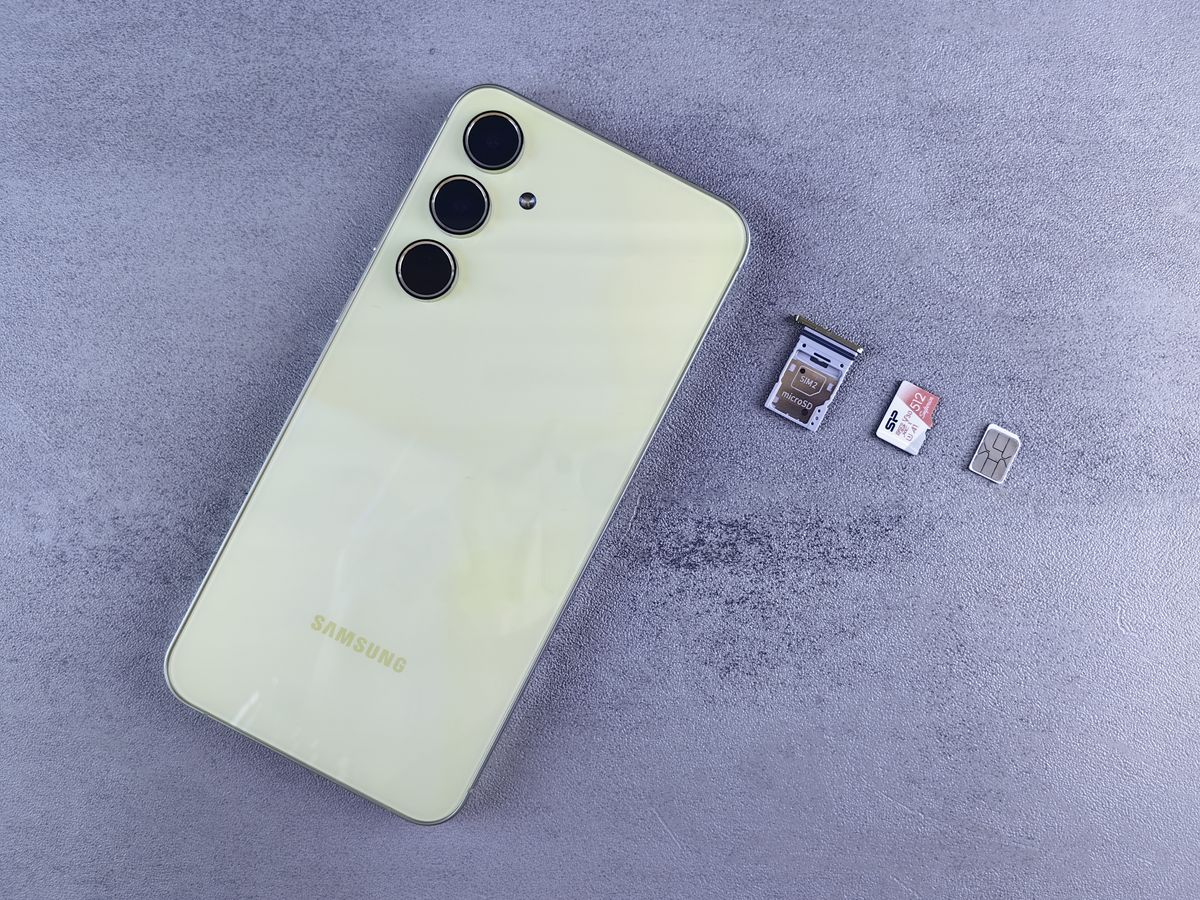
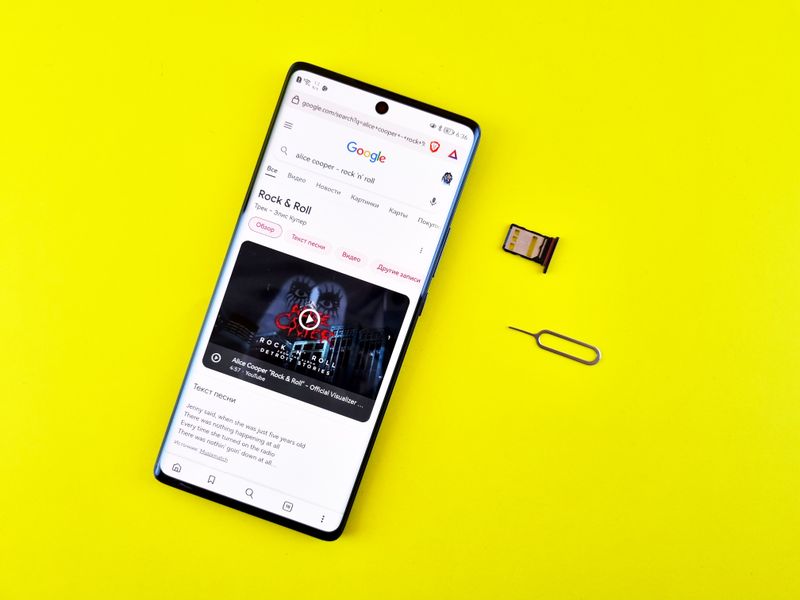
Installing or removing a SIM card only takes a few minutes. Most Galaxy phones use a SIM tray that can be accessed with the included SIM eject tool.
- Step 1: Locate the SIM Tray
Find the SIM tray on the side edge of your Samsung phone. The exact location varies by model, but it is usually identified by a small pinhole next to the tray.
For best results, turn off the phone before removing or inserting the Samsung SIM card.
- Step 2: Eject the SIM Tray
Insert the SIM eject tool into the pinhole and press gently until the tray pops out.
If you don’t have the original eject tool, a straightened paper clip can often work as an alternative. Avoid using excessive force, which may damage the tray.
- Step 3: Insert or Remove the SIM Card
Place the nano-SIM card into the tray, making sure the angled corner matches the tray’s outline.
If you’re removing the SIM card, simply lift it out of the tray.
- Step 4: Reinsert the Tray
Carefully slide the tray back into the phone until it sits flush with the device.
Turn the phone back on and wait for it to detect the SIM card. In most cases, the device will automatically connect to the carrier network within a few moments.
If your phone doesn’t recognize the Samsung SIM card after installation, try restarting the device or checking that the SIM card is seated correctly in the tray.
4. How to Activate a Samsung SIM Card
Activating a SIM card is usually straightforward once the card has been installed correctly. In many cases, the phone will automatically connect to the carrier network within a few minutes of startup.
To activate a SIM card:
- Turn off the phone and insert the SIM card.
- Power the device back on.
- Wait for the carrier name and signal bars to appear.
- Complete any carrier activation steps if prompted.
- Test calling, texting, and mobile data.
Some carriers activate service automatically, while others may require activation through a website, mobile app, or customer support representative.
If you’re using eSIM on a compatible Samsung device, activation may involve scanning a QR code or downloading a carrier profile instead of inserting a physical SIM card.
5. Common Samsung SIM Card Problems and Fixes
Most SIM card issues can be resolved with a few basic troubleshooting steps.
SIM Not Detected
If your phone displays messages such as “No SIM” or “SIM Not Detected,” remove and reinsert the SIM card to make sure it is seated correctly.
Also check for dust or debris in the SIM tray and restart the device. If the problem persists, test the SIM card in another phone to determine whether the issue is with the card or the device.
No Service After Insertion
If the SIM card is recognized but you still have no signal, verify that your carrier account is active and that the phone is compatible with the carrier’s network.
Restart the device, check for software updates, and confirm there are no carrier outages affecting service in your area.
SIM Card Asking for PUK Code
A PUK code is required after multiple incorrect SIM PIN attempts.
Because Samsung does not provide PUK codes, you’ll need to contact the carrier that issued the SIM card. Avoid entering random codes, as too many failed attempts can permanently lock the SIM card.
Read more: You’re One Step Away from A Free SIM Card With Free Service Government iPhone
6. FAQs
What SIM card size do Samsung phones use?
Most modern Samsung phones use a nano-SIM card, although support varies by model and region.
Do Samsung phones support eSIM?
Many recent Galaxy S, Galaxy Z Fold, and Galaxy Z Flip devices support eSIM. Some newer Galaxy A models also include eSIM support.
Why isn’t my Samsung phone detecting my SIM card?
Common causes include improper SIM installation, a damaged SIM card, software issues, or carrier-related problems.
Can I use two SIM cards in a Samsung phone?
Many Samsung models support dual SIM functionality, though the exact configuration varies by device and market.
How do I know if my Samsung phone supports eSIM?
You can usually check under Settings > Connections > SIM Manager. If eSIM is supported, you’ll often see options related to adding or managing an eSIM.
7. Conclusion
Whether you’re setting up a new device, switching carriers, or troubleshooting connection issues, knowing how your Samsung SIM card works can save time and frustration.
A few minutes spent checking compatibility, activation requirements, and SIM settings can often prevent common problems before they happen.