Is your phone suddenly showing “No SIM,” “No Service,” or refusing to connect to the network? When a SIM card is not working, it can stop calls, texts, and mobile data from working without much warning.
The problem may be as simple as a loose SIM card, or it could be related to your carrier, phone settings, or the SIM itself. In this guide, we’ll walk through the most common causes, quick fixes to try, and how to tell when it’s time for a replacement.
1. Common Causes of a SIM Card Not Working
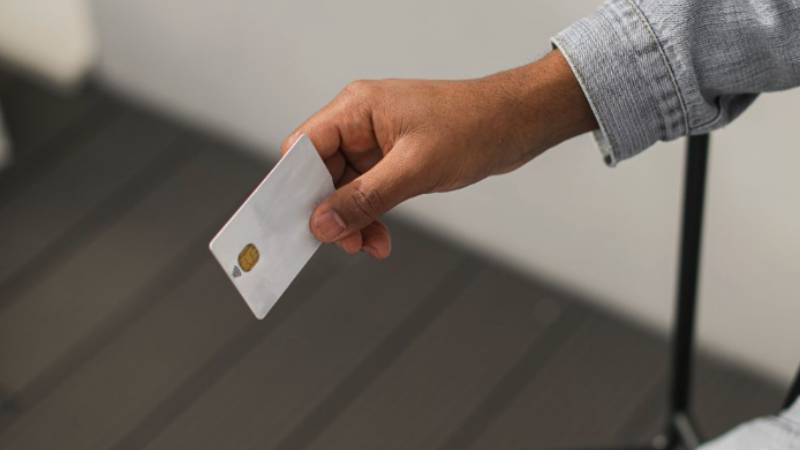
A SIM card may stop working because of a damaged SIM, incorrect installation, carrier account issues, a locked phone, outdated network settings, or a temporary network outage.
Damaged or Bent SIM Card
Physical SIM cards can wear out over time. Scratches, bent contacts, water exposure, or general wear may prevent the phone from reading the card correctly.
If your SIM card not working and the card appears damaged or continues to fail in multiple phones, a replacement may be necessary.
Wrong SIM Size for the Tray
Most modern phones use a nano-SIM, but older devices may require a different size.
Using an incorrectly cut SIM card or forcing the wrong size into the tray can cause connection issues and may even damage the SIM reader.
Carrier Account Issue
Sometimes the SIM card is working properly, but the account attached to it is not.
An unpaid bill, suspended line, incomplete activation, or recent number transfer can prevent service from working even when the phone detects the SIM card.
Phone Is Carrier-Locked
A carrier-locked phone may reject SIM cards from other networks.
This is a common reason for a SIM card not working after switching carriers or inserting a SIM card from a different provider into a device that hasn’t been unlocked.
Outdated Carrier Settings
Carrier settings help your phone connect to the network correctly.
If these settings are outdated or corrupted, you may experience problems such as no service, failed calls, or mobile data issues even though the SIM card is installed.
Network Outage in Your Area
Not every SIM card not working problem is actually a SIM problem.
Temporary network outages, maintenance work, or tower issues can interrupt service and create symptoms that look identical to a faulty SIM card.
2. Quick Fixes to Try First
Before contacting your carrier or replacing the SIM card, try these basic troubleshooting steps.
- Restart Your Phone
A restart can clear temporary software issues that interfere with network connectivity. After the phone powers back on, wait a few moments to see if the carrier name and signal bars return.
- Toggle Airplane Mode
Turn Airplane Mode on for about 10 seconds, then turn it off again. This forces the phone to reconnect to nearby cellular towers and often resolves temporary connection problems.
- Reseat the SIM Card
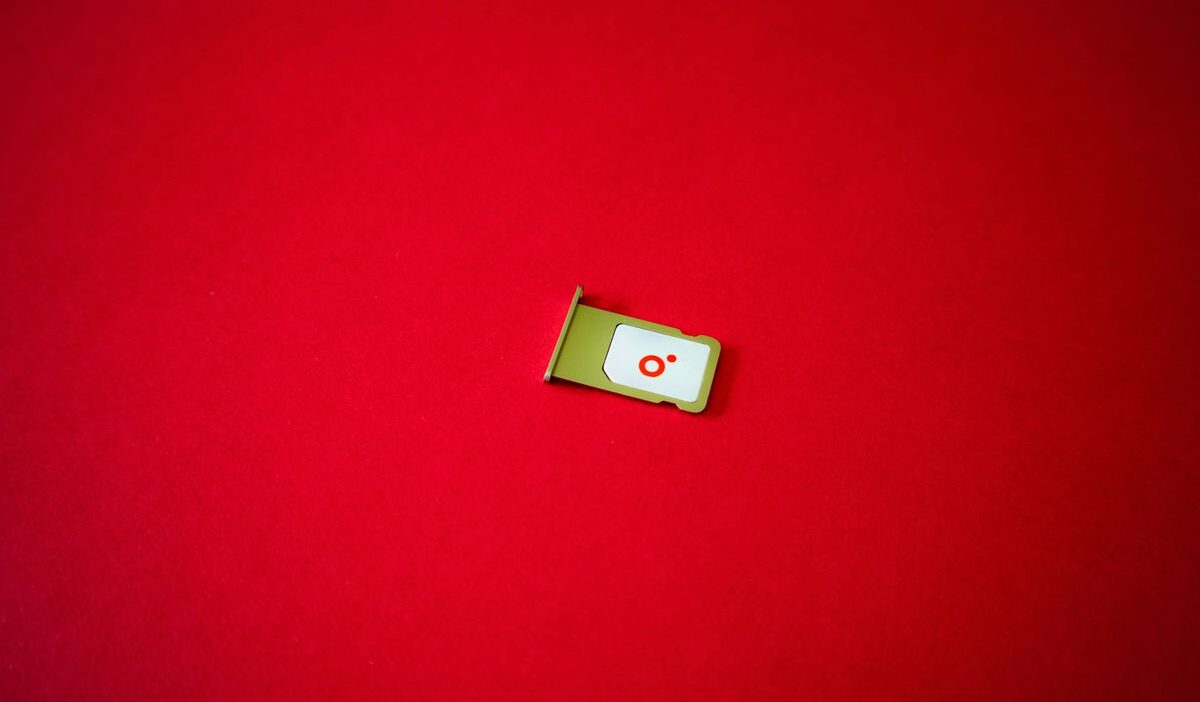
Power off the phone and remove the SIM tray. Check for dust, debris, or visible damage before placing the SIM card back into the tray. Once reinserted, restart the device and see whether service returns.
3. How to Fix a SIM Card Not Working on iPhone
If your iPhone is not detecting a SIM card or shows errors such as “No SIM” or “SIM Not Supported,” try the following fixes:
- Turn Airplane Mode On and Off
Enable Airplane Mode for about 30 seconds, then turn it off again. This forces the iPhone to reconnect to the cellular network.
- Remove and Reinsert the SIM Card
Power off the iPhone and carefully remove the SIM card tray. Check for dust, debris, or visible damage before reinserting the SIM card correctly.
- Check for Carrier Settings Updates
Go to Settings > General > About and wait a few seconds. If a carrier settings update is available, you’ll see a prompt to install it.
- Reset Network Settings
Navigate to:
Settings > General > Transfer or Reset iPhone > Reset > Reset Network Settings
This will clear saved network configurations and may resolve SIM-related connectivity issues.
- Test the SIM Card in Another Device
Insert the SIM card into another compatible phone if possible.
- If the SIM works in another phone, the issue may be with your iPhone.
- If the SIM fails in multiple devices, contact your carrier about a replacement SIM card.
- Check Whether Your iPhone Is Carrier Locked
If you’re using a SIM card from a different carrier, make sure your iPhone is unlocked. A locked device may reject SIM cards from unsupported networks.
4. How to Fix a SIM Card Not Working on Android
If your Android phone is not detecting a SIM card or showing network errors, try these troubleshooting steps.
- Turn Airplane Mode On and Off
Enable Airplane Mode for about 30 seconds, then disable it. This forces the phone to reconnect to the mobile network and can resolve temporary connection issues.
- Remove and Reinsert the SIM Card
Power off the device and remove the SIM card tray. Check for dust, dirt, or visible damage before reinserting the SIM card securely.
- Verify That the Phone Detects the SIM
Open Settings > Network & Internet, Connections, or SIM Manager (depending on your device) and check whether your carrier information appears.
- Update Android Software
Install any available system updates. Manufacturers often release updates that improve network stability and carrier compatibility.
- Reset Network Settings
Resetting network settings can remove corrupted mobile network configurations and restore default connectivity settings.
- Test the SIM Card in Another Phone
Insert the SIM card into another compatible device.
- If the SIM works in another phone, the issue may be with your Android device.
- If the SIM fails in multiple devices, contact your carrier for a replacement SIM card.
5. Get a Free eSIM Replacement Plan (If You Qualify)
When to replace your SIM card entirely is a question worth asking if you’ve already tried the troubleshooting steps above and the SIM card not working problem keeps coming back.
A SIM card that repeatedly loses service, fails in multiple devices, or shows signs of physical damage may no longer be reliable. At that point, replacing the SIM is often more practical than continuing to troubleshoot the same issue.
Today, replacing a SIM card doesn’t always mean waiting for another physical card to arrive in the mail. Many newer phones support eSIM technology, allowing service to be activated digitally without using a physical SIM at all.
For eligible households, Lifeline-supported service may provide another option. Participating providers such as AirTalk Wireless offer service on compatible devices and may include benefits such as:
- A free SIM card or eSIM
- Monthly talk, text, and data benefits
- Bring Your Own Device (BYOD) support
- Online activation from home
- Access to compatible device offers when available
For users moving on from a damaged or unreliable SIM card, eSIM activation can be a convenient alternative because there’s no physical card to insert, replace, or troubleshoot in the future.
>>> Read more: How to Find SIM Number on iPhone? It’s Easier Than You Think
6. FAQs
Why is my SIM card not working even though it’s inserted correctly?
The issue could be related to the SIM card, phone settings, carrier account, network outage, or device compatibility.
How do I know if my SIM card is damaged?
Visible scratches, bent contacts, water damage, or failure in multiple phones can all indicate a damaged SIM card.
Can a carrier lock cause SIM card problems?
Yes. A carrier-locked phone may reject SIM cards from unsupported networks.
Should I replace my SIM card if it keeps losing service?
If you’ve already ruled out network outages, account issues, and device problems, replacing the SIM card is often the next step.
Can eSIM replace a physical SIM card?
Yes. On compatible devices, eSIM provides the same cellular functionality without requiring a physical SIM card.
7. Conclusion
A SIM card not working doesn’t always mean the card itself has failed. Problems with carrier settings, account status, network outages, or device compatibility can produce similar symptoms.
By checking the most common causes and working through a few basic fixes, you can often restore service quickly. If the SIM card continues to cause problems across multiple devices, it may be time to replace it or consider switching to eSIM on a compatible phone.