An eSIM doesn’t always disappear automatically when you stop using a plan. It often stays stored on your Android device.
That’s why understanding how to delete eSIM on Android becomes useful, especially if you’re managing multiple lines or switching phones. With a few simple steps, you can remove it safely without affecting your current service.
1. Before You Delete Your eSIM, Don’t Skip These Checks
Before you remove an eSIM from your Android device, it’s important to double-check a few things to avoid unnecessary issues:
- Make sure you won’t lose access to your phone number
In many cases, deleting an eSIM removes the active mobile line from your device. If your number hasn’t been transferred to another phone or SIM yet, you could temporarily lose calling and data access.
- Back up your important data
While the eSIM itself doesn’t erase files, it may affect apps that rely on your number, such as messaging apps or two-factor authentication. A backup ensures nothing important is disrupted.
- Connect to a stable Wi-Fi network before starting
Once the eSIM is removed, mobile data will stop working immediately. Having Wi-Fi available helps you stay connected during any follow-up steps or troubleshooting.
- Keep your QR code or activation details ready (if reusing the eSIM)
Some carriers require you to reinstall the eSIM using a QR code or activation info. If you don’t have it ready, you may need to contact support, which can delay the process.
2. How to Delete eSIM on Android (Step-by-Step Guide)
If you’re ready to remove an eSIM from your device, the process is usually straightforward.
Below is a step-by-step guide to help you safely delete an eSIM from your Android device without affecting your primary SIM or other network settings.
- Step 1: Open Settings on your Android phone
Start by launching the Settings app, where all network and SIM options are managed.
- Step 2: Go to Network settings
Tap Network & Internet or Connections, depending on your device model and Android version.
- Step 3: Find SIM management options
Select SIM cards, SIM Manager, or Mobile Network to view all active SIM and eSIM profiles.
- Step 4: Choose the eSIM you want to remove
Locate the eSIM profile from the list and tap on it to open its settings.
- Step 5: Delete the eSIM profile
Tap Remove SIM, Delete eSIM, or a similar option, then confirm your choice when prompted.
- Step 6: Wait for confirmation
Once confirmed, the device will immediately remove the eSIM and disconnect the associated mobile line.
On some devices like Samsung Galaxy phones, this option is usually found under Settings > Connections > SIM Manager, while Google Pixel devices often place it under Settings > Network & Internet > SIMs.
The process only takes a few seconds once you locate the correct menu.
>>> Also read: How to Turn Off eSIM on iPhone and Android (2026 Guide)
3. What Happens After You Delete an eSIM?
Once you delete an eSIM, your phone immediately disconnects from the mobile network linked to that profile.
This means you won’t be able to make calls, send texts, or use mobile data through that line anymore.
However, how to delete eSIM on Android does not automatically cancel your mobile plan. Your carrier may still keep the plan active until you cancel it separately.
If you plan to use the same number again, you’ll usually need to reinstall the eSIM using a QR code or activation details provided by your carrier. In some cases, you may need to contact customer support to reactivate it.
On the bright side, removing unused eSIM profiles helps keep your device organized and reduces confusion when managing multiple lines.
4. Common Issues When Deleting eSIM (and Fixes)
Although how to delete eSIM on Android is straightforward, you might run into a few issues when trying to delete an eSIM.
One common problem is not seeing the delete option. This can happen if your device restricts changes due to carrier settings. Restarting your phone or checking for software updates often resolves this.
Another issue is the eSIM still appearing after deletion. In this case, try restarting your device again or resetting network settings to fully remove the profile.
Some users also worry about losing their number permanently. In most cases, your number is safe as long as your carrier account is still active. If you’re unsure, it’s best to contact your provider before deleting the eSIM.
Finally, if you can’t reinstall the eSIM, you may need a new QR code. Carriers often issue a fresh one for security reasons.
5. Need a New eSIM? Get a Free Plan with AirTalk Wireless
If you’ve just removed your old eSIM, it might be the perfect time to switch to a more affordable plan.
Some users don’t realize that programs like Lifeline help reduce monthly phone and internet costs by offering discounts through their approved service providers.
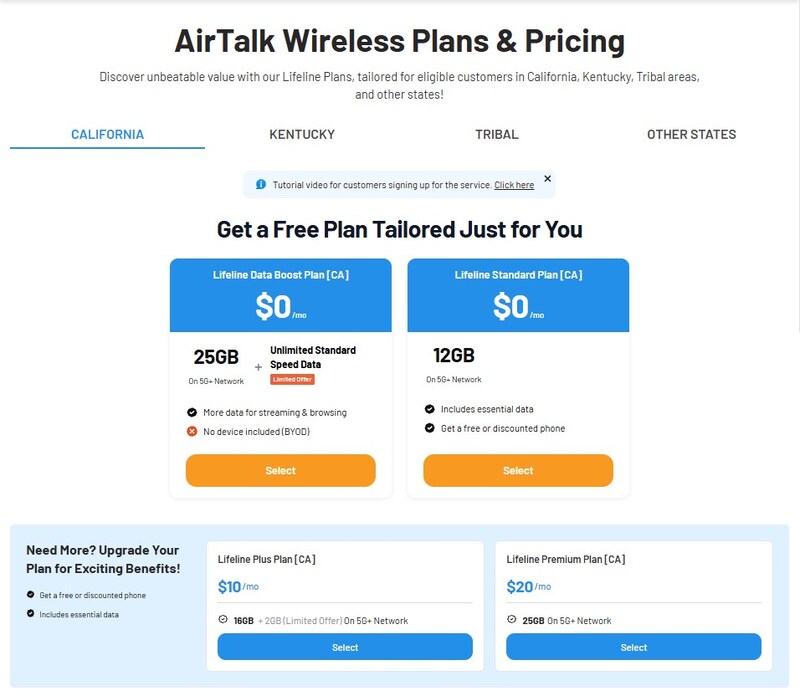
One of these providers is AirTalk Wireless, which participates in the Lifeline program and offers eligible users access to free or heavily discounted plans that include talk, text, and data.
Depending on device compatibility, applicants will receive either a free SIM card or an eSIM.
If you receive an eSIM, free eSIM activation is included. You can set up the service directly on compatible Android devices.
The application process is simple. You just need to check your eligibility, choose a compatible device or plan, submit basic information, upload proof of eligibility if required, and wait for approval.
Once approved, you’ll receive activation details to set up your new eSIM on your Android phone.
Overall, it’s a practical option if you’re looking to stay connected while saving money.
6. FAQs
How do I permanently delete an eSIM?
To permanently delete an eSIM, go to your phone’s SIM settings, select the eSIM profile, and choose the delete or remove option. Once confirmed, it will be erased from your device.
Can I delete my eSIM and reinstall it?
Yes, but you’ll usually need the original QR code or a new one from your carrier. Some providers require issuing a new activation code for security reasons.
How to cancel eSIM on Android?
Deleting an eSIM from your phone does not cancel your plan. To cancel it, you need to contact your mobile carrier and request plan termination.
Final Thoughts
Knowing how to delete eSIM on Android devices can help you manage your mobile plans more efficiently, especially when switching devices or carriers. The process is simple, but taking a few extra steps beforehand ensures everything goes smoothly.
If you’re planning to set up a new eSIM, make sure you have your activation details ready so you can get back online without delay.
If you’re ready to switch to a new plan, AirTalk Wireless is a strong option to explore. Start your application today and check what you qualify for!