
If you’ve recently reset your iPhone, you may notice your mobile service isn’t working as expected and start wondering how to restore eSIM after factory reset iPhone.
Since eSIM is stored digitally instead of a physical SIM card, it can sometimes be removed or disconnected during the reset process. In most cases, restoring it is still simple once you follow the correct steps and understand what your carrier requires.
1. What Happens to Your eSIM After a Factory Reset?
When you perform a factory reset, your iPhone erases system data, settings, and installed profiles. This may include your eSIM depending on carrier configuration.
In some cases, the eSIM is automatically removed during the reset. Some carriers allow the eSIM to be restored later without changes, while others require a full reactivation process.
Even if the eSIM disappears from your phone, your mobile plan itself usually remains active on your carrier’s system and can be re-downloaded or reissued.
2. How to Restore eSIM After Factory Reset iPhone: Step-by-Step
Because eSIM restoration after a factory reset can vary by carrier, the exact process may differ from one user to another. In this section, we’ll guide you through the standard step-by-step method on iPhone.
Before You Start: Make Sure You Have Everything Ready
Before you begin the eSIM restoration process, it’s important to prepare a few essentials to avoid setup issues or interruptions:
- Ensure your iPhone is connected to a stable Wi-Fi network
- Have your Apple ID login credentials available
- Keep your carrier account details or app access ready
- Make sure your phone number is still active with your carrier
Having these ready helps avoid interruptions during setup and speeds up activation.
Restore eSIM During iPhone Setup
Once your device is ready, follow the step-by-step how to restore eSIM after factory reset iPhone instructions below.
- Turn on your iPhone and complete the initial setup screens
- Connect to a stable Wi-Fi network
- Go to Settings > Cellular once setup is complete
- Tap Add eSIM or Set Up Cellular
- Follow the on-screen carrier activation instructions
- Scan your QR code if your carrier provides one
- Wait for the activation process to complete
Once finished, your eSIM should reconnect, and your mobile service will be restored.

>>> Also read: How to Delete eSIM on iPhone Safely(2026)
3. Why Your eSIM Might Not Restore After Reset?
If you’ve already tried how to restore eSIM after factory reset iPhone but your eSIM still isn’t activating, the issue may come from a few common causes:
- QR code no longer valid: Some QR codes are single-use and expire after initial activation.
- Carrier requires manual reactivation: Certain providers need to reset your eSIM profile before it can be used again.
- No stable Wi-Fi connection: Activation requires internet access to communicate with carrier servers.
- Account verification needed: Your carrier may require identity or account confirmation before reissuing eSIM access.
Understanding these causes helps narrow down the problem quickly instead of repeating setup steps.
4. How to Fix eSIM Not Working After Factory Reset
If your eSIM still isn’t activating after following how to restore eSIM after factory reset iPhone, the issue is usually related to connectivity, carrier settings, or activation errors.
Try these fixes to resolve the problem:
- Restart your iPhone
A simple restart can refresh your network system and help complete a stuck activation process that didn’t finish properly during setup. - Check your Wi-Fi connection
eSIM activation requires a stable internet connection. If your Wi-Fi is weak or unstable, the activation process may fail or time out. - Turn Airplane Mode on and off
Enabling Airplane Mode for a few seconds and then turning it off resets your network connection and can help your iPhone reconnect to your carrier. - Re-scan your eSIM QR code
Go to Settings > Cellular > Add eSIM and scan your QR code again. This helps if the original activation attempt was interrupted or incomplete. - Contact your carrier for support
If nothing works, your carrier may need to reset your eSIM profile or issue a new activation QR code for your device.
5. How to Avoid Losing eSIM in the Future
Even when the process is generally simple, how to restore eSIM after factory reset iPhone can still run into unexpected issues depending on your carrier or device setup.
That’s why it helps to minimize potential problems by following a few simple precautions before you reset your device:
- Tip #1: Some users choose to keep their eSIM active during reset instead of removing it first.
- Tip #2: Save your QR code securely in case you need to reinstall it later.
- Tip #3: Link your eSIM to your carrier account whenever possible for easier recovery.
- Tip #4: Use iCloud backup to store device settings that may help restore connectivity.
- Tip #5: Avoid unnecessary factory resets unless absolutely required, since they may interrupt your mobile configuration.
>>> You might be interested in: Does My Phone Have an eSIM? Here’s How to Check in 1 Minute
6. Need a New eSIM After Reset? Try AirTalk Wireless
If your eSIM cannot be restored after a factory reset, it may be a good opportunity to switch to a more affordable plan. This is where the Lifeline program can help.
Lifeline is a federal assistance initiative designed to help reduce monthly phone and internet costs for eligible users. Instead of providing service directly, it works through approved providers that offer discounted or free plans.
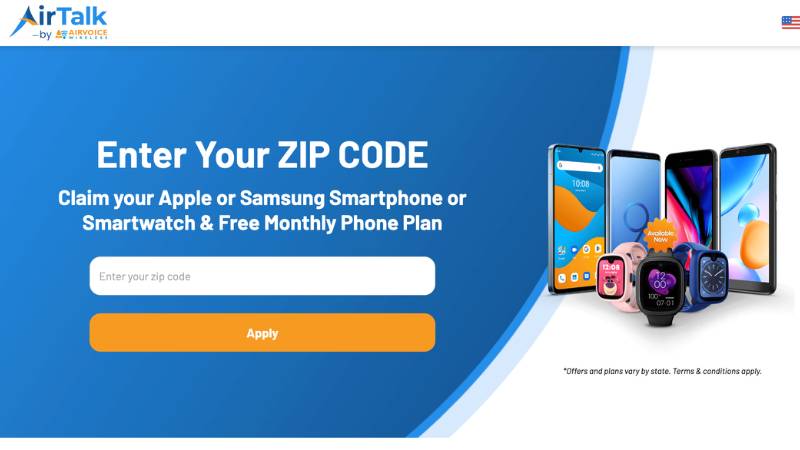
AirTalk Wireless is one of these Lifeline-approved providers. It offers eligible users access to low-cost or free plans that include unlimited talk, text, and data.
Depending on eligibility and device compatibility, users may receive either a physical SIM card or an eSIM for activation.
Eligibility is generally based:
- Program participation: You may qualify if you are enrolled in government assistance programs such as SNAP, Medicaid, SSI, FPHA, or Veterans Pension benefits.
- Income level: You may also qualify if your household income is at or below 135% of the Federal Poverty Guidelines.
If you think you may qualify, check your eligibility with AirTalk Wireless today and see what plans are available in your area!
7. FAQs
Does factory resetting iPhone reset eSIM?
Yes, a factory reset may remove your eSIM depending on carrier settings. Some carriers allow automatic restoration, while others require manual reactivation after reset.
Can I get my eSIM back after deleting it?
In most cases, yes. You can restore it by re-scanning a QR code or requesting a new activation from your carrier if the original profile is no longer valid.
How to reactivate eSIM after resetting iPhone?
Go to Settings > Cellular > Add eSIM, then follow your carrier’s activation steps or scan the provided QR code again.
How do I get my eSIM back?
You can recover it through your carrier account, QR code reactivation, or customer support, depending on your provider’s process.
Does the eSIM stay on iPhone even after reset?
Not always. Some resets remove it completely, while others may retain the profile depending on carrier configuration.
Final Thoughts
Learning how to restore eSIM after factory reset iPhone helps you recover mobile service quickly without confusion or downtime. In most cases, it only takes a few steps through settings or carrier reactivation.
Once your eSIM is back online, your iPhone works just like before, keeping your number and data connected without interruption.