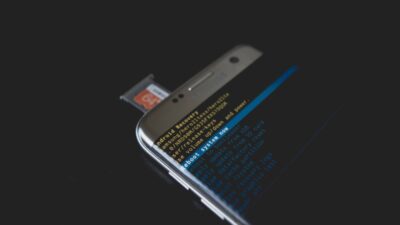
A phone can still turn on, connect to Wi-Fi, and run apps even without a SIM card, making it difficult to tell whether one is actually installed. Newer phones can add to the confusion by using an eSIM instead of a physical SIM card, so there’s not always a tray to check.
This guide shows how do I know if my phone has a SIM card, how to identify whether you’re using a physical SIM or an eSIM, and what to do if your phone doesn’t appear to have either one.
1. Signs Your Phone Has a SIM Card Installed
If you’re not sure whether your phone has a SIM card installed, there are several easy ways to check before removing the SIM tray or contacting your carrier.
While “does every phone have a SIM card” is a common question, the answer is no. Some newer phones rely entirely on an eSIM, while others can work with either a physical SIM card or an eSIM.
Here are a few signs that your phone already has an active SIM card installed.
You Can Make Calls and Use Mobile Data
One of the easiest indicators is whether your phone works without Wi-Fi. If you can make phone calls, send text messages, and browse the internet using mobile data while Wi-Fi is turned off, your phone is likely connected through a physical SIM card or an active eSIM.
Keep in mind that emergency calls may still work even without an active SIM card, so test regular calls or mobile data instead.
Your Carrier Information Appears in Settings
Another simple way to check is by opening your phone’s settings. On both Android and iPhone, the Cellular, Mobile Network, or SIM settings usually display your carrier’s name, phone number, or network information when a SIM or eSIM is active.
If no carrier information appears, your phone may not have an active SIM installed, or the SIM may not be recognized properly.
Your Phone Shows Signal Bars
Signal bars in the status bar are another good clue. If your phone consistently displays your carrier’s network signal instead of messages like No SIM, SOS Only, or No Service, it’s generally connected to a cellular network through a SIM card or eSIM.
However, signal bars alone don’t always confirm you’re using a physical SIM, since eSIMs display the same network indicators.
2. How Do I Know If My Phone Has a SIM card
If you’re still unsure, a few quick checks can confirm whether your phone uses a physical SIM card or another type of cellular connection.
Look for a SIM Tray
Most phones with a physical SIM card have a small SIM tray on the side of the device. It’s usually identified by a tiny pinhole that allows you to eject the tray using a SIM eject tool or a straightened paper clip.
If you can’t find a SIM tray, your phone may use an eSIM only, especially if it’s a newer model sold in certain countries.
Check Your Phone Settings
Your phone’s settings can often tell you whether a SIM or eSIM is active without removing anything.
On an iPhone, go to Settings > Cellular.
On Android, open Settings > Network & Internet, Connections, or SIM Manager, depending on your device.
If your phone displays carrier information, a phone number, or an active mobile network, it’s already connected through a SIM or eSIM.
Remove the SIM Tray (If Available)
If your phone has a SIM tray, eject it carefully while the phone is turned off. Check whether a SIM card is inserted and make sure it’s positioned correctly in the tray before putting it back.
If the tray is empty, don’t assume your phone can’t use cellular service. Many newer devices support eSIM, allowing mobile service without a physical SIM card.
3. What If You Can’t Find a SIM Card?
Not finding a SIM card doesn’t necessarily mean something is wrong with your phone. Several situations could explain why you can’t locate one.
Your Phone May Be Using an eSIM
Many newer smartphones support eSIM technology, allowing carriers to activate service digitally without a physical SIM card. If your phone has an active cellular connection but no SIM card in the tray, it’s likely using an eSIM.
Checking your phone’s cellular settings is usually the quickest way to confirm this.
Your SIM Card May Be Missing
If your phone has a SIM tray but it’s empty, the SIM card may have been removed before you purchased the device or while switching carriers.
Without an active SIM or eSIM, you’ll typically see messages such as No SIM, No Service, or SOS Only, and you won’t be able to use mobile data or make regular cellular calls.
Your Phone Doesn’t Support a Physical SIM
Some newer phone models, particularly certain versions sold in the United States, no longer include a physical SIM tray. Instead, they rely entirely on eSIM technology for cellular service.
If you can’t find a SIM tray and your phone supports eSIM, you’ll need to activate service digitally through your carrier rather than inserting a physical SIM card.
Read more: How to Check If Someone Is Using My SIM Card: A Security Audit in 8 Steps
4. How to Tell Whether You’re Using a Physical SIM or an eSIM
If your phone has cellular service but you’re still unsure whether it’s using a physical SIM card or an eSIM, there are several simple ways to find out. Most smartphones display this information in their settings, and you can also verify it through your carrier if needed.
Check Your Cellular or Mobile Network Settings
The quickest way to identify the type of SIM you’re using is through your phone’s settings.
On an iPhone, go to Settings > Cellular. On Android, open Settings > Network & Internet, Connections, or SIM Manager, depending on your device.
Many phones will clearly indicate whether your mobile plan is connected through a physical SIM or an eSIM. If your device supports both, you may even see multiple active lines listed separately.
Look for an EID Number
An EID (Embedded Identity Document) number is unique to phones that support eSIM. If you can find an EID in your phone’s settings, your device is eSIM compatible, even if you’re currently using a physical SIM.
On an iPhone, you can usually find it under Settings > General > About. On Android devices, the location varies by manufacturer, but it’s often available in the SIM or About Phone section.
Keep in mind that having an EID doesn’t necessarily mean you’re using an eSIM. It simply confirms that your phone supports one.
Confirm with Your Carrier
If you’re still unsure, your mobile carrier can quickly verify whether your line is activated on a physical SIM card or an eSIM. They can also confirm whether your device supports eSIM and explain your options if you want to switch between the two.
This is often the easiest approach if you’ve purchased a used phone or recently changed carriers.
5. Need a SIM Card or eSIM? Here’s How Support Programs Can Help
If you’ve confirmed that your phone doesn’t have an active SIM or eSIM, you may not have to purchase one yourself. Depending on your eligibility, government assistance programs can help you get connected at little or no cost.
Check Your Lifeline Eligibility
The Lifeline Program is a federal assistance program that helps eligible households reduce the cost of monthly phone service.
You may qualify if you participate in programs such as Medicaid, SNAP, SSI, Federal Public Housing Assistance, or Veterans Pension and Survivors Benefit. Eligibility is also available for households that meet the program’s income requirements.
Apply for a Free SIM Card or eSIM
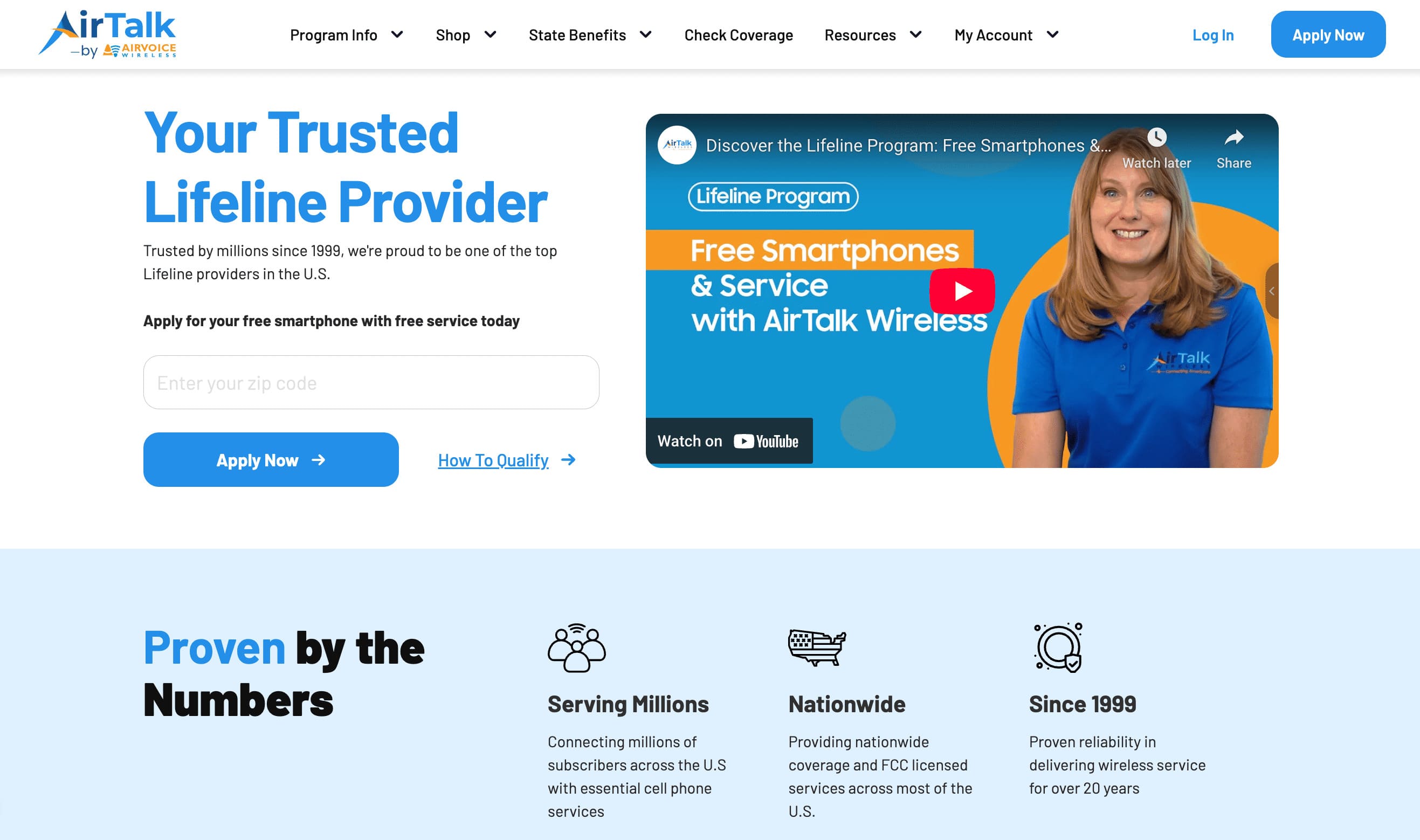
If you qualify, you can apply through AirTalk Wireless, a participating Lifeline provider.
Depending on your device, location, and eligibility, AirTalk offers free monthly phone service with either a physical SIM card or eSIM activation. Some eligible customers may also qualify for a free or low cost smartphone.
Applying is straightforward:
- Visit the AirTalk Wireless website and enter your ZIP code.
- Select Apply Now and choose an available Lifeline plan for your area.
- Choose a compatible phone, SIM card, or eSIM option if available.
- Confirm your eligibility through a qualifying assistance program or your household income.
- Upload proof of eligibility if required.
- Submit your application and wait for approval.
Once your application is approved, AirTalk Wireless will provide instructions for activating your physical SIM card or eSIM. After activation, you’ll be able to make calls, send texts, and use mobile data with your new service.
6. FAQs
Can a phone work without a SIM card?
Yes. A phone can still connect to Wi-Fi, use apps, and make emergency calls in many situations without a SIM card. However, you’ll generally need a SIM card or eSIM to make regular calls, send text messages, and use mobile data.
Does every smartphone have a SIM tray?
No. Some newer smartphones no longer include a physical SIM tray and rely entirely on eSIM technology for cellular service.
Can I have both a physical SIM and an eSIM?
Yes. Many modern smartphones support Dual SIM functionality, allowing you to use a physical SIM and an eSIM at the same time.
Will removing my SIM card delete my photos or apps?
No. Your photos, apps, and other personal files are stored on your phone, not on the SIM card. Removing the SIM only affects your cellular connection.
Can I switch from a physical SIM to an eSIM?
In many cases, yes. If your phone supports eSIM, your carrier can usually help you transfer your mobile service from a physical SIM to an eSIM.
7. Conclusion
Whether your phone uses a physical SIM or an eSIM, taking a few minutes to check your device can save time when troubleshooting network issues or setting up a new mobile plan. Understanding how do I know if my phone has a SIM card also makes it easier to decide whether you need a replacement SIM, an eSIM activation, or simply a quick settings check.