Many iPhone 14 owners become confused after noticing that some devices include a SIM tray while others do not. The differences between regional models, eSIM support, and physical SIM compatibility have created a lot of questions around does iPhone 14 have a SIM card, especially for users switching carriers or activating service for the first time.
1. Does iPhone 14 Have a SIM Card?
The answer to does iPhone 14 have a SIM card depends mainly on the country or region where the device was sold. Apple released different iPhone 14 versions worldwide, and not all of them use the same SIM setup.
Some models rely entirely on eSIM technology, while others still support traditional nano-SIM cards together with eSIM functionality.
U.S. Models (eSIM-Only)
iPhone 14 models sold in the United States no longer include a physical SIM card tray.
Instead, these devices use:
- eSIM activation only
- Digital carrier setup
- Multiple eSIM profile support
- Dual eSIM functionality in many cases
Because there is no physical SIM slot, users activate mobile service directly through carrier apps, QR codes, or built-in iPhone setup options.
This design allows:
- Faster carrier switching
- No physical SIM handling
- Better internal space optimization
However, users moving from older phones may initially feel confused when trying to insert a traditional SIM card into a U.S. iPhone 14.
International Models (Dual SIM with Nano-SIM)
Many iPhone 14 models sold outside the United States still include a physical nano-SIM tray.
These international versions commonly support:
- One physical nano-SIM
- One or more eSIM profiles
- Dual SIM functionality
This setup gives users more flexibility when:
- Traveling internationally
- Using local prepaid SIM cards
- Separating work and personal numbers
- Switching carriers more easily
Because Apple uses different hardware configurations globally, the SIM setup can vary significantly depending on the device region.
2. How to Check Which iPhone 14 Model You Have
If you are unsure which version you own, there are several simple ways to identify the exact iPhone 14 model and determine whether it supports a physical SIM card.
Find the Model Number in Settings
The fastest method is checking the device model number directly through iPhone settings.
To do this:
- Open Settings
- Tap General
- Select About
- Locate the Model Number
Tapping the model number may reveal the full regional identifier used by Apple.
Match Your Model Number to the Region
Once the model number appears, users can compare it with Apple’s official regional device listings.
This helps identify:
- U.S. models
- International versions
- eSIM-only devices
- Nano-SIM supported models
Regional differences are important because two iPhone 14 devices may look identical externally while supporting completely different SIM configurations.
Inspect the Side of Your Device for a SIM Tray
Another quick method is physically checking the sides of the iPhone.
If the phone includes:
- A small removable tray opening
- A SIM eject hole
then the device likely supports a physical nano-SIM card.
If no tray exists at all, the phone is most likely an eSIM-only version.
Read more: How to Fix SIM Lock iPhone: Quick Guide to Unlocking Your Device
3. How to Take a SIM Card Out of iPhone 14 (International Models)
For international versions that still support physical SIM cards, removing or replacing the nano-SIM is usually a simple process.
This section can also help users still wondering :does iPhone 14 have a SIM card” on their specific device version.
Locate the SIM Tray
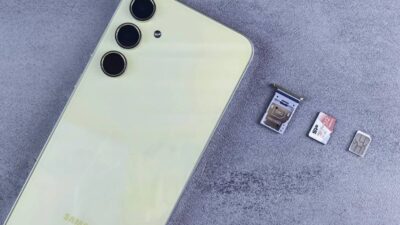
On international iPhone 14 models, the SIM tray is usually located along the side edge of the phone.
The tray includes:
- A small pinhole
- A removable SIM compartment
- Space for a nano-SIM card
If the phone has no visible tray at all, the device is most likely an eSIM-only model.
Use a SIM Eject Tool Properly
To remove the tray safely:
- Power off the iPhone if possible
- Insert a SIM eject tool or paperclip gently into the pinhole
- Apply light pressure until the tray pops out
- Pull the tray out carefully
Avoid forcing the tray aggressively because excessive pressure may damage the mechanism.
Insert or Replace the Nano-SIM Correctly
When inserting or replacing the SIM card:
- Align the nano-SIM with the tray shape
- Make sure the card sits flat
- Reinsert the tray gently into the phone
Once the tray is secured, the iPhone should automatically detect the carrier network after powering back on.
4. What If My iPhone 14 Doesn’t Have a SIM Card Slot?
Some users asking does iPhone 14 have a SIM card eventually realize their device has no physical tray at all. This is normal for many U.S. iPhone 14 models because Apple moved entirely to eSIM activation for those versions.
Instead of inserting a physical card, users activate service digitally through:
- Carrier apps
- QR codes
- eSIM transfer tools
- iPhone cellular settings
This means there is no removable SIM card inside the device.
For users switching from older phones, eSIM activation may initially feel unfamiliar, especially when moving carriers or transferring service manually. However, once setup is completed, the phone can often manage multiple digital SIM profiles without requiring physical cards at all.
5. Choosing a Plan That Works with Your iPhone 14
After confirming whether your device uses eSIM or a physical SIM tray, the next step is finding a wireless plan that matches your specific iPhone 14 model.
This is especially important because:
- U.S. iPhone 14 models rely entirely on eSIM
- International models may support both nano-SIM and eSIM
- Carrier compatibility can vary by region and device version
For users looking for lower-cost wireless service, Lifeline-supported providers may also be worth considering depending on eligibility and compatibility.
AirTalk Wireless participates in the federal Lifeline program in supported areas and offers compatible wireless service options for eligible households.
Depending on the device model and network setup, users may be able to activate service using supported SIM or eSIM configurations.
Eligibility may depend on participation in programs such as:
- SNAP
- Medicaid
- SSI
- Other qualifying assistance programs
- Income-based qualification
Applicants can check eligibility and apply for service directly through AirTalk Wireless official portal.
5. FAQS
Does every iPhone 14 support eSIM?
Yes. All iPhone 14 models support eSIM functionality, although physical SIM support varies depending on the region.
Can I use both eSIM and physical SIM on iPhone 14?
International iPhone 14 models usually support both a physical nano-SIM and eSIM at the same time. U.S. models use eSIM only.
Why does my iPhone 14 not have a SIM tray?
Many U.S. iPhone 14 versions were designed without a physical SIM slot because Apple moved entirely to eSIM activation in that region.
Can I switch carriers easily on iPhone 14?
Yes, but carrier switching depends on whether the phone is unlocked and whether the new carrier supports the device’s SIM or eSIM setup.
6. Conclusion
Regional differences are the biggest reason the answer to does iPhone 14 have a SIM card can vary from one device to another. Some models still support physical nano-SIM cards, while others rely completely on eSIM activation. Checking the model region and carrier compatibility first can make setup, switching networks, and managing wireless service much easier.