The iPhone SIM card has evolved significantly over the years, from standard SIMs and nano-SIMs to Apple’s newer eSIM technology. Whether you’re switching carriers, activating a new device, or simply trying to locate the SIM tray on your iPhone, understanding how SIM cards work is essential.
This guide explains the different iPhone SIM card types, compatibility by model, and common questions users have when setting up service.
1. What Type of SIM Card Does the iPhone Use?
Most iPhones use a nano-SIM card, although many newer models also support eSIM technology. In the United States, iPhone 14, iPhone 15, and iPhone 16 models are eSIM-only and do not include a physical SIM tray.
Generally, iPhones fall into three categories:
| iPhone Generation | SIM Type |
| iPhone X and older | Physical nano-SIM |
| iPhone XS through iPhone 13 | Nano-SIM + eSIM |
| U.S. iPhone 14, 15, and 16 models | eSIM only |
A nano-SIM is a physical card that connects your iPhone to a mobile network, while an eSIM performs the same function digitally without requiring a physical card.
Because SIM support varies by model and region, it is important to check your specific iPhone before switching carriers or activating service.
2. iPhone SIM Card by Model (Physical SIM, eSIM, or Both)
The type of SIM card iPhone supported depends largely on when the device was released.
iPhone X and Older: Physical Nano-SIM Only
Older iPhones use a physical nano-SIM card and do not support eSIM technology. This includes:
- iPhone X
- iPhone 8 and 8 Plus
- iPhone 7 and 7 Plus
- iPhone 6 series
- iPhone SE (1st generation)
- Earlier models
iPhone XS to iPhone 13: Nano-SIM + eSIM
Starting with the iPhone XR and iPhone XS lineup, Apple added eSIM support while keeping the physical SIM tray. This category includes:
- iPhone XS
- iPhone XS Max
- iPhone XR
- iPhone 11 series
- iPhone 12 series
- iPhone 13 series
- iPhone SE (2nd and 3rd generation)
These models support Dual SIM using a nano-SIM and an eSIM.
iPhone 14, 15, 16: eSIM Only (U.S. Models)
U.S. versions of the iPhone 14, iPhone 15, and iPhone 16 do not include a physical SIM tray. Instead, they use eSIM technology for carrier activation.
However, many international versions of these same models still support a physical nano-SIM alongside eSIM, so SIM capabilities may vary by country and region.
>>> You might be interested in: How Many eSIMs Can I Have? The Real Limit Explained
3. How to Insert or Remove an iPhone SIM Card
If your iPhone uses a physical nano-SIM card, installing or removing it is a simple process that only takes a few minutes.
Before you begin, make sure you have a SIM eject tool or a straightened paper clip and remove any phone case that may block access to the SIM tray.
- Locate the SIM tray on the side of the iPhone.
- Insert a SIM eject tool into the small pinhole beside the tray.
- Apply gentle pressure until the SIM tray pops out.
- Remove the SIM tray from the device.
- Place or remove the nano-SIM card, making sure the angled corner aligns correctly.
- Carefully slide the tray back into the iPhone until it sits flush with the frame.
- Wait for the iPhone to detect the SIM card automatically. If cellular service does not appear right away, restart the device and check your carrier settings.
Most iPhones recognize a newly inserted SIM card within a few moments, allowing you to activate service, make calls, send texts, and access mobile data.
4. How to Activate an iPhone SIM Card
After inserting a SIM card or setting up an eSIM, your iPhone may need to activate on your carrier’s network. In many cases, activation happens automatically within a few minutes.
For a physical SIM card:
- Insert the SIM card into your iPhone.
- Turn on the device.
- Connect to Wi-Fi if available.
- Follow any carrier activation prompts.
- Wait for signal bars and your carrier name to appear.
For an eSIM:
- Open Settings -> Cellular.
- Tap Add eSIM.
- Scan the carrier’s QR code or use the carrier app.
- Follow the on-screen instructions.
- Wait for activation to complete.
If activation does not work, confirm that the SIM or eSIM is active, your account is in good standing, and the iPhone is unlocked if required. Restarting the device can often resolve minor activation issues.
5. Common iPhone SIM Card Problems and Fixes
Most iPhone SIM card issues can be resolved with a few simple troubleshooting steps.
| Problem | Possible Cause | Quick Fix |
| No SIM Installed | SIM card not seated correctly, dirty SIM tray, damaged SIM, or software issue | Remove and reinsert the SIM card Restart the iPhone Check for iOS updates. |
| Invalid SIM | Carrier lock, inactive SIM, unsupported carrier, or damaged SIM card | Verify that the iPhone is unlocked Contact your carrier to confirm activation. |
| No Service After an iOS Update | Temporary software or carrier settings issue | Restart the iPhone Toggle Airplane Mode Check for carrier settings updates Reinsert the SIM card. |
If the problem persists, try the SIM card in another compatible phone. If it works elsewhere, the issue may be related to the iPhone rather than the SIM card.
As a last resort, you can reset network settings under Settings > General > Transfer or Reset iPhone > Reset > Reset Network Settings.
Read more: Does iPhone 13 Pro Max Have a SIM Card? Full Setup Guide
6. Get a Free eSIM Plan or Discounted iPhone (If You Qualify)
Many modern iPhones support eSIM technology, which can make carrier activation faster and more convenient.
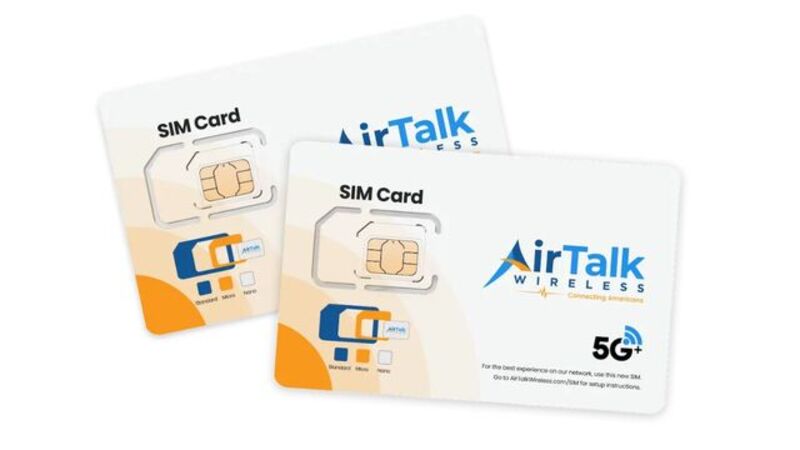
Eligible households may qualify for Lifeline-supported wireless service through participating providers such as AirTalk Wireless.
Qualified applicants may receive:
- Free monthly talk, text, and data
- eSIM activation on supported devices
- Bring Your Own Device (BYOD) options
- Discounted smartphones
- Access to compatible iPhone models when available
If you plan to use your own iPhone, make sure it supports eSIM and is compatible with the provider’s network.
AirTalk Wireless supports eSIM activation on eligible devices, allowing qualified users to keep a compatible iPhone while receiving Lifeline service.
7. FAQs
What size SIM card does an iPhone use?
Most iPhones that support physical SIM cards use a nano-SIM, which is the smallest standard SIM card format used by major carriers.
Does the iPhone 14 have a SIM card slot?
It depends on where the iPhone 14 was purchased. U.S. models do not have a physical SIM card slot and use eSIM only. Many international versions of the iPhone 14 still include a nano-SIM tray alongside eSIM support.
Can I move my iPhone SIM card to another phone?
Yes. In many cases, you can move an active nano-SIM card between compatible unlocked phones. Carrier restrictions may apply.
Why does my iPhone say “No SIM Installed”?
The “No SIM Installed” message appears when your iPhone cannot detect the SIM card. Common causes include a loose or damaged SIM card, a dirty SIM tray, software issues, or network-related problems. Reinserting the SIM card and restarting the device often resolves the issue.
8. Conclusion
The iPhone SIM card setup varies by model and region. While older iPhones use a physical nano-SIM card, newer devices increasingly rely on eSIM technology, with U.S. iPhone 14, 15, and 16 models using eSIM only.
Understanding which SIM type your iPhone supports can help you activate service, switch carriers, and avoid compatibility issues when upgrading or setting up a new device.