Seeing a physical SIM network not available error can be frustrating, especially when the SIM card appears to be installed correctly. One moment your phone is connected, and the next you’re unable to make calls, send texts, or use mobile data.
Before replacing the SIM card or contacting support, it’s worth identifying what’s actually preventing the phone from connecting.
This guide walks through the most common causes, the quickest diagnostic steps, and the fixes that are most likely to restore service.
1. Physical SIM Network Not Available: What This Error Actually Means
A physical SIM network not available error means your phone can detect the SIM card, but it can’t establish a working connection with the carrier’s network.
In some cases, the problem is related to the SIM card itself. In others, the issue may involve network settings, account activation, carrier restrictions, or a temporary outage.
Because several different problems can trigger the same error message, identifying the root cause is usually the first step toward fixing it.

2. 8 Reasons a Physical SIM Says “Network Not Available”
A physical SIM network not available error can originate from the SIM card, the phone, the carrier account, or the network itself. Working through the possible causes systematically is often faster than trying random fixes.
Damaged or Worn SIM Chip
The simplest explanation is sometimes the correct one. If the SIM card has been used for years, the metal contacts may become scratched, worn, or damaged.
When that happens, the phone may struggle to communicate reliably with the carrier, leading to intermittent service or a complete loss of connection.
Improperly Seated SIM Tray
Even a healthy SIM card can fail if it isn’t sitting correctly in the tray. A loose tray, slight misalignment, or debris inside the SIM slot can interrupt the connection between the phone and the SIM, causing network registration problems.
Carrier Provisioning Delay
If you’ve recently activated a new SIM card, transferred your number, or switched plans, the issue may not be hardware-related at all.
In some cases, carriers need additional time to complete account provisioning. Until that process finishes, the SIM may appear installed correctly while network access remains unavailable.
Carrier Lock on Your Device
If the SIM card itself appears fine, the next thing to consider is device compatibility. A carrier-locked phone may recognize the SIM card but refuse to connect if the SIM belongs to a different network. This is especially common when moving a SIM between carriers.
Outdated Carrier Settings
Sometimes the problem lies in the communication between the phone and the carrier. Outdated carrier settings can prevent the device from connecting properly, even when both the SIM card and account are active.
Wrong APN Configuration
For mobile data connections, APN settings play an important role. If these settings are incorrect, the phone may struggle to establish network services correctly. This issue often appears after changing carriers, resetting the device, or manually editing network settings.
Network Outage in Your Region
Before assuming the issue is on your end, it’s worth checking whether the carrier is experiencing service problems. Temporary outages, tower maintenance, or regional disruptions can all trigger a physical SIM network not available error, even when the SIM card is functioning normally.
SIM Expired or Deactivated
Finally, the SIM card may no longer be active. This can happen if a prepaid line expires, an account is suspended, or the carrier deactivates the SIM due to inactivity. In those situations, the phone can detect the SIM card but still be unable to connect to the network.
3. 5-Minute Diagnostic Flowchart to Find the Cause
The fastest way to solve a physical SIM network not available error is to rule out common causes one by one. The exact steps differ slightly between iPhone and Android devices.
On iPhone
Step 1: Restart your iPhone.
A simple restart can clear temporary network registration issues. If service returns after rebooting, the problem was likely software-related.
Step 2: Check for a Carrier Settings Update.
Go to Settings > General > About and wait a few seconds. If an update is available, install it and test the connection again.
Step 3: Remove and Inspect the SIM Card.
Power off the device, remove the SIM tray, and check the SIM card for scratches, dirt, or visible damage. Reinsert it carefully before turning the phone back on.
Step 4: Test the SIM in Another Phone.
If the same error appears on a different device, the issue is more likely related to the SIM card or carrier account than the iPhone itself.
Step 5: Check Carrier Status.
Verify that your account is active and check whether the carrier is experiencing an outage in your area. If everything appears normal, contact support for further troubleshooting.
On Android
Step 1: Restart the Device and Toggle Airplane Mode.
A quick reboot followed by turning Airplane Mode on and off can force the phone to reconnect to the network.
Step 2: Check SIM and SIM Manager Settings.
Open Settings > Network & Internet, Connections, or SIM Manager depending on your device. Confirm that the SIM is detected and enabled.
Step 3: Remove and Reinsert the SIM Card.
Inspect the SIM card and tray for damage or debris, then reinstall the card securely.
Step 4: Verify APN Settings.
If calls and texts aren’t working properly, compare your APN settings with the values recommended by your carrier and correct them if necessary.
Step 5: Test the SIM and Check Your Account.
Try the SIM card in another compatible phone. If the error follows the SIM, contact your carrier to verify activation status, account standing, and possible network outages.
By the time you complete these checks, you’ll usually know whether the physical SIM network not available error is being caused by the SIM card, the phone, the carrier account, or the network itself.
4. Tired of Babysitting a Failing SIM? Claim a Free eSIM Plan Today
If you’ve dealt with multiple physical SIM network not available errors, you may have noticed that the problem isn’t always easy to fix. Sometimes the SIM card is damaged. Other times the issue involves the SIM tray, carrier activation, or repeated connection failures.
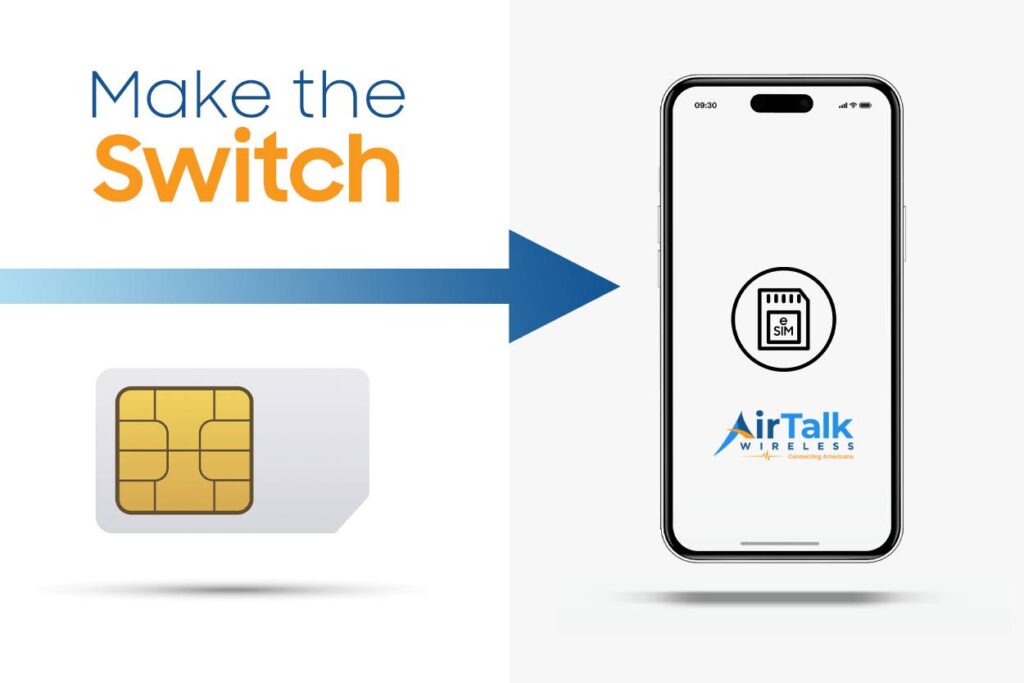
For compatible devices, eSIM offers a different approach. Because the SIM is installed digitally, there’s no physical card to wear out, become misaligned, or require replacement after years of use.
Eligible households may also qualify for Lifeline-supported service through participating providers such as AirTalk Wireless to get the eSIM service and more. Benefits may include:
- A free eSIM or SIM card
- Monthly talk, text, and data benefits
- Bring Your Own Device (BYOD) support
- Online activation from home
- Access to compatible device offers when available
For users who are tired of troubleshooting recurring SIM card issues, switching to eSIM can eliminate one of the most common points of failure while keeping cellular service active on a compatible phone.
Read more: How to Find SIM Card Number on Android: Top Best 3 Methods
5. FAQs
Why does my phone say physical SIM network not available?
This error usually appears when the phone cannot establish a connection with the carrier network. Common causes include a damaged SIM card, incorrect settings, carrier restrictions, account issues, or a network outage.
Can a damaged SIM card cause network not available errors?
Yes. Scratched or worn SIM contacts can prevent the phone from communicating properly with the carrier, resulting in intermittent service or complete loss of network access.
Will replacing the SIM card fix the problem?
It can, but only if the SIM card is the source of the issue. Problems caused by carrier settings, account status, phone compatibility, or network outages may require different solutions.
How do I know if the issue is the SIM card or the phone?
Testing the SIM card in another compatible device is often the quickest way to find out. If the error follows the SIM, the card or carrier account is the likely cause.
Can eSIM prevent physical SIM problems?
eSIM eliminates issues related to damaged SIM cards, worn contacts, and improperly seated SIM trays because no physical card is required.
6. Conclusion
A physical SIM network not available error can be frustrating, but it doesn’t always mean your phone is broken. In many cases, the issue can be traced to a damaged SIM card, incorrect settings, carrier provisioning problems, or a temporary network outage.
By working through a few targeted checks, you can usually identify the cause and restore service quickly. If SIM-related problems continue to return, it may be worth replacing the card or moving to eSIM on a compatible device to avoid future hardware-related connectivity issues.