

Important details shared during a call are easy to miss, especially when taking notes is inconvenient. For anyone asking how to record a phone call on iPhone, the challenge is finding a method that captures the conversation clearly without creating privacy or consent problems.
A suitable approach should preserve the call, make the recording easy to access later, and respect everyone involved. The available options also depend on the iPhone’s software and the circumstances surrounding the call.
1. Can You Record a Phone Call on an iPhone?
Yes, iPhones running iOS 18.1 or later can record phone calls directly through the built-in Phone app, without third-party apps. However, availability varies by country or region.
Here’s what you should know:
- Built-in recording: Start recording during a call using the Call Recording option.
- Automatic notifications: Both participants hear an announcement when recording begins.
- Saved recordings: Calls are automatically saved in the Notes app.
- Legal requirements: Check local consent laws before recording.
If you’re wondering how to record phone call on iPhone, the process is straightforward on supported devices.
2. How to Record a Phone Call on iPhone With the Built-In Feature
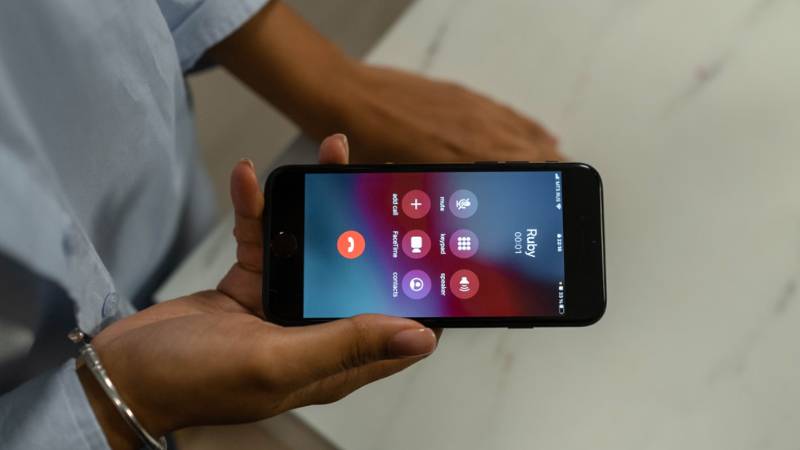
Learning how to record a call on an iPhone is simple with iOS 18.1 or later. The built-in Phone app records conversations without third-party tools, where the feature is supported.
Follow these five steps:
- Open the Phone app: Make or answer a call and wait until it connects.
- Tap More: During the call, tap the three-dot More button.
- Select Call Recording: Choose Call Recording from the menu.
- Wait for the announcement: Both participants hear an automatic notification before recording begins.
- Stop recording: Tap Stop Recording or end the call to save the audio automatically.
Your recording will appear in the Call Recordings folder in the Notes app, where you can play it back or view a transcript if supported.
Note: Call recording availability varies by region. Obtain the necessary consent before recording.
3. How to Record a Phone Call on iPhone Without the Built-In Feature
An alternative is necessary when the native control is unavailable because of an older iOS version, regional restrictions, or device-management settings. The following methods work differently, so check the cost, carrier support, and local consent requirements before proceeding.
Method 1: Use a Third-Party Call Recording App
Some recording services connect the user, the other participant, and a recording line through a conference call. The finished audio may then appear inside the app or an associated online account.
This approach usually requires three-way calling support from the wireless carrier. Some services also charge a subscription or per-minute fee, limit recording length, or store recordings on external servers.
Review the provider’s privacy policy and storage controls before allowing it to process a sensitive conversation.
Method 2: Use Speakerphone and Another Device
If you’re wondering how to record a phone call on iPhone without the built-in recording feature, using speakerphone and a second device is a simple alternative.
Place the call on speaker, increase the volume, and position another phone or digital recorder nearby. Start recording only after everyone has agreed.
Choose a quiet room and test the audio beforehand to ensure both voices are clear.
Note: The Voice Memos app on the same iPhone cannot reliably record both sides of a regular phone call.
>>> Read more: Can You Make Phone Calls on an iPad? Surprising Methods Most Owners Miss
4. Where to Find and Manage Recorded Calls
After knowing how to record a phone call on iPhone, the audio is automatically saved in the Notes app, where you can play, share, or review it.
- Find the Recording
Open Notes > Call Recordings and select the saved call. Recordings are stored automatically, so no manual download is needed.
- Play or Share a Recording
Tap the audio player to listen to your call. Use the available sharing options to save or send a copy. Avoid sharing recordings containing private information without permission.
- View Transcripts and Summaries
Supported iPhones can display call transcripts in Notes, depending on language and region. Compatible devices with Apple Intelligence may also generate call summaries.
Tip: Review the original audio to verify important details, as automatic transcripts may contain errors.
5. Why Can’t I Record a Phone Call on My iPhone?
Wondering how do I record a phone call on my iPhone when the recording feature isn’t showing up? Here are the common causes and how to fix them.
- Outdated iOS: Go to Settings > General > Software Update and install the latest compatible version.
- Regional restrictions: Apple’s built-in call recording isn’t available in every country or region.
- Recording disabled: Check Settings > Apps > Phone > Call Recording and enable the feature if available.
- Device restrictions: Work or school administrators may disable call recording on managed iPhones.
- Temporary issues: Restart your iPhone and try recording another call.
If the option is still missing, check Apple’s official call recording guide for feature availability and requirements.
6. Is It Legal to Record a Phone Call on iPhone?
Yes, recording phone calls on an iPhone is generally legal when you follow applicable consent laws. In the U.S., these rules vary by state:
- One-party consent: Generally, one participant’s consent is sufficient.
- All-party consent: Everyone on the call must agree before recording.
For calls across state lines, multiple laws may apply. Apple’s automatic recording announcement does not replace your legal responsibilities.
To avoid consent issues, ask all participants for permission before recording. Check the Reporters Committee’s state-by-state recording guide for more details.
7. FAQs
Can You Record a Phone Conversation on an iPhone?
Yes. Supported iPhones can record calls through the Phone app, while other devices may require a third-party service or a separate recorder.
How Do I Turn On Call Recording on My iPhone?
There is no permanent switch that needs to be enabled first. During a connected call, tap More, select Call Recording, and wait for the audible notice.
When You Record a Call on iPhone, Does the Other Person Know?
Yes. Apple’s built-in recorder plays an announcement that both participants can hear when recording starts.
Can I Record a Call on My iPhone Without an Announcement?
The announcement cannot be disabled when using Apple’s built-in feature. Other recording methods may behave differently, but consent and recording laws still apply.
8. Conclusion
The built-in recorder offers the simplest answer to how to record a phone call on iPhone, provided the software and region support it. Calls can then be reviewed, shared, or transcribed through Notes.
When that feature is unavailable, a reputable conference-call service or separate recording device may work, but permission should always come before pressing Record.