
Many iPad owners eventually run into the same question. The device has a microphone, speakers, internet access, and even cellular connectivity on some models, so why can’t it be used like a phone?
The answer is a little more complicated than a simple yes or no.
If you’re wondering can you make phone calls on an iPad, let’s read on to see what an iPad can and can’t do when it comes to phone calls, the different calling methods available, and which option makes the most sense for your setup.
1. Can You Make Phone Calls on an iPad?
Yes, but not always in the way most people expect.
Unlike an iPhone, an iPad isn’t primarily designed as a traditional phone. Most models cannot place regular cellular calls out of the box using the built-in Phone app because that app doesn’t exist on iPadOS.
That said, iPads can still handle voice calls in several different ways. Depending on your device and setup, you may be able to make calls through FaceTime Audio, use your nearby iPhone to place and receive calls, activate a voice-capable cellular plan, or rely on internet-based calling apps.
The best option depends on whether you’re connected to Wi-Fi, have an iPhone, or use a cellular-enabled iPad.

2. How Phone Calls on an iPad Actually Work
There isn’t just one way to call from an iPad. Apple and third-party services provide several different methods, each with its own advantages.
FaceTime Audio Over Wi-Fi
For many iPad owners, this is the simplest option.
FaceTime Audio lets you make voice calls to other Apple users over the internet. As long as both people have an Apple device and internet access, the call works without using a traditional phone line.
Benefits include:
- No cellular voice plan required
- High call quality
- Works over Wi-Fi or cellular data
- Built directly into Apple devices
The main limitation is that the person you’re calling also needs to use Apple’s ecosystem.
Continuity Calling Through Your iPhone
If you own both an iPhone and an iPad, Apple can make the two devices work together.
With Continuity Calling enabled, your iPad can place and receive regular phone calls using your iPhone’s phone number. When someone calls your iPhone, the call can ring on your iPad as well.
For many users, this feels closest to having full phone functionality on the tablet without needing a separate number.
Cellular Calls on iPad With eSIM and a Voice Plan
Some cellular-enabled iPads support eSIM and mobile data plans.
In certain situations, carriers may offer voice-enabled services that allow calls through supported applications or carrier-specific solutions. Availability varies significantly by carrier and region.
This isn’t as common as calling through an iPhone or VoIP app, but it can provide more independence from another device.
Before choosing this route, check whether your carrier supports voice services for your specific iPad model.
VoIP Apps Like Google Voice and Skype
Internet calling apps provide another popular option.
Services such as Google Voice, Skype, WhatsApp, Zoom, Microsoft Teams, and similar apps allow users to place voice calls through an internet connection.
Depending on the service, you may be able to:
- Call other app users for free
- Receive your own phone number
- Call landlines and mobile numbers
- Send messages alongside calls
For users who don’t own an iPhone, VoIP apps are often the most flexible solution.
3. How to Set Up Each Calling Method Step by Step
The setup process varies depending on which calling option you choose.
Setting Up FaceTime Audio
You can get started with FaceTime Audio by following these steps:
- Open Settings on your iPad.
- Tap FaceTime.
- Sign in with your Apple ID if needed.
- Open the FaceTime app.
- Select a contact and choose Audio to start a voice call.
Setting Up Continuity Calling With an iPhone
To use your iPhone’s phone number on your iPad:
- Make sure both devices are signed into the same Apple ID.
- Connect both devices to Wi-Fi.
- On your iPhone, go to Settings > Phone > Calls on Other Devices.
- Enable your iPad under the device list.
- On the iPad, go to Settings > FaceTime and enable Calls from iPhone.
Once enabled, calls to your iPhone can also ring on your iPad.
Setting Up Cellular Calling Through eSIM
If your iPad supports eSIM and your carrier offers compatible service:
- Open Settings > Cellular Data.
- Tap Add eSIM.
- Scan the carrier’s QR code or use the carrier app.
- Complete activation.
- Follow any carrier-specific instructions for voice services.
Support varies by provider, so the exact process may differ.
Setting Up a VoIP Calling App
Most VoIP services follow a similar setup process:
- Download the app from the App Store.
- Create or sign in to your account.
- Verify your phone number if required.
- Grant microphone permissions.
- Start making or receiving calls through the app.
For users who mainly need occasional calling, this is often the fastest solution.
4. Limitations to Know Before You Rely on iPad Calling
Before turning your iPad into your primary calling device, it’s worth understanding a few limitations.
First, not every calling method works everywhere. FaceTime Audio requires the person you’re calling to use an Apple device, while some VoIP apps require both users to have the same app installed.
Second, call quality depends heavily on your internet connection. A weak Wi-Fi signal or congested cellular network can affect voice quality more than a traditional phone call.
There’s also the issue of convenience. While an iPad works well for occasional calls, carrying a tablet around for everyday communication isn’t always practical compared to using a smartphone.
Finally, some cellular iPads support mobile data but do not function exactly like a traditional phone.
Depending on the carrier and plan, voice calling options may be more limited than what you’d find on a dedicated smartphone.
5. Want Real Voice Calls From Your iPad at $0 Monthly?
If your goal is simply to make and receive calls, an iPad may not always be the most cost-effective option.
Cellular-capable iPads can be expensive, and many users ultimately discover that they primarily want reliable calling, texting, and mobile data rather than a large-screen tablet.
For eligible individuals and households, AirTalk Wireless participates in the federal Lifeline program, which helps provide affordable phone service through participating providers.
Through AirTalk, qualified users may receive free or discounted smartphones along with monthly talk, text, and data benefits.
Popular device options can vary, but examples may include:
- Apple iPhone SE (3rd Gen)
- Apple iPhone 11
- Apple iPhone 12
- Samsung Galaxy A15 5G
- Samsung Galaxy A14 5G
- Samsung Galaxy S series devices (availability varies)
- Motorola G series smartphones
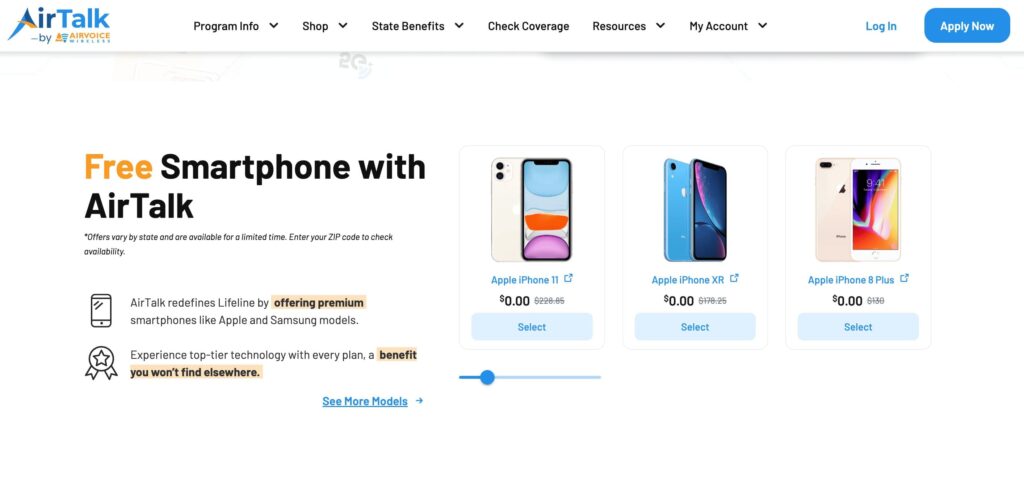
These devices are designed specifically for voice communication and often provide a more convenient calling experience than relying on a tablet alone.
If you’re primarily looking for a way to make phone calls, send texts, and stay connected without adding another expensive monthly bill, exploring available phone options may be worth considering.
Read more: How to Activate eSIM: The Effortless Step-by-Step Guide for iPhone and Android (2026)
6. FAQs
How can I make phone calls from my iPad?
You can make calls through FaceTime Audio, Continuity Calling with a nearby iPhone, VoIP apps such as Google Voice or Skype, or certain carrier-supported cellular services depending on your iPad model and plan.
Can an iPad have a phone number?
Yes. Some services, such as Google Voice or carrier-supported cellular plans, can assign a phone number that works with your iPad. However, not every iPad automatically receives a traditional phone number simply because it has cellular data.
Do I need an iPhone to make calls from an iPad?
No. While Continuity Calling requires an iPhone, other options such as FaceTime Audio and VoIP apps work independently as long as the iPad has internet access.
Can someone call my iPad directly?
Yes, but the method depends on the service being used. FaceTime calls can be placed directly to your Apple ID, while VoIP services may provide a dedicated phone number for incoming calls.
7. Conclusion
The answer to can you make phone calls on an iPad is yes, but the experience depends on the method you choose. FaceTime Audio, iPhone Continuity, eSIM-enabled cellular service, and VoIP apps can all turn an iPad into a capable calling device.
For occasional calls, these options often work surprisingly well. If voice communication is your primary goal, however, a dedicated smartphone may still offer the most convenient and reliable experience for everyday use.