
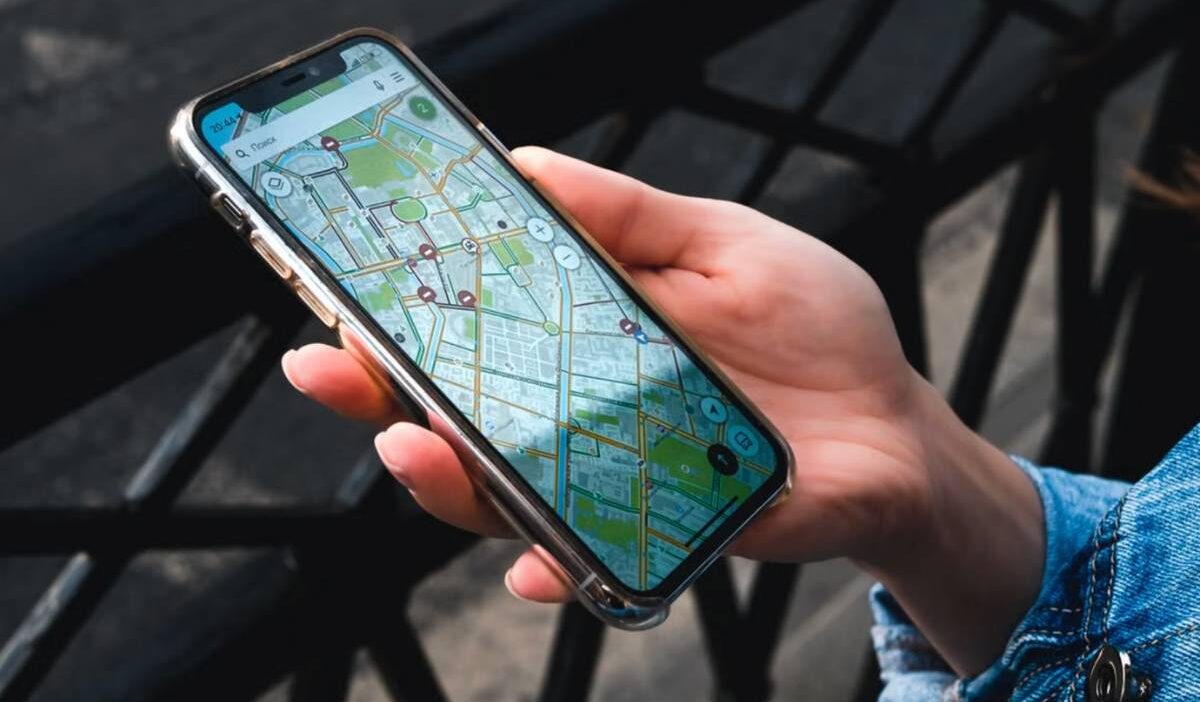
GPS problems can show up in several ways: your location may be inaccurate, navigation may stop updating, or an app may struggle to determine where you are at all. The cause is not always the GPS signal itself, which can make troubleshooting frustrating.
This guide explains how to fix GPS not working and walks through the checks you can make across different devices and navigation apps.
1. Why Is Your GPS Not Working?
GPS Your GPS may stop working because your phone cannot get an accurate location signal or an app does not have the access it needs.
Common causes include weak satellite reception, disabled Location Services, incorrect app permissions, battery-saving settings, outdated software, or temporary system glitches.
The type of problem can help identify the cause:
- Location jumps or appears inaccurate: Signal interference or poor GPS accuracy may be the issue.
- Only one app has problems: Check that app’s location permissions and settings.
- All location-based apps fail: Start with your phone’s system-level location settings.
In many cases, GPS problems are caused by settings or signal conditions rather than a damaged GPS component.
2. How to Fix GPS Not Working
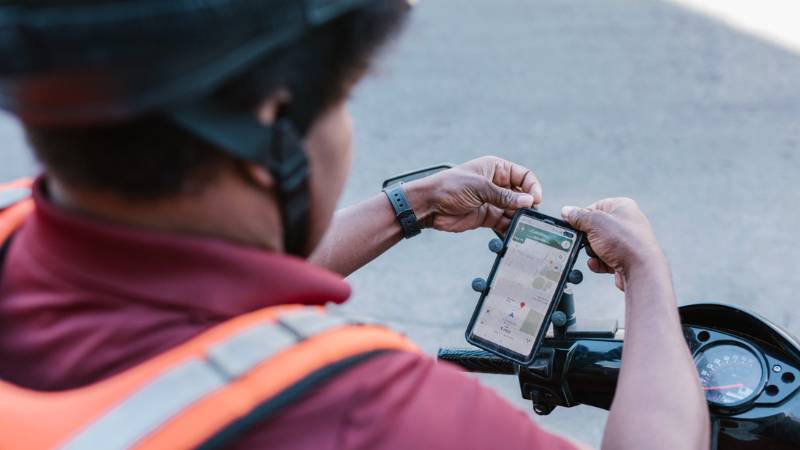
Start with simple checks before resetting settings or assuming there is a hardware problem. The steps below address both system-wide location problems and app-specific issues, including how to fix Waze GPS not working.
Turn Location Services Off and Back On
Temporarily disabling and re-enabling location services can refresh the phone’s access to location data.
On iPhone, go to Settings > Privacy & Security > Location Services. On Android, the exact path varies, but Location is generally available through Settings > Location.
Turn the setting off, wait a few seconds, then switch it back on and test your navigation app again.
Move to an Open Area for a Better GPS Signal
Buildings, tunnels, parking garages, dense tree cover, and other obstructions can make satellite positioning more difficult.
Move outdoors to an area with a clearer view of the sky and give the device a moment to update its position. If accuracy improves significantly, the surrounding environment rather than the device itself may have been causing the problem.
Check App Location Permissions
If you’re learning how to fix GPS not working, checking app permissions is a good place to start. A navigation app needs permission to access your location, and some features may require access while the app is in use.
Open your phone’s app permission settings and check the affected navigation app. Make sure location access has not been denied or restricted unintentionally.
For Waze specifically, Google recommends checking the phone’s location settings and the app’s location permission when Waze cannot determine your position.
Restart Your Phone
A restart can clear temporary processes that are interfering with location services without deleting your data or changing your settings.
Turn the phone off normally, wait briefly, restart it, and then open a navigation app in an outdoor location to see whether positioning has recovered.
A restart is also a useful first troubleshooting step when researching how to fix Garmin GPS not working, although Garmin devices have their own acquisition and troubleshooting procedures depending on the model.
Update Your Phone and Apps
Check for available operating-system updates as well as updates for the navigation app that is causing trouble.
Updates can contain bug fixes and compatibility changes affecting location-based services. If only one navigation app has stopped working, update that app before making broader changes to the phone.
Reset Location & Network Settings
If other methods for how to fix GPS not working have not helped, a location or network settings reset may resolve incorrect or corrupted configurations.
Treat this as a later troubleshooting step because a reset may remove saved preferences, permissions, Wi-Fi networks, or other settings depending on the device and reset option selected.
Check exactly what your phone’s reset option removes before confirming it.
3. How to Fix GPS Issues on Android
Android phones have several additional location settings that can affect GPS performance. The exact menu names vary by Android version and manufacturer, so check your device settings if the paths below look slightly different.
- Check Android location settings
Open Settings > Location and make sure location access is enabled. Also review available location-accuracy options that can use Wi-Fi, mobile networks, or Bluetooth alongside GPS to improve positioning.
- Calibrate Google Maps
If your position appears correct but the direction is wrong, open Google Maps and tap the blue location dot. Follow the available calibration instructions. This is particularly useful when the blue beam is wide or points in the wrong direction.
- Clear the Google Play services cache
When troubleshooting how to fix GPS not working on your Android, clearing the Google Play services cache may help with system-wide location issues.
Go to Settings > Apps > Google Play services > Storage & cache > Clear cache. Avoid clearing all Google Play services data unless other fixes have failed.
- Review manufacturer-specific battery optimization
Some Android devices restrict background activity to conserve battery, which can interfere with continuous location updates. Check the battery settings for your navigation app and make sure it is not being unnecessarily restricted while you use GPS.
Avoid disabling battery optimization system-wide; adjust it only for the affected app when needed.
>>> Read more: How to Activate Android Phone Without SIM Card: 3 Easy Methods (2026)
4. How to Fix GPS Issues on iPhone
If the general fixes above have not worked, several iOS settings are worth checking when troubleshooting how to fix iPhone GPS not working. These controls determine whether apps can access your location accurately and whether iOS location permissions are functioning as expected.
- Check Precise Location
Go to Settings > Privacy & Security > Location Services, choose the affected app, and check Precise Location. When it is disabled, an app may receive only an approximate location rather than your specific position.
- Enable Location Services
If you’re learning how to fix GPS not working, start by checking whether Location Services is enabled. Go to Settings > Privacy & Security > Location Services, turn it on, then review the affected app’s permission.
- Reset Location & Privacy settings
If permissions appear incorrectly configured, go to Settings > General > Transfer or Reset iPhone > Reset > Reset Location & Privacy. This restores location and privacy settings to their defaults, so apps will ask for permission again when needed.
- Update iOS
Check Settings > General > Software Update for an available iOS update. Keeping iOS current ensures your device has Apple’s latest system fixes and improvements.
5. When Your GPS Still Isn’t Working
If none of the software troubleshooting solves the problem, how to fix GPS not working may no longer be a matter of changing another setting. The pattern of the problem can help determine what to do next.
- Look for signs of a hardware problem
Suspect a device-level issue if GPS remains inaccurate across multiple location apps, continues failing outdoors with a clear view of the sky, or started malfunctioning after physical or water damage.
- Contact the device manufacturer or carrier
The manufacturer can help diagnose possible device hardware problems. Your carrier may be more relevant when the issue involves cellular connectivity or assisted location features rather than satellite reception itself.
- Use temporary alternatives
Wi-Fi and cellular-based positioning may still provide approximate location information when available. Downloaded offline maps can also keep map data accessible without a data connection, although offline maps do not repair a malfunctioning GPS receiver.
6. FAQs
Why is my GPS suddenly not working?
GPS may suddenly stop working because of disabled Location Services, changed app permissions, weak satellite signals, battery-saving settings, or a temporary software issue. If only one app is affected, check that app first.
How do I fix my GPS issue?
Turn on Location Services, check the app’s location permission, move to an open area, and restart your phone. If GPS still fails across multiple apps, check for software updates and review your device’s location settings.
Why is my GPS not telling me where to go?
If your location appears correctly but directions do not start, the issue may be with the navigation app rather than GPS. Make sure navigation is active, a route is available, and the app has internet access or offline maps.
How do I reset my GPS?
Most phones do not have a dedicated GPS reset button. On iPhone, you can use Reset Location & Privacy. On Android, reset options vary by device, so check what settings will be affected before proceeding.
7. Conclusion
GPS trouble is easier to narrow down once you identify whether the problem follows one app, one environment, or the entire device.
With how to fix GPS not working, begin with location access and signal conditions before moving into resets or possible hardware issues. That approach can often reveal where the failure actually sits without changing settings that were already working correctly.