
Forgot your own phone number? It happens more often than you’d think, especially after activating a new SIM card, switching devices, or setting up a secondary line.
If you’re trying to know how to check mobile number from sim, you usually won’t need to contact your carrier. Most phones can display the number directly through device settings, account information, or SIM details.
This guide walks through the fastest methods for iPhone and Android users, along with a few universal tricks that can help when the number doesn’t appear automatically.
1. How to Check Mobile Number from SIM on iPhone
If you’re using an iPhone, there are a couple of places where your phone number may already be stored.
The exact location can vary slightly depending on your iOS version and carrier settings, but these methods work for most users.

Settings Method
The quickest place to look is usually the Phone settings menu.
You can check it by:
- Opening Settings.
- Tapping Phone.
- Looking for My Number.
If your carrier has stored the number on the SIM, it should appear here automatically.
Contacts Card Method
Your personal contact card may also contain the number associated with the device.
To check:
- Open the Contacts app.
- Select My Card at the top of the list.
- Review the phone number shown in your contact details.
This method is particularly useful if you’ve already completed the iPhone setup process and saved your information.
2. How to Check Mobile Number from SIM on Android
Android phones can store SIM information in different locations depending on the manufacturer. Fortunately, finding the number usually takes less than a minute.
Settings App Method
Many Android devices display the number directly within the settings menu.
You can usually find it by:
- Opening Settings.
- Tapping About Phone or About Device.
- Looking for Phone Number, SIM Information, or SIM Manager.
If the number has been programmed into the SIM profile, it should appear here.
Phone Status Method
If the number doesn’t appear in the main settings menu, the device status section is often the next place to check.
Here’s how to find it:
- Open Settings.
- Go to About Phone.
- Tap Status or SIM Status.
Depending on the device, you’ll see information such as network status, SIM details, and the mobile number associated with the line.
3. Universal Tricks That Work on Almost Any Carrier
Sometimes the number isn’t stored correctly on the SIM card, or the phone simply doesn’t display it. When that happens, a few simple workarounds can help you identify the number quickly.
Dial Your Own Number from a Friend’s Phone
If your SIM is active and able to receive calls, ask someone nearby to call you.
The number displayed on their screen is the number associated with your SIM card. This is often the fastest solution when phone settings aren’t showing the information.
Send Yourself a Text
If you have access to another device, try sending a text message from your phone.
The receiving device will show the sender’s number, making it easy to confirm which number is attached to the SIM.
Use Your Carrier App or Web Portal
Most carriers provide account information through their mobile apps or websites.
After signing in, look for sections such as:
- Account Information
- My Line
- Device Details
- Mobile Number
This can be especially useful if the number isn’t displayed on the device itself or if you’re managing multiple lines on the same account.
4. What to Do If Your SIM Won’t Show the Number
In some cases, your phone may detect the SIM card correctly but still fail to display the associated number. This is more common than many people realize and doesn’t always indicate a problem with the SIM itself.
If the number isn’t appearing, try the following:
- Restart your phone and check the settings again.
- Remove and reinsert the SIM card to refresh the connection.
- Check for carrier settings or system updates that may affect SIM information.
- Try the SIM in another compatible device to see whether the number appears there.
- Sign in to your carrier account through the carrier app or website and verify the number assigned to the line.
- Contact your carrier directly if none of the above methods work.
If you’ve dealt with activation errors, connection issues, or SIM-related troubleshooting more than once, it may be worth looking at alternatives to a physical SIM card.
AirTalk Wireless is a wireless service provider that participates in the federal Lifeline program, which helps eligible individuals and households access affordable phone service.
In addition to traditional SIM cards, AirTalk also supports eSIM activation on compatible devices.
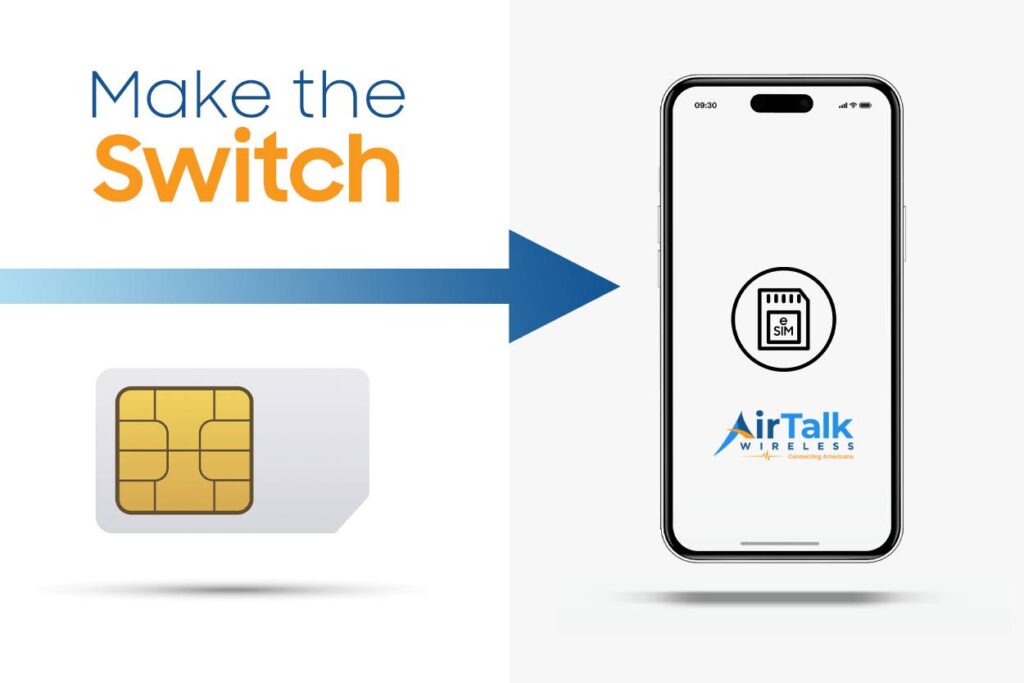
Because an eSIM is built directly into the phone, there’s no physical card to insert, remove, or replace.
That can eliminate some of the common issues associated with damaged SIM cards, faulty SIM trays, or repeated SIM-related troubleshooting.
Read more: Does My Phone Have an eSIM? Here’s How to Check in 1 Minute
5. FAQs
Why does my phone show “Unknown” for my number?
This usually happens when the carrier has not programmed the number into the SIM profile or the device cannot read the information correctly.
Can I check my mobile number without making a call?
Yes. Most users can find it through their phone settings, carrier app, online account portal, or contact card without placing a call.
Will my number change if I move the SIM card to another phone?
No. Your mobile number is associated with the SIM and carrier account, not the phone itself. Moving the SIM to a compatible device typically keeps the same number.
Can an inactive SIM card still display a phone number?
Sometimes. Even if a SIM card is no longer active, the number may still appear in the phone settings. However, this information is not always guaranteed to be accurate after deactivation.
6. Conclusion
Learning how to check mobile number from SIM is usually much easier than people expect. Whether you’re using an iPhone, Android device, or your carrier’s account tools, there are several quick ways to find the number linked to your line.
And if the number doesn’t appear immediately, a few simple checks can help determine whether the issue is related to the SIM, the device, or the carrier account. In most cases, the answer is only a minute or two away.