Not sure if your eSIM is fully active on your iPhone after setup? In many cases, it’s easy to miss whether everything is actually working, especially when there’s no clear confirmation.
Fortunately, it only takes about a minute to confirm. In this guide, you’ll learn exactly how to check if eSIM is activated in iPhone, along with simple signs, quick fixes, and what to do if something isn’t working.
1. How to Check If eSIM Is Activated in iPhone (Step-by-Step)
Before you assume the setup is complete, it’s important to double-check your iPhone’s settings to confirm the eSIM is actually active. The process is quick and doesn’t require any technical steps beyond a few taps.
Follow the steps below:
- Step 1: Open Cellular / Mobile Data Settings
Start by going to Settings on your iPhone, then tap Cellular (or Mobile Data, depending on your region). This is where all SIM and eSIM lines are managed.
- Step 2: Look for Your Active Line
Inside the Cellular menu, check whether your eSIM plan appears under SIMs or Cellular Plans. If you see a carrier name or label like “Primary” or “Secondary,” your eSIM has been successfully added to the device.
- Step 3: Confirm It Is Turned On
Tap the eSIM line and make sure the toggle “Turn On This Line” is enabled. If it’s off, your eSIM will not connect to the network even if it is installed.
- Step 4: Verify Signal and Data Status
Look at the top of your screen for signal bars and a carrier name. Then turn off Wi-Fi and try using mobile data. If apps, browsing, or messaging work normally, your eSIM is fully activated and functioning correctly.

2. 5 Clear Signs Your eSIM Is Successfully Activated
If you’ve already gone through how to check if eSIM is activated in iPhone and still have doubts, here are a few clear signs to look for:
- You see a carrier signal: Your iPhone displays signal bars along with your carrier name, indicating a live connection to the network.
- Mobile data works: You can browse the internet, use apps, or stream content without relying on Wi-Fi, showing that your eSIM data is active.
- Calls and texts go through: You can make calls and send SMS or iMessages using the eSIM line without errors or interruptions.
- eSIM shows as active in settings: Inside your Cellular settings, the eSIM line is turned on and not marked as inactive or unavailable.
- No activation error messages: There are no pop-ups like “No Service,” “Activation Failed,” or “SIM Not Supported,” which usually indicate setup issues.
If you check all five boxes above, your eSIM is fully activated and ready to use.
3. How to Check eSIM Activation by iPhone Model
When learning how to check if eSIM is activated in iPhone, your device model also matters.
Each iPhone generation may show eSIM settings in slightly different places. That’s why it helps to know exactly which model you’re using.
iPhone Models With Dual SIM (Physical SIM + eSIM)
iPhones from the XS, XR, and newer (excluding U.S. iPhone 14+) support both a physical SIM and an eSIM. To check activation:
- Go to Settings > Cellular
- You’ll see both your physical SIM and eSIM listed
- Each line will show its status (active or inactive)
This setup is useful if you want to keep two numbers, such as personal and work lines.
eSIM-Only iPhones (U.S. Models iPhone 14 and Newer)
In the U.S. market, newer models no longer include a SIM tray and rely entirely on eSIM. To confirm activation:
- Open Settings > Cellular
- Look for at least one active cellular plan
- Ensure signal bars appear at the top of your screen
Since there’s no physical SIM fallback, a working signal is the clearest indicator your eSIM is active.
>>> Also read: First iPhone with eSIM Revealed: Surprising Model That Changed
4. Why is eSIM not Activating on iPhone? Common Reasons & Easy Fixes
If you’re learning how to check if eSIM is activated in iPhone and notice that something doesn’t look right, it usually means the activation didn’t go through as expected.
In most cases, the issue is temporary and can be fixed with a few simple adjustments.
Common Reasons
These are the most frequent causes behind eSIM activation problems:
- Activation process not completed: Sometimes the setup is interrupted or not fully confirmed, leaving the eSIM inactive.
- Weak or no network coverage: If you’re in an area with poor signal, your iPhone may not connect to the carrier.
- Carrier delay or provisioning issue: Some carriers take time to activate your plan on their end, even after setup.
- Incorrect QR code or setup error: Using an expired or incorrect QR code can prevent proper activation.
Quick Fixes
If your eSIM still isn’t working after checking, try these quick solutions:
- Restart your iPhone: A simple reboot often refreshes network connections and completes activation.
- Turn Airplane Mode on/off: Enable Airplane Mode for 10–15 seconds, then turn it off to reset connectivity.
- Check Wi-Fi connection: A stable internet connection is required during eSIM setup and activation.
- Re-scan eSIM QR code: Go to Settings > Cellular > Add eSIM and scan your QR code again if needed.
- Contact your carrier for activation support: If nothing works, your carrier may need to manually activate or refresh your plan.
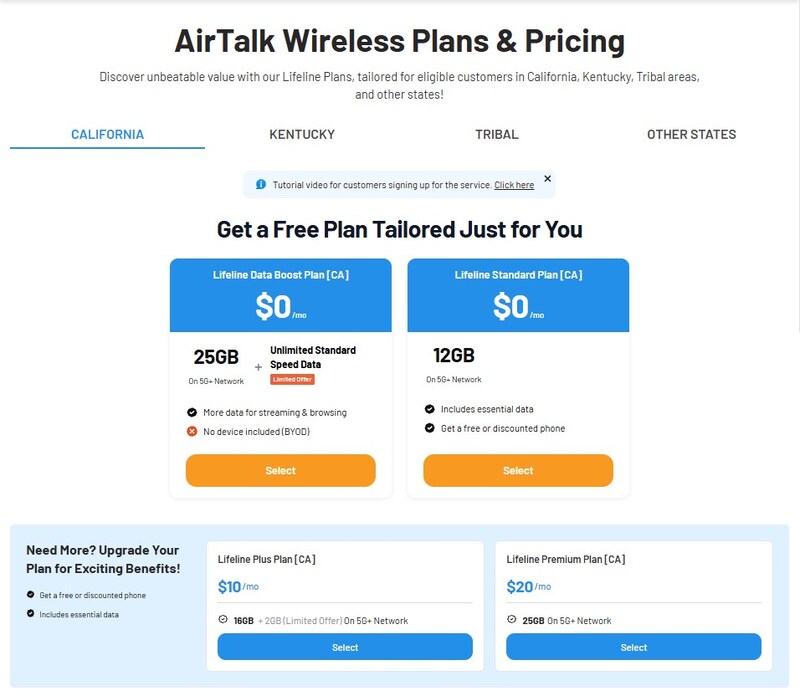
5. Need a Reliable eSIM Plan? Stay Connected with AirTalk Wireless
If you’re still setting up your eSIM or looking for a more affordable option, choosing the right provider makes a big difference.
AirTalk Wireless, as an Eligible Telecommunications Carrier (ETC) participating in the Lifeline program, provides access to affordable or free mobile plans designed to support eligible users.
These plans typically include talk, text, and data, helping reduce monthly communication costs while keeping essential connectivity within reach.
This is especially useful for users who are looking for a budget-friendly option or need a reliable service without high upfront expenses.
Here’s how to get started:
- Check eligibility based on SNAP, Medicaid, or income level.
- Visit AirTalk Wireless and enter your ZIP code to check service availability.
- Choose a plan and device that fits your needs.
- Enter your information and upload any required documents if needed.
- Submit your application and wait for approval.
- Activate your service following the provided instructions.
If you’re ready, apply today and set up a reliable eSIM plan that fits your budget!
6. FAQs
Does eSIM take 24 hours to activate?
In most cases, eSIM activation happens within a few minutes after setup. However, depending on your carrier and network conditions, it can sometimes take a few hours or up to 24 hours to fully activate and stabilize.
Can I activate eSIM myself?
Yes, you can activate an eSIM yourself by scanning a QR code or entering activation details provided by your carrier. The process is designed to be user-friendly and typically only takes a few minutes to complete.
Is there a fee to activate an eSIM?
Some carriers may charge a small activation fee, while others include it for free as part of their plans. In certain programs, eligible users can even access plans with no upfront activation cost.
How do I check my eSIM status?
You can check your eSIM status by going to Settings > Cellular and reviewing your active lines. If your eSIM is turned on and shows signal bars, it is active and working properly.
How do I check if my device is eSIM-enabled?
Go to Settings > Cellular and look for an option to add or manage an eSIM. If this option is available, your device supports eSIM technology and can activate a digital SIM.
Final Thoughts
Knowing how to check if eSIM is activated in iPhone helps you avoid confusion and ensures your device is fully connected. With just a few quick checks, you can confirm everything is working or fix it fast if it’s not.
If you’re still setting things up, choosing the right eSIM provider can make the process even smoother. Once everything is working, you can simply focus on using your phone without interruptions.