Buying cellular service for an iPad sounds simple until you realize not every model works the same way.
Some iPads have a physical SIM card slot. Others support both a SIM card and eSIM. Newer U.S. models may not have a SIM tray at all, which can leave many users wondering what they actually need to get connected.
An iPad SIM card can give you internet access almost anywhere without relying on Wi-Fi, but the setup process depends heavily on the generation and model you own.
This guide explains which iPads use physical SIMs, which support eSIM, how activation works, and what to know before choosing a cellular plan.
1. Does Every iPad Have a SIM Card Slot?
No. Whether an iPad has a SIM card slot depends on the model, generation, and sometimes even the country where it was sold.
Wi-Fi-only iPads do not support cellular service and therefore do not have a SIM tray or eSIM functionality.
Cellular models, on the other hand, are designed to connect to mobile networks and may support a physical SIM card, eSIM, or both.
This is where things can get confusing. Apple has gradually shifted many iPad models toward eSIM, and some of the newest U.S. versions no longer include a physical SIM slot at all.
Before purchasing a plan or SIM card, it’s worth confirming exactly which iPad model you have and what type of cellular connectivity it supports.
2. iPad SIM Card Setup by Generation
The way you activate cellular service can vary significantly depending on when your iPad was released.
Older iPads (Physical Nano SIM)
Many older cellular-capable iPads rely entirely on a physical nano SIM card.
With these models, getting online typically involves inserting a compatible SIM card into the tray and completing activation through the carrier. If the SIM is already active, the iPad may connect automatically within a few minutes.
This setup remains simple and familiar, but it lacks the flexibility offered by newer eSIM-enabled devices.
iPad Pro and iPad Air (Physical Plus eSIM)
Many recent iPad Pro and iPad Air models support both a physical SIM card and eSIM.
This gives users more flexibility when choosing a carrier or adding a secondary line for travel. Some people prefer to keep a physical SIM for their primary plan while using eSIM for temporary data plans when traveling.
Because both options are available, these models tend to offer the most flexibility for cellular connectivity.
Newest iPads (eSIM Only in U.S.)
Apple has started removing the physical SIM tray from some newer U.S. iPad models.
With these devices, cellular service is activated digitally through eSIM rather than a removable card. Instead of inserting a SIM, you’ll typically scan a QR code, use a carrier app, or enter activation details provided by the carrier.
If you’re upgrading from an older iPad, this is often the biggest change you’ll notice during setup.
3. How to Insert or Activate an iPad SIM Card
Once you’ve confirmed which type of connectivity your iPad supports, the actual setup process is usually straightforward.
Physical SIM Insertion Steps
If your iPad uses a physical SIM card, you can follow these steps:
- Power off the iPad.
- Locate the SIM tray on the side of the device.
- Use a SIM eject tool or paper clip to open the tray.
- Place the nano SIM into the tray in the correct orientation.
- Reinsert the tray carefully.
- Turn the iPad back on and wait for network detection.
If the SIM is already activated, cellular service may become available automatically within a few minutes.
eSIM Activation via QR Code or Carrier App
For eSIM-capable models, activation is completed digitally.
You can usually activate service by:
- Opening Settings > Cellular Data.
- Selecting Add eSIM or Set Up Cellular Data.
- Scanning the QR code provided by the carrier or using the carrier’s app.
- Following the on-screen instructions to complete activation.
- Waiting for the cellular plan to download and connect.
Most activations only take a few minutes, although timing can vary depending on the carrier and account setup.
4. How Cellular Data on iPad Differs From iPhone
At first glance, cellular service on an iPad works much like it does on an iPhone. Both use a SIM card or eSIM to connect to a carrier’s network and access mobile data when Wi-Fi isn’t available.
The biggest difference is that most iPads are primarily crafted for data rather than traditional phone service.
While you can browse the web, stream videos, use navigation apps, join video calls, and send messages through apps, an iPad typically doesn’t make standard cellular voice calls the same way a phone does.
Many carriers also offer tablet-specific plans, which may have different pricing, data allowances, or activation requirements compared to smartphone plans.
For that reason, it’s always worth checking that a plan is intended for tablet use before activating it on an iPad.
5. Want a Free Cellular Line for Your iPad? Here’s the Quiet Way In
Many people assume cellular iPads require an expensive monthly tablet plan. In reality, there may be lower-cost options depending on your situation.
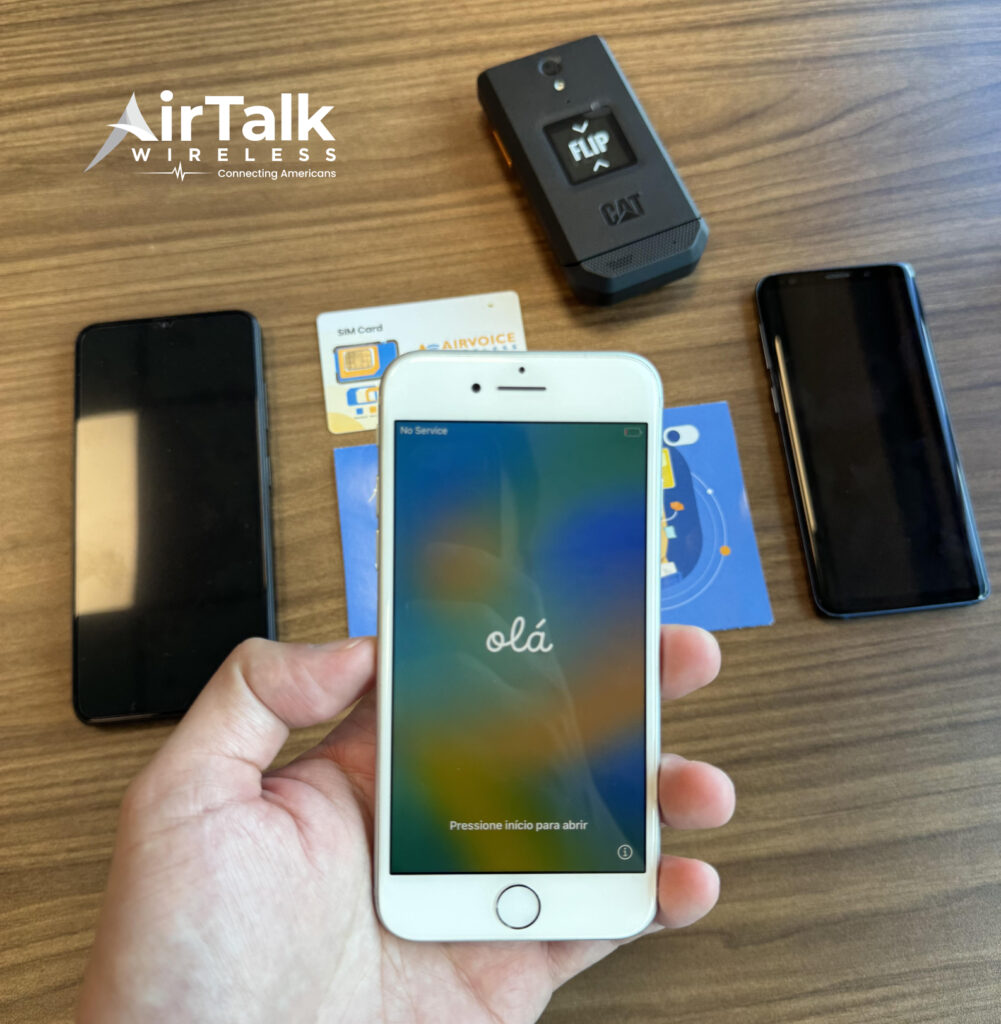
AirTalk Wireless is a wireless service provider that participates in the federal Lifeline program, which helps eligible individuals and households access affordable phone and internet service.
Depending on eligibility, location, and current availability, users may qualify for free or low-cost service that includes monthly data benefits.
For people who own a cellular-capable iPad, that can be worth exploring before committing to a traditional carrier tablet plan.
Getting started is fairly straightforward:
- Check eligibility based on income or participation in qualifying programs such as SNAP, Medicaid, SSI, or other approved assistance programs.
- Visit the AirTalk Wireless website and confirm service availability in your area.
- Review available plans and determine whether your device is compatible.
- Complete the application and upload any required verification documents.
- Wait for approval and follow the activation instructions provided.
If your iPad supports eSIM, activation may be completed digitally without waiting for a physical SIM card to arrive. This can make it easier to get connected, particularly for users who want cellular access on the go without adding another expensive monthly bill.
Read more: How To Get A Free iPad in 2026: Step-by-step Guide
6. FAQs
Can I put a phone SIM card in an iPad?
In some cases, yes. However, carriers may restrict certain phone plans from being used in tablets. It’s best to check your carrier’s policies before moving a SIM card between devices.
Can an iPad work without a SIM card?
Yes. Any iPad can connect to Wi-Fi networks without a SIM card. A SIM or eSIM is only needed for cellular data when Wi-Fi isn’t available.
How do I know if my iPad supports eSIM?
You can check by going to Settings > Cellular Data. If you see options such as “Add eSIM” or “Set Up Cellular Data,” your iPad likely supports eSIM.
Do all cellular iPads support both SIM and eSIM?
No. Support varies by generation and region. Some models support both, while certain newer U.S. models rely entirely on eSIM.
7. Conclusion
An iPad SIM card can unlock cellular connectivity almost anywhere, but the setup process depends heavily on the model you own. Older iPads typically use physical SIM cards, many recent models support both SIM and eSIM, and some newer U.S. versions have moved to eSIM only.
Before choosing a plan, take a moment to confirm your iPad’s cellular capabilities and activation options. Doing so can help you avoid compatibility issues and get connected much more quickly.