eSIM technology has made it much easier to stay connected on tablets without relying on physical SIM cards. For iPad users, this means you can activate mobile data in just a few steps, without visiting a store or swapping SIM cards.
But not every iPad supports this feature, and setup can vary depending on the carrier and model. So, how does eSIM for iPad actually work, and is it worth using in 2026? Let’s break it down clearly.
1. Which iPads Support eSIM?
Before setting up eSIM for iPad, it’s important to understand which models are compatible and how you can quickly check support directly on your device. Let’s go through the supported models first, then see how to confirm it in just a few steps on your iPad.
Compatible Models
Most modern cellular iPads support eSIM, especially newer generations designed with Apple’s built-in SIM technology. These models allow users to activate mobile data without a physical SIM card, making setup faster and more flexible across different carriers.
Common compatible devices include:
- iPad Pro (all cellular models from 2018 and later)
- iPad Air (3rd generation and newer with cellular support)
- iPad (7th generation and newer with cellular versions)
- iPad mini (5th generation and newer with cellular support)
These iPads are widely used for both personal and professional purposes, particularly for users who need reliable internet access on the go. With eSIM support, switching between data plans becomes much more convenient compared to traditional SIM cards.
How to Check if Your iPad Supports eSIM?
If you’re not sure whether your device supports eSIM, you can check it in a few simple ways.
Method 1: Check in Settings
Go to Settings > Cellular Data. If you see an option like “Add Cellular Plan” or “Add eSIM,” your iPad supports eSIM functionality. This is the fastest way to check without needing any external tools.
Method 2: Check your model details
You can also go to Settings > General > About, then note your model name or number. After that, compare it with Apple’s official specifications page to confirm whether your device includes cellular + eSIM support.
Keep in mind that Wi-Fi-only iPads do not support any mobile data features.

>>> Also read: eSIM Laptop: Can Your Computer Use eSIM and What Are the Real Options (2026)
2. How to Set Up eSIM for iPad (Step-by-Step)
Setting up eSIM for iPad is generally quick and user-friendly, and most carriers offer more than one way to activate your plan. Depending on your provider, you can either scan a QR code or use a carrier app to get started.
QR Code Method
This is the most common way to activate an eSIM on iPad, especially when you sign up through a carrier or receive a physical/online activation code.
To set it up:
- Go to Settings > Cellular Data
- Tap Add Cellular Plan
- Scan the QR code provided by your carrier
- Wait a few seconds for the plan to activate automatically
Once completed, your iPad will connect to the mobile network, and your data plan will be ready to use without needing a physical SIM.
Carrier App Method
Some carriers make activation even easier by allowing you to set up eSIM directly through their mobile app. This method is often preferred for existing customers who already have an account.
To activate:
- Download and open your carrier’s official app
- Sign in to your account
- Select a data plan or manage your existing line
- Tap Activate eSIM and follow the on-screen instructions
In most cases, the eSIM profile is installed automatically within minutes after confirmation.
Troubleshooting Tips
If your eSIM does not activate properly, a few simple fixes usually solve the issue:
- Restart your iPad to refresh network settings
- Make sure you are connected to stable Wi-Fi
- Check for the latest iPadOS updates
- Re-scan the QR code if activation fails
- Remove and re-add the cellular plan if needed
These steps help resolve the most common setup issues without needing carrier support.
3. Benefits and Downsides of Using eSIM for iPads
Using eSIM for iPad can make mobile connectivity much more flexible, especially for users who rely on their tablet for work, travel, or everyday browsing. However, like any technology, it also comes with a few limitations depending on your usage needs.
To make it easier to understand, here’s a clear breakdown of the main advantages and drawbacks:
| Benefits | Downsides |
| – No physical SIM card needed, so there’s nothing to insert or replace. – Quick activation process that can be completed in just a few minutes. – Easier to switch between carriers without visiting a store. – More convenient for travelers or remote workers using multiple networks. – Supports a cleaner, fully digital setup without SIM management. | – Not all carriers support eSIM equally across different regions. – Setup steps may vary depending on your carrier or location. – Switching devices can take more steps compared to moving a physical SIM. – Limited flexibility if you frequently change between multiple devices. |
Overall, eSIM for iPads works best for users who value convenience and flexibility over traditional SIM handling. It fits especially well for people who stay connected on the go and prefer a simple, digital-first setup experience.
4. Can You Get a Free eSIM Plan for your iPad?
Yes, it is possible to get a free or discounted eSIM plan for your iPad if you qualify for the Lifeline program and your device is compatible.
In the U.S., the Lifeline program provides monthly discounts on phone and internet services for eligible users.
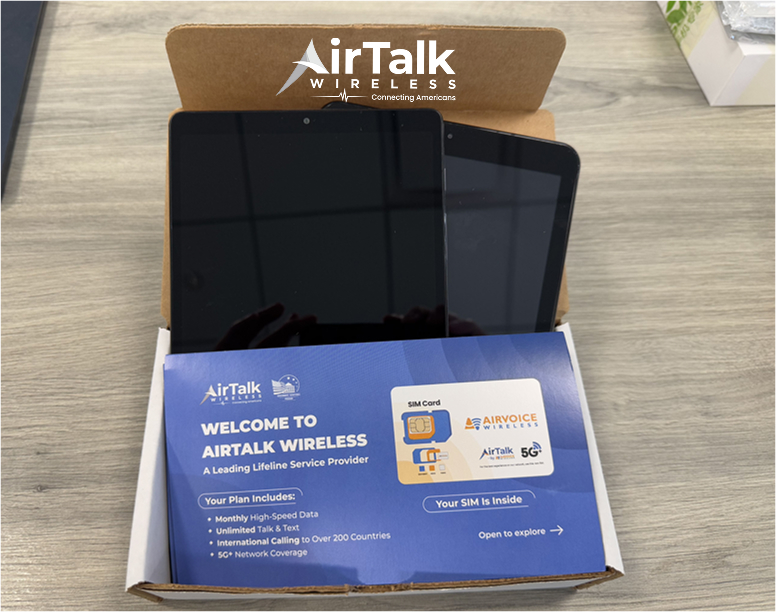
However, these benefits are not delivered directly by the government. Instead, they are offered through FCC-authorized service providers, such as AirTalk Wireless, which helps eligible customers access supported plans and devices.
When you apply for Lifeline through AirTalk Wireless, you can choose from different available plans depending on your eligibility. If your iPad support eSIM, you may qualify for a free or discounted eSIM data plan, making it easier to stay connected without extra setup or physical SIM cards.
If you’re not sure whether your device is compatible, you can quickly check here.
In addition, for users who do not already have a suitable device, AirTalk Wireless may also provide free or discounted smartphones and tablets, depending on availability and program rules.
This makes it a practical option for users looking to access eSIM services without high upfront costs.
If you’re interested in saving on your monthly data costs and getting set up with eSIM on your iPad, visit airtalkwireless.com today to check your eligibility and explore available plans.
Final Thoughts
eSIM for iPad makes mobile connectivity much simpler, especially for users who rely on tablets for work, travel, or everyday browsing. While not every iPad model supports it, most modern cellular versions are fully compatible and easy to set up.
If you value flexibility and quick activation, eSIM is a strong upgrade over traditional SIM cards. And for eligible users, providers like AirTalk Wireless may offer free or discounted eSIM plans, making it an even more practical option in 2026 for staying connected without extra hassle.