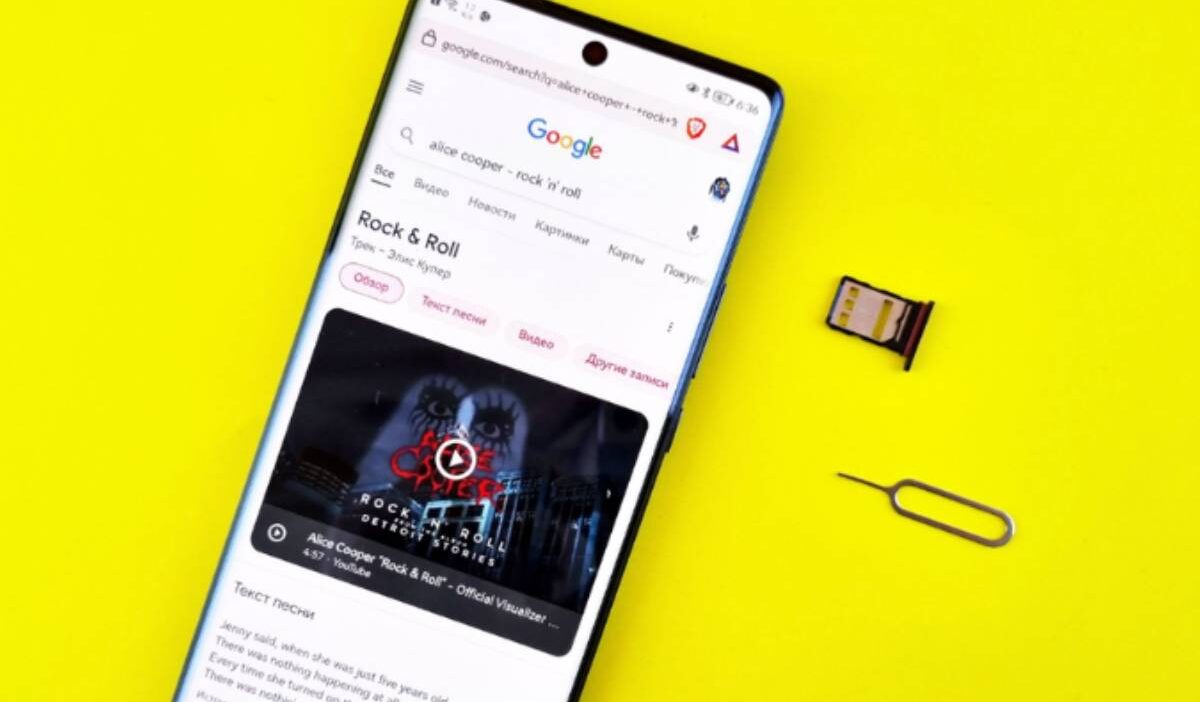
Switching from Android to iPhone is easier than it used to be, but one question often comes up before making the move: can you put an Android SIM card in an iPhone?
This guide explains when an Android SIM card will work in an iPhone, what problems to watch for, and how to complete the switch successfully.
1. Can You Put an Android SIM Card in an iPhone?
Yes. An Android SIM card can usually be used in an iPhone because SIM cards are tied to your carrier and phone number, not to the phone’s operating system.
That said, compatibility depends on factors such as carrier requirements, SIM card size, network support, and whether the iPhone is unlocked.
For many users, the switch is as simple as moving the SIM card from the Android phone to the iPhone and restarting the device.
2. When an Android SIM Card Will Work in an iPhone
In most cases, an Android SIM card will work in an iPhone if a few basic requirements are met.
- Same Carrier Network
Transfers are usually easiest when both devices use the same carrier.
In many cases, you can simply move the SIM card from the Android phone to the iPhone and continue using the same phone number, calls, texts, and mobile data.
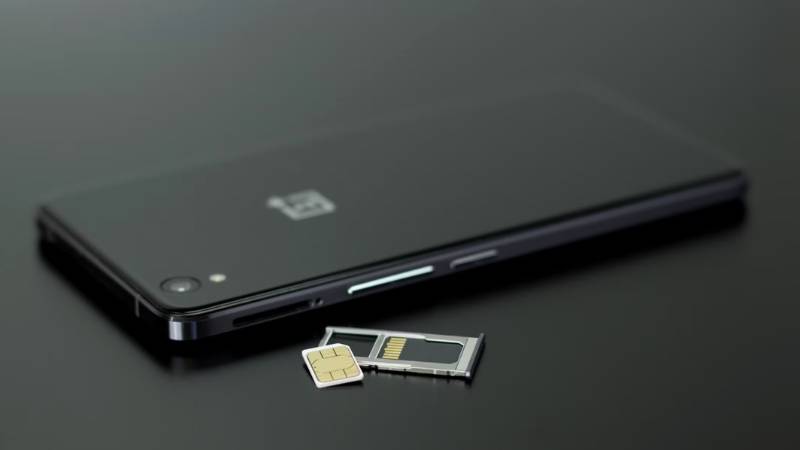
- Same SIM Size (Nano-SIM)
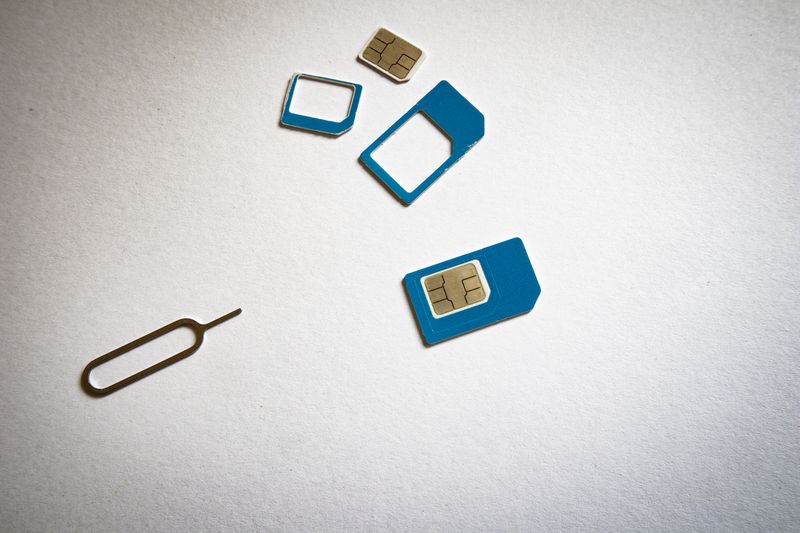
Most modern Android phones and iPhones use a nano-SIM card, so the card will often fit without any issues. However, some older Android devices may use larger SIM formats that require a replacement from your carrier.
Keep in mind that U.S. versions of the iPhone 14, iPhone 15, and iPhone 16 do not include a physical SIM tray and require eSIM activation instead.
- Unlocked iPhone
Your iPhone must be unlocked if the SIM card comes from a different carrier. A carrier-locked iPhone may reject the SIM card even if it fits properly.
To check, go to Settings > General > About > Carrier Lock. If you see “No SIM Restrictions,” the iPhone is unlocked and can typically accept SIM cards from other carriers.
>>> You might be interested in: iPhone SIM Card: A Practical Guide for Every Model
3. When an Android SIM Card Will Not Work in an iPhone
Can you put an Android SIM card in an iPhone? In many cases, yes. However, certain situations can prevent the SIM card from working correctly after the transfer.
- Carrier-Locked iPhone
A carrier-locked iPhone may only accept SIM cards from the carrier that sold the device. If you insert a SIM card from another network, you may see messages such as “SIM Not Supported” or “Invalid SIM.”
To use the SIM card, you’ll typically need to unlock the iPhone through the original carrier.
- Incompatible Network or Older Devices
Most modern Android phones and iPhones support the same LTE and 5G networks. However, some older devices may still experience compatibility issues when switching between carriers.
If the SIM card is detected but service doesn’t work properly, check with your carrier to confirm network compatibility.
- Carrier Restrictions or Plan Limitations
Some SIM cards are tied to specific plans or device types. In these cases, the SIM may be recognized by the iPhone, but calls, texts, or mobile data may not work as expected.
If service is limited after the transfer, contact your carrier to verify that your plan supports iPhone use.
4. How to Move a SIM Card from Android to iPhone
When it comes to can you put an Android SIM card in an iPhone, compatibility is only part of the process. Once you’ve confirmed the SIM card will work, the next step is moving it to your iPhone correctly.
In most cases, moving a SIM card from Android to iPhone takes only a few minutes. Before starting, make sure the iPhone is unlocked and supports the same SIM size as your Android device.
- Turn off both phones.
- Remove the SIM card from the Android device.
- Insert the SIM card into the iPhone’s SIM tray.
- Turn on the iPhone and wait for it to connect to the network.
- Test calling, texting, and mobile data.
If the iPhone recognizes the SIM card, your phone number and carrier service should become available automatically. You may also receive a prompt to update carrier settings, which is generally recommended.
5. What to Do If the SIM Doesn’t Work in Your iPhone
Most SIM transfer problems can be traced to carrier restrictions, activation issues, or compatibility settings.
First, restart the iPhone and check whether the carrier name appears at the top of the screen. If it doesn’t, go to Settings > General > About and wait a few seconds to see whether a carrier settings update becomes available.
If you see messages such as “SIM Not Supported” or “Invalid SIM,” the iPhone may be carrier-locked. You can verify this by checking Settings > General > About > Carrier Lock.
It’s also worth testing the SIM card in another device. If the SIM works elsewhere but not in the iPhone, the issue is likely related to the phone rather than the SIM card itself.
When none of these steps solve the problem, contacting your carrier is usually the fastest option. They can verify whether the line is active, confirm device compatibility, and determine whether an eSIM transfer is required.
>>> Read more: Free eSIM Service for iPhone: Get Real Coverage Without Paying a Dime
6. FAQs
Can you put an Android SIM card in any iPhone?
Not always. The SIM card, carrier, network compatibility, and iPhone lock status all affect whether the transfer will work.
Will I keep my phone number if I move the SIM card?
Yes. In most cases, your phone number stays associated with the SIM card, so it moves with the SIM.
Can I move a SIM card from Samsung to iPhone?
Yes. Many users transfer SIM cards directly from Samsung Galaxy phones to iPhones as long as the carrier and device compatibility requirements are met.
Why does my iPhone say “SIM Not Supported”?
This message usually appears when the iPhone is locked to a different carrier than the SIM card being inserted.
Can I use an Android SIM card in an eSIM-only iPhone?
Not directly. You’ll need to contact your carrier and have the line transferred from the physical SIM to an eSIM profile.
7. Conclusion
For most users, the answer to can you put an Android SIM card in an iPhone comes down to carrier compatibility and device settings.
As long as the iPhone is unlocked and supports the SIM, the transfer is often quick and straightforward. Checking compatibility before making the switch can help avoid unnecessary activation issues.