eSIM makes switching carriers much easier, but there are times when you may need to remove it, like when changing networks, troubleshooting issues, or resetting your device.
If you’re unsure how to delete eSIM on Samsung, this guide will walk you through everything step by step in a simple way.
1. Important Things to Know Before Deleting eSIM
Before learning how to delete an eSIM on Samsung, it’s important to clearly understand what this action actually does.
When you delete an eSIM on your Samsung phone, you are removing the mobile plan profile from the device itself.
As a result, your phone will no longer be able to connect to that network, which means calls, texts, and mobile data linked to that eSIM will stop working immediately.
Therefore, it’s a good idea to double-check a few things first:
- Make sure you still have backup access to your carrier account or mobile app, especially if you need to manage your plan later.
- Confirm whether your eSIM can be reinstalled or if it is a one-time QR code that cannot be reused. This varies depending on your carrier.
- Think about your daily usage. If you are currently relying on that eSIM for important communication, deleting it may interrupt your service.
In many cases, carriers will require you to issue a new QR code before you can activate the eSIM again. For this reason, it’s best to proceed carefully and only delete it when you are completely sure.
2. Step-by-Step: How to Delete eSIM on Samsung Phones
If you’ve already checked the important points above and are sure about removing your eSIM, then you can follow the steps below.
Note: The process is quite simple, but it’s important to do it carefully so you don’t accidentally remove the wrong plan or lose access to your mobile service.
Step 1: Open Settings
First, unlock your Samsung phone and open the Settings app. This is the main control center where all system and network options are stored.
From there, tap on Connections, because this section manages everything related to SIM cards, mobile networks, and eSIM settings.
Step 2: Access SIM Manager
Next, tap on SIM Manager. This is where your phone displays all active SIM profiles, including both physical SIM cards and any installed eSIMs.
Take a moment to review the list carefully, especially if you have more than one SIM, so you don’t select the wrong one by mistake.
Step 3: Select and Remove eSIM
Finally, choose the eSIM you want to delete. Tap Remove or Delete, depending on your device model, and then confirm your action when prompted.
This is the final step in how to delete eSIM on Samsung, and it only takes a few seconds to complete.
Once confirmed, the eSIM profile will be immediately removed from your phone, and the associated network service will stop working on that device.
>>> Also read: Is Samsung Galaxy A14 eSIM Compatible? The Honest Answer
3. What Happens After You Delete an eSIM?
When learning how to delete eSIM on Samsung, many users wonder what happens after the eSIM profile is removed. Once you delete an eSIM from your Samsung phone, the profile is completely removed from the device.
However, deleting an eSIM does not always cancel your mobile plan. In many cases, your carrier still keeps your account active on their system. Your service still exists. It’s just no longer linked to your phone.
To make things clearer, here are the key points to keep in mind:
- No network access: Calls, SMS, and data tied to that eSIM stop working right away
- Plan may still be active: Your carrier might continue billing unless you cancel separately
- Reinstallation depends on carrier: Some allow reuse of the same QR code, while others require a new one
- Temporary vs permanent removal: In most cases, the eSIM can be set up again if needed
Therefore, if you think you might use that number again, it’s best to check with your carrier first. This helps you avoid unnecessary steps or delays when trying to reconnect later.
4. Troubleshooting: Can’t Delete eSIM on Samsung?
Many users searching how to delete eSIM on Samsung encounter issues when attempting to remove an eSIM profile. If you can’t delete an eSIM on your Samsung phone, it’s usually caused by a small settings issue or a restriction from your carrier.
Here are the most common reasons and how to solve them:
- Wrong eSIM profile selected
Sometimes the issue is simply selecting the wrong profile, especially if you have multiple SIMs. Go back to SIM Manager, double-check the name or number, and try again.
- Device limitations or software differences
Not all Samsung models support full eSIM control. In some cases, the delete option may be missing or limited. Go to Settings → About Phone to confirm your model and make sure your software is up to date.
- Carrier restrictions
Some carriers lock the eSIM profile for security reasons. If that happens, you won’t be able to remove it manually. In this case, the only solution is to contact your carrier and ask them to reset or remove the eSIM from their system.
If none of these methods work, reaching out to your carrier is usually the fastest way to resolve the issue.
5. Tried Everything? Here’s How to Get a New Phone at Little to No Cost
After learning how to delete eSIM on Samsung, some users discover that their device still experiences network or eSIM-related issues.
If eSIM problems keep coming back or your current device no longer works well with modern network features, upgrading your phone can be a practical solution.
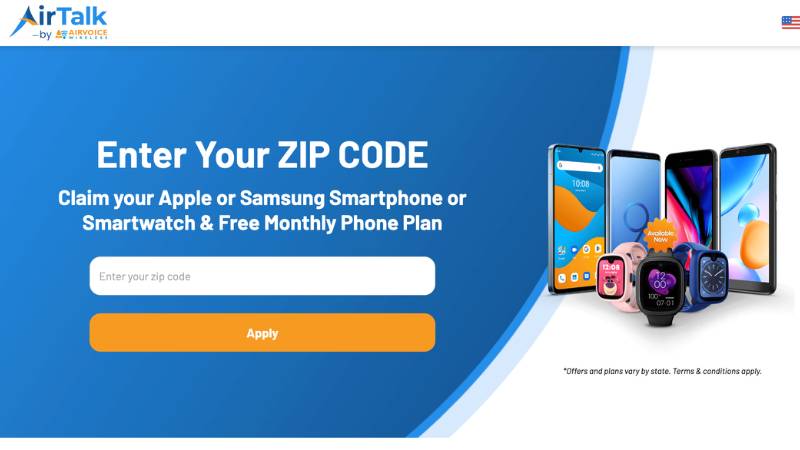
But where can you find an option that doesn’t cost a fortune? That’s where AirTalk Wireless comes in.
AirTalk Wireless is a provider that participates in the Lifeline program, a government-supported initiative that offers monthly discounts on phone or internet services for eligible low-income individuals.
When you apply for Lifeline through AirTalk Wireless, you not only receive discounted service but may also qualify for a free or heavily discounted smartphone, depending on current offers and availability.
Some commonly available models include iPhone 7, iPhone 8, Samsung Galaxy S8+, and Samsung Galaxy S9. Keep in mind that device availability and pricing can vary based on your location and the time you apply.
To qualify, you typically need to meet income requirements or participate in assistance programs like SNAP, Medicaid, or SSI.
Once your eligibility is confirmed, you can move on to the application process:
- Visit the AirTalk Wireless website
- Select a suitable service plan (make sure it includes a discounted phone)
- Choose the phone that fits your needs
- Fill out your personal details
- Submit basic documents for verification (if required)
- Wait for approval
- Receive your device and activate it for use
If you’re ready to get started, head over to AirTalk Wireless today and check what devices are currently available in your area!
Final Thoughts
Deleting an eSIM on Samsung is simple once you know where to find the right settings. If you’re wondering how to delete eSIM on Samsung, the process only takes a few steps, but it’s important to be prepared, as removing it will immediately affect your mobile service.
Once you’re ready to make a change, AirTalk Wireless gives you the opportunity to get a free or heavily discounted smartphone along with affordable monthly plans.
Check your eligibility today and explore the latest devices available to see which option works best for you.