eSIM technology is quickly becoming the new standard for mobile connectivity. An eSIM is built directly into your phone instead of using a physical SIM card. It helps you switch carriers more easily. You can also manage multiple plans and stay connected while traveling.
Still, a common question comes up: Does my phone have an eSIM? The good news is that you can find the answer in under a minute with a few simple steps.
1. How to Tell If Your Phone Has eSIM? Explore 3 Easy Universal Methods
Before getting into the exact steps for iPhone or Android, there are a few simple ways you can try first. These methods work on most smartphones, so you don’t need to worry about your device type yet.
If you’re still unsure at this point and asking yourself, “Does my phone have an eSIM?”, don’t worry. You can quickly check for eSIM support using the options below, no matter what phone you’re using.
Method 1: Check in Settings (Fastest Way)
The quickest way to confirm eSIM support is directly in your phone’s settings.
On most devices, go to:
- Settings > Cellular (or Mobile Data)
- Look for options like “Add eSIM,” “Add Cellular Plan,” or “SIM Manager”
If you see any of these options, your phone likely supports eSIM.
On Android devices, the wording may vary slightly depending on the brand. For example, some Samsung phones use “SIM card manager,” while Google Pixel devices may show “Download a SIM instead.”
However, if you don’t see these options, it doesn’t always mean your phone doesn’t support eSIM. In some cases, the feature may be hidden or restricted by your carrier.
Method 2: Check Your Phone Model
If you want a more reliable answer, checking your phone model is a solid option. It only takes a minute and gives you a clearer result.
Start by finding your device name:
- Go to Settings > About Phone
- Look for your model name or number
Once you have that, do a quick search like: “[your phone model] eSIM support.”
You’ll usually see results from the brand’s official website or trusted sources that confirm whether your device supports eSIM.
Based on most devices today, here’s the general rule:
- Most iPhones from iPhone XS and newer support eSIM
- Many newer Android phones, such as Google Pixel and Samsung Galaxy models, also include eSIM
That said, there are a few exceptions. Some models support eSIM only in certain countries or with specific carriers.
Therefore, if you want to be 100% sure, it’s always worth double-checking the details for your exact model.
Method 3: Check with Your Carrier
Another simple way is to check with your mobile carrier. You don’t need to search online or dig through your phone settings. Just contact your carrier and ask.
They can quickly:
- Confirm if your phone supports eSIM
- Check whether eSIM is available on your current plan
- Guide you through activation if it’s supported
Sometimes eSIM is supported but doesn’t appear in settings. In those cases, contacting your carrier is the fastest and most effective way to figure things out.
Also read: How to Find Your eSIM Number on iPhone: The Easy Guide for Every Model (2026)
2. Does My Phone Have an eSIM? Step-by-step Guide for iPhone and Android Devices
If you prefer a more direct approach, here’s how to check eSIM support based on your device type.
How to Check eSIM on iPhone
Apple makes this pretty straightforward. You can check in just a few taps:
- Go to Settings
- Tap Cellular
- Look for “Add eSIM” or “Add Cellular Plan”
If you see that option, your iPhone supports eSIM.
You can also double-check another way:
- Go to Settings > General > About
- Scroll down and look for “Digital SIM” or “eSIM”
If it’s listed there, your device is compatible.
Most iPhones from iPhone XS, XR, and later models support eSIM. Newer versions even allow multiple eSIM profiles, which is helpful if you manage work and personal numbers on one device.
How to Check eSIM on Android Devices
Android devices vary more by brand, but the steps are still easy to follow.
If you’re trying to figure out does my phone have an eSIM on an Android device, the easiest way is to start by checking your settings.
- Open Settings
- Tap Connections or Network & Internet
- Select SIM card manager or Mobile Network
- Look for “Add eSIM” or “Download SIM”
If you see one of these options, your phone likely supports eSIM. Otherwise, try this instead:
- Go to Settings > About Phone
- Note your model number
- Search online for eSIM compatibility
Popular Android devices with eSIM support come from many well-known brands.
To give you a clearer idea, here are some common examples based on popular manufacturers:
| Brand | eSIM-Compatible Models (Examples) |
| Google Pixel | Pixel 3 and newer models |
| Samsung | Galaxy S20 series and newer (some models vary by region) |
| LG | LG V50 ThinQ, LG G8 ThinQ (limited models) |
| Motorola | Razr (2019 and newer select models) |
| Huawei | P40 series and select newer models (region-dependent) |
| Sony | Xperia 10 III Lite and select Xperia models |
Keep in mind that eSIM support can still vary depending on the exact model, region, and carrier, so it’s always a good idea to double-check your specific device.
3. Common Questions About eSIMs
1. Why does my phone say no SIM when I have an eSIM?
This usually happens when your eSIM isn’t activated properly. It could also mean:
- The eSIM profile hasn’t been installed
- Your carrier hasn’t provisioned the line yet
Try restarting your phone or contacting your carrier for help.
2. Why does my phone have an eSIM?
eSIMs are designed to make connectivity more flexible. With an eSIM, you can:
- Switch carriers without changing SIM cards
- Use multiple numbers on one device
- Easily activate plans for travel
Because of these benefits, many newer smartphones are gradually shifting toward eSIM-based setups.
3. Can I use both eSIM and a physical SIM at the same time?
Yes. Most modern phones support dual SIM use, which means you can use a physical SIM and an eSIM together.
Some devices also allow multiple eSIM profiles, depending on the model. This is especially useful if you want to separate work and personal numbers on the same phone.
Get a Free eSIM-Compatible Phone with AirTalk Wireless
If your current phone doesn’t support eSIM, you still have a simple way to upgrade without paying full price through AirTalk Wireless. Let’s take a closer look at how it works.
AirTalk is a participating provider in the Lifeline program, a government-supported initiative that helps low-income households stay connected.
Through the Lifeline program, eligible users can receive discounted or free phone service for essential needs like work, education, and everyday communication.
On top of the standard Lifeline benefits, AirTalk Wireless also offers free or low-cost smartphones to qualifying applicants. If you are eligible and apply through AirTalk, you may receive both monthly service support and a device at the same time.
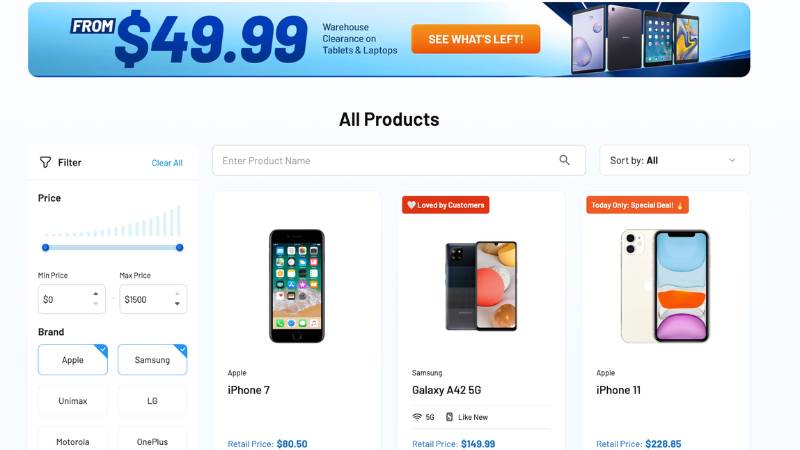
This is especially helpful if you’re looking for eSIM support, since many of the devices available through AirTalk are newer models with built-in eSIM functionality. Common options include:
- iPhone 11 and newer models
- Samsung Galaxy S21 series and above
- Select Google Pixel devices
To make things easier, AirTalk also provides an official eSIM compatibility tool that lets you quickly check whether a device supports eSIM before you apply. This helps you choose the right phone with confidence instead of guessing.
Check it now to find a compatible device and get started in minutes.
Final Thoughts
By now, you should have a clear answer to the question, “Does my phone have an eSIM?”. In just a few minutes, you can check through your settings, confirm your device model, or reach out to your carrier for a definite answer.
And if your phone doesn’t support eSIM, it’s not the end of the road. Programs like AirTalk Wireless give you a simple way to upgrade and stay connected without paying full price.