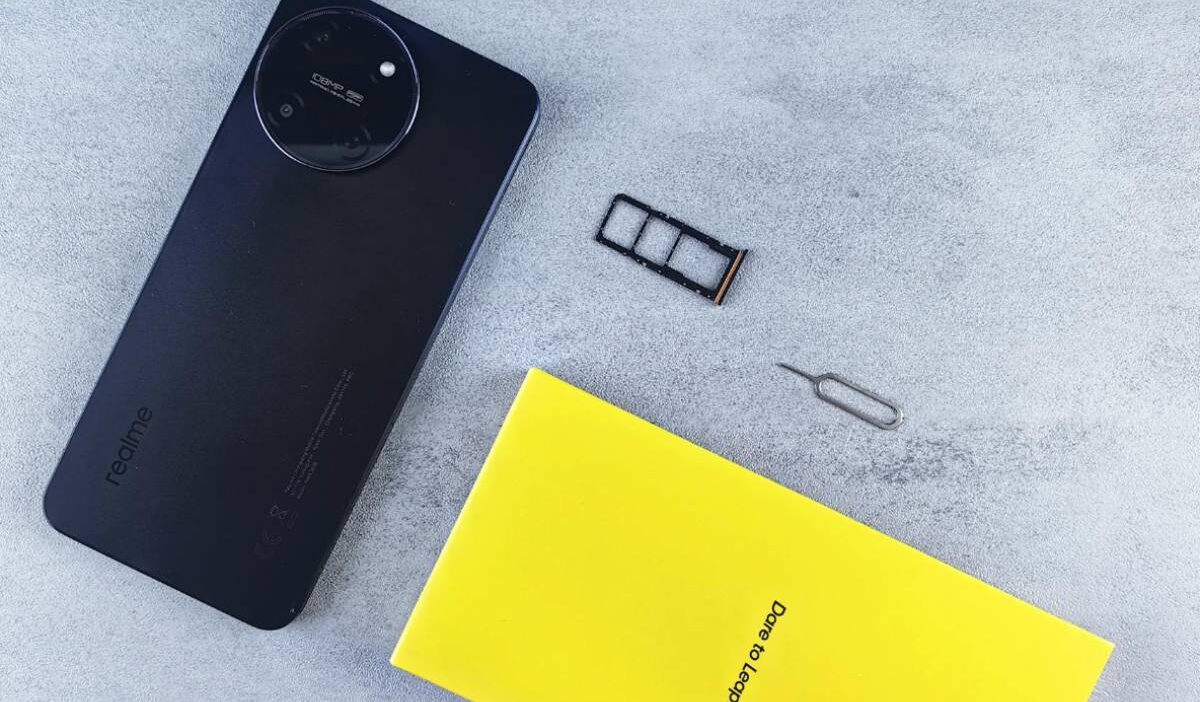
A screen lock protects the phone itself, but it does not always protect the SIM card inside it. That is why many users search how to lock SIM card after losing a phone, switching carriers, or trying to add stronger security to their mobile service.
Setting up a SIM PIN can help prevent unauthorized access if someone removes the SIM card and inserts it into another device.
In this guide, we’ll explain how SIM locking works on both Android and iPhone, how to enable it, and what to do if something goes wrong during setup.
1. Why You Should Lock Your SIM Card
Many users focus on screen passwords and biometric security but forget that the SIM card itself can also become a security risk.
Learning how to lock your SIM card adds another layer of protection that helps prevent unauthorized access to your mobile service if the phone gets lost or stolen.
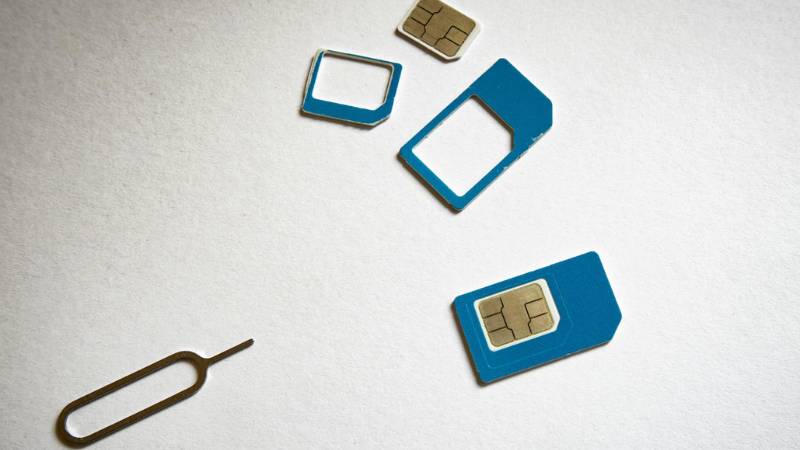
Without SIM protection, someone could potentially:
- Remove the SIM card
- Insert it into another device
- Access calls or messages
- Attempt account recovery using your phone number
A SIM lock helps reduce this risk by requiring a SIM PIN before the card can connect to the mobile network.
This can be especially useful for people who:
- Store sensitive information on their phones
- Use banking or authentication apps
- Travel frequently
- Use business phone numbers
- Want stronger mobile account security
Once enabled, the SIM card usually requests the PIN:
- After restarting the phone
- When the SIM moves to another device
- After certain network resets
2. How to Lock SIM Card on Android
Once SIM protection is enabled, knowing how to lock SIM card through Android settings can help secure mobile access more effectively if the device or SIM card is moved to another phone.
The exact menu names may vary depending on the phone brand, Android version, and carrier, but the overall process is usually very similar.
Open SIM Security Settings
To begin setup:
- Open Settings
- Tap Security, Passwords & Security, or Biometrics and Security
- Select SIM Card Lock or SIM Security
- Choose the active SIM card if multiple SIMs are installed
On some Samsung phones, users may follow this option:
Settings > Biometrics and Security > Other Security Settings > Set up SIM card lock
Enable SIM Card Lock
Inside the SIM security section:
- Turn on Lock SIM Card
- Confirm the activation request
Once enabled, Android will require the SIM PIN before the SIM card can connect to the carrier network after restart or SIM transfer.
Set or Change Your SIM PIN
Most SIM cards already include a default SIM PIN from the carrier.
During setup, users may need to:
- Enter the current SIM PIN
- Create a new custom PIN afterward
Many carriers provide a default PIN such as:
- 0000
- 1111
- 1234
However, users should confirm the correct PIN directly with the carrier instead of guessing repeatedly because multiple failed attempts may lock the SIM card.
3. How to Lock SIM Card on iPhone
iPhone users can also enable SIM protection directly through iOS settings. Similar to Android devices, setting up a SIM PIN helps prevent unauthorized mobile network access if someone removes the SIM card and inserts it into another phone.
For users searching how to lock your SIM card on iPhone, the setup process is usually simple and only takes a few minutes.
Open Cellular Settings
To begin:
- Open Settings
- Tap Cellular or Mobile Data
- Select SIM PIN
On dual-SIM iPhones, users may need to choose the correct SIM line first before changing SIM security settings.
Turn On SIM PIN
Inside the SIM PIN section:
- Enable SIM PIN
- Enter the current SIM PIN provided by the carrier
Once activated, the iPhone will request the SIM PIN after certain restarts or when the SIM card is inserted into another device.
Confirm Your PIN
After enabling the feature, users can optionally change the default SIM PIN to a custom code that is easier to remember but harder for others to guess.
To change the SIM PIN:
- Tap Change PIN
- Enter the current SIM PIN
- Create a new PIN
- Confirm the new code
Users should store the PIN safely because repeated incorrect attempts may lock the SIM card completely.
4. What to Do In Case You Forget Your SIM PIN
Forgetting a SIM PIN can temporarily block access to mobile service, but most carriers still provide ways to recover access safely.
Avoid Entering the Wrong PIN Too Many Times
Entering incorrect SIM PINs repeatedly can trigger a SIM security lock.
After several failed attempts, the phone may request:
- A PUK code
- Carrier verification
- SIM recovery steps
Users should stop guessing once multiple attempts fail because too many incorrect entries may permanently disable the SIM card.
Use the PUK Code from Your Carrier
A PUK code, also called a Personal Unlocking Key, helps unlock the SIM card after incorrect PIN attempts.
Users can usually get the PUK code through:
- Carrier customer support
- Carrier apps
- Online carrier accounts
- Original SIM packaging in some cases
After entering the correct PUK code, the phone will normally allow users to create a new SIM PIN.
>>> Read more: How to Unlock a Locked SIM Card Quickly (What to Do Right Now)
5. Common Problems When Trying to Lock a SIM Card
Even after setting up SIM protection, some users may still run into problems during activation or PIN management. Most issues are usually related to carrier settings, incorrect PIN entries, or missing SIM security options.
SIM Lock Option Missing
Some phones may not display the SIM lock feature inside settings.
This can happen because:
- The carrier disabled SIM security controls
- The device uses eSIM only
- Android or iOS menus changed after updates
- The phone software was customized by the manufacturer
Users can try:
- Updating the phone software
- Restarting the device
- Searching “SIM lock” directly in Settings
- Checking carrier support pages
SIM PIN Not Working
A SIM PIN may fail even when users believe the code is correct.
Possible reasons include:
- Incorrect default PIN
- Typing mistakes
- Old carrier PIN information
- Previous PIN changes
Instead of repeatedly guessing, users should verify the correct PIN directly with the carrier because multiple failed attempts can lock the SIM card.
SIM Gets Locked Accidentally
If too many incorrect SIM PIN attempts happen, the device may lock the SIM automatically and request a PUK code.
This situation can temporarily block:
- Calls
- Text messages
- Mobile data access
The safest solution is contacting the carrier directly for the official PUK code instead of continuing random attempts.
6. Finding a Mobile Plan That Works Well with Your Device
After setting up SIM security, it also helps to choose a mobile plan that works smoothly with the device and supports reliable SIM management. Carrier compatibility, SIM activation support, and network stability can all affect how well SIM locking features function over time.
For users looking for lower-cost wireless service, the Lifeline program may be another option worth exploring.
Lifeline is a federal assistance program that helps eligible households receive discounted or free monthly wireless service through approved providers in supported areas.
Some Lifeline providers support:
- Physical SIM activation
- eSIM-compatible devices
- Free monthly talk, text, and data
- Smartphone offers depending on availability
AirTalk Wireless is one of the providers participating in the Lifeline program. Depending on eligibility, users may qualify for free monthly wireless service and compatible device options in supported states.
The application process with AirTalk Wireless usually includes:
- Visiting the AirTalk Wireless website
- Entering a ZIP code
- Selecting a wireless plan
- Choosing a compatible device or SIM option
- Confirming eligibility
- Uploading documents if required
- Waiting for approval confirmation
7. FAQs
Does locking a SIM card protect my phone completely?
No. A SIM lock only protects the SIM card and mobile network access. Users should still use screen locks, passwords, Face ID, fingerprint security, and two-factor authentication for stronger overall protection.
Can I still receive calls if my SIM card is locked?
Yes, but the SIM PIN usually needs to be entered first after restarting the phone or moving the SIM card to another device before normal carrier service becomes available.
Is SIM lock different from carrier lock?
Yes. SIM lock uses a PIN to protect access to the SIM card, while a carrier lock restricts the phone to specific mobile networks.
Will SIM lock affect eSIM activation?
In some cases, SIM security settings may slightly change how dual SIM or eSIM setups behave depending on the carrier and device configuration, but SIM locking itself does not normally disable eSIM support.
8. Conclusion
Setting up SIM protection is one of the simplest ways to add extra mobile security beyond a normal screen lock. Once users understand how to lock SIM card settings on Android or iPhone, it becomes much easier to protect mobile service, personal accounts, and phone access if the SIM card is removed or the device gets lost.