Built-in cellular connectivity is becoming more common on modern laptops, allowing users to stay connected without relying on Wi-Fi or a smartphone hotspot.
As eSIM adoption expands across mobile devices, many people are starting to wonder whether the same technology can be used on a laptop.
The answer depends on the device. While some Windows laptops include built-in eSIM support, others still require physical SIM cards, external modems, or mobile hotspots.
Read more useful facts about eSIM laptop here!
1. Can You Get an eSIM on a Laptop?
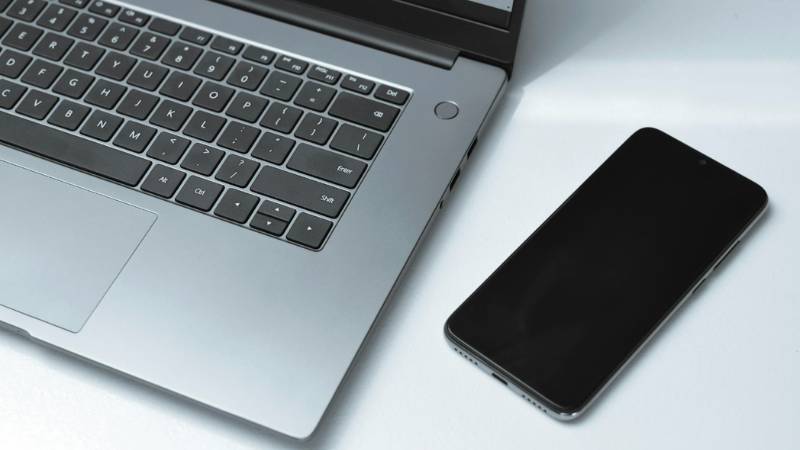
Yes, some laptops can use eSIM technology, but support is far from universal. Unlike smartphones, where eSIM adoption has become increasingly common, laptop manufacturers have taken a more selective approach.
The most important requirement is a built-in cellular modem that supports eSIM functionality. Even if a laptop runs the latest version of Windows, it cannot use an eSIM unless the necessary hardware is included.
Are laptops compatible with eSIM across all brands? The answer is no.
Support varies not only by manufacturer but also by specific model, configuration, and region.
Windows Laptops with Built-In eSIM (Surface, Lenovo, HP, Dell)
Windows laptops currently offer the broadest eSIM support.
Many premium business and always-connected models include cellular hardware that works with eSIM activation. Examples can be found across product lines from:
- Microsoft Surface
- Lenovo ThinkPad
- HP EliteBook
- HP Dragonfly
- Dell Latitude
- Dell Precision (select models)
However, eSIM availability is often limited to specific configurations. Two laptops with the same model name may differ if one includes a cellular modem and the other does not.
Before purchasing a laptop specifically for eSIM use, review the manufacturer’s specifications carefully and look for references to LTE, 5G, WWAN, or eSIM support.
Are Laptops Compatible with eSIM Across All Brands?
No. Many laptops still rely entirely on Wi-Fi connectivity and do not include any cellular hardware.
This is particularly common among:
- Budget laptops
- Consumer-focused notebooks
- Gaming laptops
- Entry-level Chromebooks
- Most desktop replacement systems
Even within the same brand, support can vary dramatically. A business-oriented model may offer eSIM compatibility while a consumer model from the same manufacturer does not.
Because of these differences, checking the exact model number is usually more reliable than assuming compatibility based on brand alone.
Can an Apple Laptop Use eSIM?
Currently, MacBooks do not include built-in eSIM support for cellular data connections.
While iPhones and iPads support eSIM technology, Apple’s MacBook lineup continues to rely on Wi-Fi, Ethernet, personal hotspots, and external connectivity solutions for internet access.
As a result, MacBook users who need internet access away from Wi-Fi typically rely on:
- An iPhone hotspot
- A dedicated mobile hotspot device
- An external cellular modem
Although rumors about future cellular-enabled MacBooks occasionally surface, Apple has not released a MacBook with integrated eSIM support as of 2026.
2. How to Activate eSIM on a Laptop (Windows Step-by-Step)
If your Windows laptop includes built-in eSIM hardware, activation is usually straightforward. The exact menus may vary slightly between Windows versions, but the overall process remains similar.
Step 1: Open Cellular Network Settings
Start by opening the Windows Settings menu.
Navigate to: Settings → Network & Internet → Cellular
If your laptop supports cellular connectivity, you should see options related to mobile networks and eSIM management. If the Cellular section does not appear, the device may not include the required hardware.
Step 2: Add an eSIM Profile
Within the Cellular settings menu, look for an option such as Manage eSIM profiles or Add profile.
Windows will guide you through the process of adding a new cellular plan. Depending on your carrier, you may be prompted to scan a QR code or enter activation details manually.
Step 3: Scan a QR Code or Enter Activation Code
Most carriers provide eSIM activation through a QR code.
Using your laptop’s camera or the Windows activation interface, scan the QR code supplied by the carrier. If a QR code is unavailable, some providers allow activation using a manual activation code instead.
The eSIM profile will then download and install onto the device.
Step 4: Confirm and Test Your Connection
Once installation is complete, select the newly activated cellular plan and connect to the network.
Open a web browser, visit a few websites, and verify that data works properly without relying on Wi-Fi. If the connection fails, restart the laptop and check that the carrier profile installed successfully.
After confirmation, your laptop should be able to connect to the cellular network whenever coverage is available.
3. What If Your Laptop Doesn’t Support eSIM?
Lack of built-in eSIM support doesn’t necessarily mean you’re limited to Wi-Fi. Several alternatives can provide mobile connectivity when needed.
Use a Mobile Hotspot from Your Phone
For many users, the simplest option is using a smartphone hotspot.
Most modern phones can share their cellular connection with a laptop through Wi-Fi, USB, or Bluetooth. This approach works particularly well for occasional travel, remote work, or situations where internet access is only needed temporarily.
The main drawback is increased battery usage on the phone and potential data consumption depending on your plan.
Get a USB or External 5G/4G Dongle
Another option is a dedicated cellular modem.
USB LTE and 5G adapters connect directly to a laptop and provide mobile internet access without relying on a smartphone. Some models accept physical SIM cards, while others support eSIM activation depending on the hardware.
This solution can be useful for users who frequently work away from reliable Wi-Fi networks.
Consider Upgrading to an eSIM-Ready Laptop
If mobile connectivity is a regular part of your workflow, upgrading to a laptop with built-in cellular support may be worth considering.
Always-connected laptops eliminate the need for separate hotspots and external accessories while providing direct access to LTE or 5G networks. For frequent travelers, field workers, and remote professionals, the convenience can be significant.
As eSIM adoption continues to expand, more manufacturers are expected to include cellular-capable options in future laptop models.
4. Best Carriers and Data Plans for eSIM Laptops in 2026
Choosing the right carrier is just as important as choosing the right laptop. Even if your device supports eSIM, you’ll still need a compatible data plan that supports laptop connectivity.
The best option depends on how you use your laptop. Some users need full-time connectivity for work, while others only need occasional access when traveling.
Major U.S. Carriers with eSIM Laptop Plans
Several major U.S. carriers support eSIM activation on compatible laptops and cellular-enabled Windows devices.
Providers often offer data plans for connected devices, including laptops, tablets, and hotspots. Availability varies by device and plan, so it’s important to confirm that the carrier supports eSIM activation for your specific laptop model.
When comparing plans, consider:
- Monthly data limits
- 5G availability
- Coverage in your area
- Device compatibility
- International roaming options
For users who rely on cellular connectivity every day, a dedicated laptop data plan often provides the most consistent experience.
Travel-Friendly eSIM Providers
Travelers may not need a traditional monthly contract.
Many global eSIM providers offer short-term and regional data plans that can be activated digitally before or during a trip. These services are particularly useful for remote workers, digital nomads, and frequent international travelers who want to avoid purchasing local SIM cards.
Travel-focused eSIM providers typically offer:
- Country-specific plans
- Regional plans covering multiple countries
- Flexible prepaid options
- Digital activation before arrival
Because pricing and coverage vary significantly, comparing available plans before traveling can help avoid unexpected costs.
Free or Low-Cost Lifeline Options
For qualifying households, the Lifeline program may help reduce the cost of mobile service.
Lifeline is a federal assistance program that helps eligible low-income consumers access phone service through participating providers. Eligibility is generally based on household income or participation in qualifying assistance programs.
While Lifeline service is most commonly associated with smartphones, qualifying consumers may use compatible devices that support eSIM technology where available.
The program can be a valuable option for users looking for affordable connectivity while managing everyday communication needs.
5. Practical Setup: Get a Discounted or Free Device with eSIM Service
If you’re looking for an affordable way to access mobile connectivity, eligible consumers may qualify for Lifeline-supported service through AirTalk Wireless.
AirTalk Wireless is a participating Lifeline provider that offers monthly talk, text, and data for eligible customers. Depending on availability, qualified applicants may also have access to discounted or free devices.
Sometimes, a laptop is also available, either as a separate offer or bundled with others like a smartwatch or a phone.
Do note that in the Lifeline sphere, laptops have more limited stock compared to smartphones and tablets.
Who May Qualify?
You may qualify for Lifeline through participation in programs such as:
- SNAP
- Medicaid
- Supplemental Security Income (SSI)
- Federal Public Housing Assistance (FPHA)
- Veterans Pension or Survivors Pension Benefit
You may also qualify based on household income if it meets applicable Lifeline guidelines.
How to Apply Through AirTalk Wireless
Applying typically involves the following steps:
- Visit the AirTalk Wireless website.
- Enter your ZIP code and select Apply Now.
- Choose an available Lifeline plan.
- Select a smartphone or other eligible device based on current availability.
- Verify eligibility through household income or participation in a qualifying assistance program.
- Submit proof of eligibility if required.
- Complete the application and wait for approval confirmation.
Once approved, eligible customers can activate service on a compatible device. If the device supports eSIM activation, service may be activated digitally without relying on a physical SIM card.
Read more: Can I Use eSIM on Locked iPhone? Yes, But There’s a Catch
6. FAQs
How to install eSIM on a laptop?
First, confirm that your laptop supports eSIM and has a built-in cellular modem. Then open the Cellular settings in Windows, add an eSIM profile, and follow your carrier’s activation instructions using a QR code or activation code.
How to activate eSIM on a laptop?
Activation usually involves obtaining an eSIM profile from your carrier, scanning a QR code or entering an activation code, and completing the setup through Windows Cellular settings. After installation, test the connection to confirm that mobile data is working.
How to set up eSIM on a laptop?
To set up an eSIM, connect the laptop to Wi-Fi, open the Cellular settings menu, add a new eSIM profile, and follow the prompts provided by your carrier. Once the profile is installed, select it as your active mobile connection.
How to use eSIM on a laptop?
After activation, your laptop can connect directly to a cellular network without relying on Wi-Fi or a smartphone hotspot. As long as you have an active data plan and network coverage, the laptop can use mobile data similarly to a smartphone.
How to check if my laptop is eSIM compatible?
On a Windows laptop, open Settings → Network & Internet and look for a Cellular section. If cellular settings are available, the device may support mobile connectivity. You can also check the manufacturer’s specifications for terms such as eSIM, LTE, 5G, or WWAN. Because support varies by configuration, checking the exact model number is usually the most reliable method.
7. Conclusion
An eSIM laptop can provide convenient mobile connectivity without relying on public Wi-Fi or a smartphone hotspot, but support still depends on the specific device. While many modern Windows laptops offer built-in eSIM capabilities, others require alternative solutions such as hotspots or external modems. Before purchasing a data plan or new device, verify both hardware compatibility and carrier support to ensure the setup meets your connectivity needs.