Seeing an eSIM network not available message can be frustrating, especially when your eSIM appears installed correctly but you still can’t make calls, send texts, or use mobile data.
The error can occur during activation, after switching carriers, or even on a previously working eSIM line.
Fortunately, the problem is often tied to a specific issue such as carrier provisioning, device settings, compatibility limitations, or network connectivity.
In this guide, we’ll break down the most common causes and show you how to get your eSIM connected again.
1. Top 4 Causes of the “eSIM Network Not Available” Error
The “eSIM Network Not Available” message can appear for several reasons. Sometimes the problem occurs immediately after activation, while in other cases it appears unexpectedly on a previously working device.
Identifying the underlying cause is the first step toward restoring service.

Activation Issues
Many eSIM connectivity problems originate during the activation process.
An incomplete installation, interrupted download, or activation error can prevent the eSIM from connecting to the carrier network properly. Even if the eSIM profile appears on your phone, it may not be fully activated.
Common activation-related problems include:
- Incomplete profile installation
- Expired QR code
- Activation interrupted by poor internet connection
- Failed carrier verification
If the issue appeared shortly after setting up the eSIM, activation should be your first area of investigation.
Carrier or Provisioning Issues
After an eSIM is installed, carriers must provision the line on their network.
Provisioning is the process that links your phone number, account, and eSIM profile together. If this step is delayed or incomplete, the device may display a network error even though the eSIM was installed successfully.
Possible carrier-side issues include:
- Delayed activation
- Account restrictions
- Incorrect line provisioning
- Temporary carrier outages
In many situations, the problem can only be resolved by the carrier.
Device Compatibility (eSIM Network Not Available on iPhone)
Not every phone that appears to support eSIM is fully compatible with every carrier.
This is especially common with:
- Imported devices
- Region-specific models
- Carrier-locked phones
- Older devices running outdated software
Users searching for eSIM network not available on iPhone may discover that the issue stems from compatibility restrictions rather than a network outage.
Checking both device compatibility and carrier requirements can help rule out this possibility.
Network or Signal Issues
Sometimes the eSIM itself is functioning correctly, but the device cannot establish a reliable connection to the cellular network.
Poor coverage, temporary outages, or local signal problems can all trigger network availability errors.
This is more likely when:
- Traveling internationally
- Moving between coverage areas
- Activating service in rural locations
- Experiencing carrier maintenance outages
Testing the device in another location can help determine whether signal strength is contributing to the problem.
2. Step-by-Step Fixes Based on the Real Cause
Once you’ve identified the likely cause, the following troubleshooting steps can help restore connectivity.
Restart Your Device
A restart is one of the simplest yet most effective fixes.
Restarting your phone refreshes cellular connections, reloads carrier settings, and clears temporary software glitches that may interfere with eSIM functionality.
After restarting:
- Check signal bars
- Test mobile data
- Place a call
- Send a text message
Many minor activation and connectivity issues are resolved at this stage.
Toggle Airplane Mode On and Off
Airplane Mode forces your phone to disconnect from and reconnect to nearby cellular networks.
To do this:
- Turn Airplane Mode on.
- Wait 15–30 seconds.
- Turn Airplane Mode off.
This process often triggers a fresh network registration and may restore service without requiring additional troubleshooting.
Reset Network Settings
Incorrect network configurations can prevent the eSIM from connecting properly.
On iPhone: Settings → General → Transfer, or Reset iPhone → Reset → Reset Network Settings
This resets cellular settings, Wi-Fi settings, and VPN configurations.
While personal data remains untouched, you’ll need to reconnect to saved Wi-Fi networks afterward.
Update to the Latest iOS Version
Software updates frequently include carrier compatibility improvements and bug fixes related to cellular connectivity.
To check for updates: Settings → General → Software Update
Installing the latest version of iOS can resolve compatibility issues that affect eSIM activation and network performance.
Before updating, ensure your device has sufficient battery life and a stable internet connection.
Re-Add or Re-Activate the eSIM
If the profile appears corrupted or incomplete, reinstalling the eSIM may solve the issue.
Before removing the profile, contact your carrier to confirm:
- Whether the existing QR code can be reused
- Whether a new activation code is required
After receiving confirmation, delete the inactive profile and complete the activation process again.
This step is particularly effective when the error began immediately after setup.
3. How to Fix eSIM Network Not Available on iPhone Specifically
Although many troubleshooting steps apply to all devices, iPhone users have several additional settings worth checking.
Check Cellular Plan Settings
Start by verifying that the eSIM line is active.
Go to: Settings → Cellular.
Select the affected line and confirm:
- Turn On This Line is enabled
- Cellular Data is active
- The correct phone number is displayed
An accidentally disabled line can create symptoms that resemble a network failure.
Manually Select a Carrier
Automatic carrier selection occasionally causes registration problems.
To manually choose a network:
- Open Settings → Cellular
- Select the affected line
- Tap Network Selection
- Disable Automatic
- Choose your carrier from the available list
This can be particularly helpful when traveling internationally or switching between networks.
Contact Your Carrier for a New Profile
If none of the previous fixes work, the eSIM profile itself may be damaged or improperly provisioned.
Your carrier can:
- Verify account status
- Confirm activation
- Check provisioning records
- Issue a new eSIM profile
- Generate a new QR code
In many cases, a fresh profile resolves persistent network errors that cannot be fixed through device settings alone.
Read more: Unlock SIM Card: How to Unlock Your Phone for Full Network Access
4. Resolve eSIM Network Issues with a New, Secure eSIM
If you’ve tried restarting your device, resetting network settings, updating your software, and working through your carrier’s troubleshooting steps, the issue may not be with the phone itself.
In some cases, an eSIM profile can become corrupted, improperly provisioned, or tied to activation records that no longer sync correctly with the carrier’s network.
When that happens, installing a new eSIM profile is often the most effective solution. A fresh activation can replace outdated carrier information, re-establish network registration, and eliminate errors that continue to trigger the “eSIM Network Not Available” message.
Before requesting a new eSIM, verify that your device:
- Supports eSIM technology
- Is unlocked if you’re switching carriers
- Is running the latest software version
- Meets your carrier’s activation requirements
You should also check whether your carrier requires a new QR code or activation profile, as many providers do not allow previously used eSIM activation codes to be reused.
For eligible low-income households, the Lifeline program can help reduce the cost of phone service through participating providers. Qualifying consumers may receive discounted or free phone service while maintaining access to compatible devices and modern connectivity options.
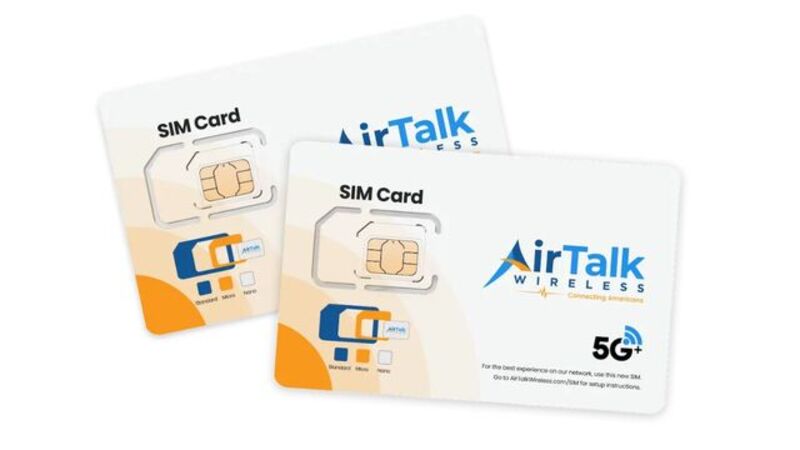
AirTalk Wireless is a participating Lifeline provider that supports monthly talk, text, and data for eligible customers.
For users dealing with ongoing SIM-related activation challenges, a fresh eSIM activation on a compatible device may provide a simpler and more reliable setup experience than continuing to troubleshoot an older or problematic profile.
If you’re considering moving service to a new eSIM, it’s important to complete the activation process carefully.
Keep your current SIM active until the new line is fully working, follow all account verification steps, and submit proof of eligibility if required for Lifeline-supported service.
5. FAQs
Why does my eSIM say network not available?
This error can occur because of activation failures, carrier provisioning delays, device compatibility issues, or poor network coverage. The exact cause varies depending on the device and carrier.
How do I fix eSIM network not available on iPhone?
Start by restarting the device, checking Cellular settings, updating iOS, and resetting network settings. If the problem continues, contact your carrier to verify activation and provisioning.
Can an eSIM be installed but not activated?
Yes. An eSIM profile may appear on the device even though the carrier has not fully activated or provisioned the line.
Will resetting network settings delete my eSIM?
No. Resetting network settings does not normally remove the eSIM profile, but it does reset cellular, Wi-Fi, and VPN configurations.
6. Conclusion
An eSIM network not available error can be caused by activation problems, carrier provisioning issues, compatibility limitations, or network-related disruptions. While many cases can be resolved through simple troubleshooting steps, persistent errors may require assistance from your carrier or a new eSIM profile. Identifying the root cause early is often the fastest way to restore reliable cellular service.