

Your iPhone normally sends its phone number with every outgoing call, including calls to businesses and people outside your contacts. That may be unnecessary when you only need to ask a quick question, compare a service, or contact an online seller.
The right option for how to call private on iPhone depends on whether you want to hide the number once or apply the change to future calls. Before choosing, consider how your carrier handles Caller ID and whether the recipient accepts anonymous calls.
1. Can You Hide Your Phone Number When Calling From an iPhone?
Yes, you can hide your phone number when calling from an iPhone using a dialing prefix, the built-in Show My Caller ID setting, or a carrier-level service. A supported prefix such as *67 can hide your number for one call, while changing Caller ID settings may hide it for future outgoing calls.
When Caller ID is blocked, the recipient may see “No Caller ID,” “Private,” or “Restricted” instead of your number.
However, availability depends on your carrier, country, and calling plan. Hiding Caller ID doesn’t make your call completely anonymous, and certain calls, including emergency or toll-free calls, may still reveal identifying information.
The next section explains how to enable these options on your iPhone.
2. How to Call Private on iPhone in 3 Ways
Use the table to choose a method before changing any settings:
| Method | One Call or All Calls? | Best For | Important Limitation |
| Caller ID blocking code | One call | Occasional privacy | Code varies by country and carrier |
| Show My Caller ID | All standard calls | Regularly hiding the number | Setting may be unavailable |
| Carrier-level blocking | Usually all calls | Lines managed through the network | May require carrier support |
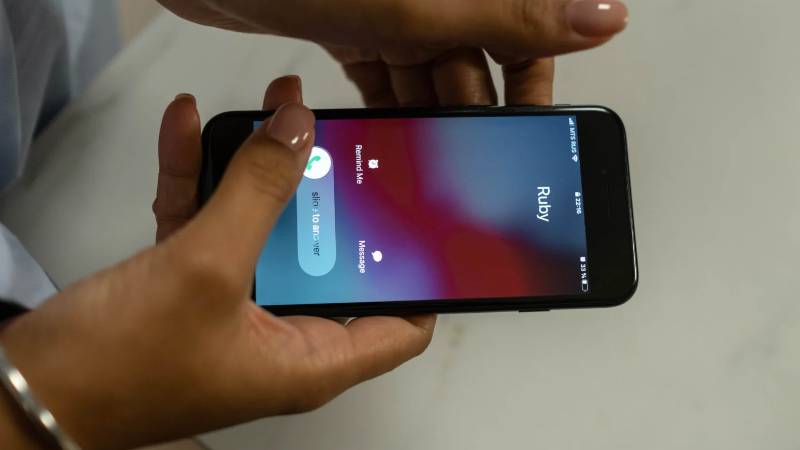
Method 1: Dial a Caller ID Blocking Code
In the United States and Canada, many carriers support *67 for a single outgoing call:
- Open the Phone app.
- Select Keypad.
- Enter *67.
- Type the complete phone number immediately after the code.
- Tap the Call button.
For example: *67 555 123 4567
This approach to how to private call on iPhone applies only to the current call. Your number should appear normally the next time you call without the prefix.
Codes differ by country and carrier, so do not assume *67 works everywhere. Test it with someone you trust before using it for an important conversation.
Method 2: Turn Off Show My Caller ID
Use this option when you want your number hidden from multiple outgoing calls:
- Open Settings.
- Select Apps.
- Tap Phone.
- Select Show My Caller ID.
- Turn the switch off.
To display your number again, return to the same menu and enable the setting.
For how to call private on iPhone regularly, this method is more convenient than typing a prefix each time. However, the option may be missing or grayed out when Caller ID is managed by the carrier.
Method 3: Request Caller ID Blocking From the Carrier
Contact your mobile provider if neither the prefix nor the iPhone setting works. The carrier may be able to hide Caller ID at the account or network level.
Before activating it, ask:
- Does the service apply to every outgoing call?
- Is there a fee?
- How can the number be shown temporarily?
- Does it work with Wi-Fi Calling?
- Will it affect every line on a family or business account?
- Are international calls supported?
This option may help with how to call someone private on iPhone when the device itself does not provide a Caller ID control. Make a test call afterward to confirm the change.
>>> Read more: How to Record a Phone Call: 3 Safe Methods for Any Phone
3. Why Can’t I Make a Private Call on My iPhone?
Even after learning how to call private on iPhone, you may find that Caller ID blocking doesn’t work as expected. Here are the common reasons and how to fix them.
- Show My Caller ID is missing or grayed out
The carrier may control the setting. Restart the iPhone, install available carrier-setting updates, and contact the provider if the option remains unavailable.
- *67 does not work
Your carrier or country may use a different prefix. The destination may also reject Caller ID blocking.
- The call goes directly to voicemail
The recipient may silence or block unknown and private callers. Hiding your number cannot override their screening preferences.
- The destination does not accept private calls
Emergency, toll-free, and certain service numbers may still receive the originating number or may not support blocking.
- The call uses a third-party app
WhatsApp, Google Voice, and other calling platforms manage identity separately from the iPhone’s Phone settings.
- The wrong SIM is selected
On a dual-SIM iPhone, Caller ID settings or carrier services may differ between lines.
Test the feature by calling a trusted person. If the same issue occurs across several numbers, contact your carrier rather than repeatedly changing iPhone settings.
4. Should You Hide Your Number for One Call or Every Call?
A one-call code is the better choice when privacy is temporary. It avoids changing future calls to relatives, employers, healthcare providers, or delivery services that may need to recognize or return your call.
Permanent or carrier-level blocking may suit someone who regularly uses a personal iPhone for:
- Marketplace inquiries
- Freelance or business conversations
- Service-price comparisons
- Temporary customer communication
- Other calls where a callback is unnecessary
When considering how to call private number on iPhone, remember that an anonymous call is easier to ignore. If you expect a callback or need to establish trust, displaying your number may be more practical.
5. Can Someone Still See Your Number When You Call Private?
With a supported method, the ordinary recipient should see a privacy label rather than your number. Nevertheless, how to call private on iPhone hides information only from the standard Caller ID display.
Your number may still be available to:
- Your mobile carrier
- Emergency services
- Authorities with appropriate legal authorization
- A business system that receives network-level call information where permitted
- Apps or services that use a separate registered account identity
Caller ID blocking is different from spoofing. Blocking withholds the number, while spoofing displays false identifying information. The FCC’s information on Caller ID spoofing explains why manipulating Caller ID to deceive or cause harm may violate federal law.
Private calling also cannot prevent the recipient from blocking, rejecting, reporting, or screening the call.
>>> Also read: How to Turn Off eSIM on iPhone and Android (2026 Guide)
6. FAQs
How do I make my number private on iPhone permanently?
For how to call private on iPhone by default, go to Settings > Apps > Phone > Show My Caller ID and turn it off. Contact your carrier if the option is missing or unavailable.
What is the difference between Private Number and No Caller ID?
Both labels generally mean the recipient cannot see the originating number. The exact wording depends on the carrier, phone, and type of Caller ID restriction.
Does *67 still work on iPhone?
*67 still works for one-call Caller ID blocking on many US and Canadian networks. It is a carrier function rather than an iPhone feature, so availability is not guaranteed.
7. Conclusion
The right option for how to call private on iPhone depends on whether you want to hide the number once or apply the change to future calls. Before choosing, consider how your carrier handles Caller ID and whether the recipient accepts anonymous calls.