
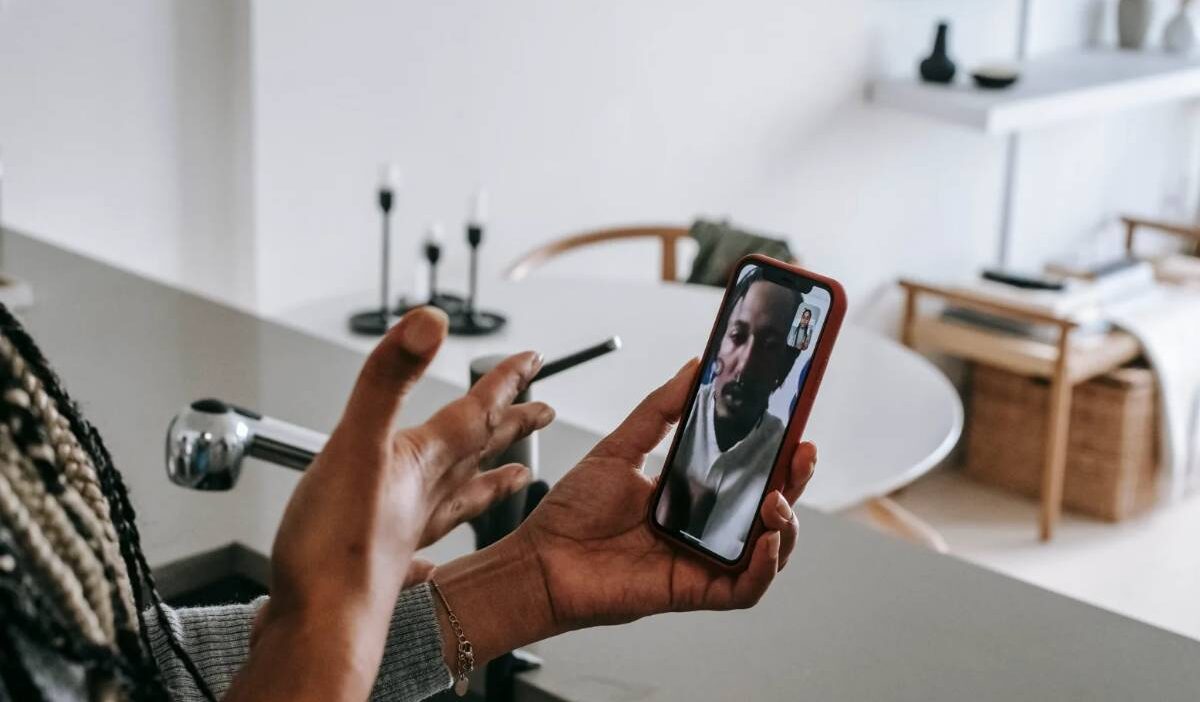
A FaceTime conversation may contain instructions, interview notes, or personal moments you want to revisit later. Yet recording one is not as straightforward as tapping a single button, particularly when you need both the video and everyone’s voices.
This article explains how to record a FaceTime call on an iPhone, iPad, or Mac, where each file is stored, and why some recordings contain video but no sound. Before starting, tell every participant and obtain any consent required where each person is located.
1. Can You Record a FaceTime Call?
Yes, you can record a FaceTime call on an iPhone or iPad, but the method depends on whether you’re using FaceTime video or audio. Apple provides different recording options, and not every method captures both sides of the conversation.
- FaceTime video: Use your iPhone or iPad’s built-in Screen Recording feature to capture the screen. However, the other person’s audio may not be recorded.
- FaceTime audio: Apple’s Call Recording feature supports one-to-one audio calls in eligible regions. Both participants receive a recording notification, and recordings are saved in Notes.
Before recording, get consent from everyone involved and check applicable laws, as recording requirements vary by location.
2. How to Screen Record a FaceTime Call on iPhone or iPad
The how to record a facetime call method depends on whether you need the visible video or a reliable recording of a FaceTime Audio conversation.
Record a FaceTime Video Call Using Screen Recording
You can use the built-in Screen Recording feature to capture the visible portion of a FaceTime video call on your iPhone or iPad.
Before starting, make sure Screen Recording is available in Control Center. If it’s missing, open Control Center, touch and hold an empty area, and select Add a Control > Screen Recording.
Then follow these steps:
- Start or join your FaceTime video call.
- Open Control Center by swiping down from the top-right corner.
- Touch and hold Screen Recording, then enable Microphone if you want to capture your voice or surrounding sounds.
- Tap Start Recording and wait for the three-second countdown.
- Return to FaceTime and continue your conversation.
- Stop recording using the red recording indicator when finished.
Your recording is saved automatically in Photos > Collections > Media Types > Screen Recordings.
Important: FaceTime may restrict internal call audio, so this how to record a facetime call might not capture the other participant’s voice, even with the microphone enabled. Test the recording beforehand.
Record a FaceTime Audio Call With Apple’s Built-In Feature
On supported iPhones and in eligible regions, Apple’s Call Recording feature can capture both sides of a one-to-one FaceTime Audio call.
On supported iPhones and in eligible regions, Apple’s Call Recording feature can capture both sides of a one-to-one FaceTime Audio call.
- Start or answer a FaceTime Audio call.
- Tap the More (…) button during the call.
- Select Call Recording.
- Both participants will hear an announcement that the call is being recorded.
- Tap Stop or end the call to finish recording.
The recording is automatically saved in the Call Recordings folder in the Notes app.
Depending on your device, language, and region, Notes may also provide a transcript or an Apple Intelligence-generated summary. Review transcripts for accuracy, as they may contain errors.
Note: Call Recording isn’t available in every country or region. Obtain the other participant’s consent before recording.
3. How to Record a FaceTime Call with Audio
For a reliable audio file, use the built-in option rather than trying to capture internal sound through Screen Recording.
- Step 1: Confirm That Call Recording Is Available
Update the device and confirm that Call Recording supports your location and language. The option may not appear in an unsupported region.
- Step 2: Start a One-to-One FaceTime Audio Call
Open FaceTime and begin an audio call with one person. The feature may not be available for a group conversation or FaceTime video call.
- Step 3: Open the More Menu
Tap the More button after the other participant joins.
- Step 4: Select Call Recording
Tap Call Recording. If the option is missing, check the system version, region, and Settings > Apps > Phone > Audio Call Recording.
- Step 5: Wait for the Recording Notification
A spoken notice informs both people that recording has started. Continue only after the other participant agrees.
- Step 6: Stop the Recording or End the Call
Tap Stop, use the More menu to stop recording, or end the call. The file is saved automatically in Notes.
>>> Read more: How to Record a Phone Call: 3 Safe Methods for Any Phone
4. How to Record a FaceTime Call on Mac
A Mac provides two recording options, but they capture different content. Use the Screenshot toolbar for a FaceTime video, or the built-in Call Recording feature for a supported one-to-one FaceTime Audio call.
To screen-record a video call:
- Press Command + Shift + 5 to open the Screenshot toolbar.
- Select Record Entire Screen or Record Selected Portion.
- Open Options to choose a microphone and save location.
- Position the FaceTime window inside the recording area.
- Click Record, then return to the call.
- Click the Stop button in the menu bar when finished.
Keep these limitations in mind:
- Selecting a microphone captures your voice and sounds playing through the Mac’s speakers.
- It does not guarantee that FaceTime’s internal audio will be recorded.
- Playing the call through speakers may cause feedback or uneven sound.
- The finished video is saved to the location selected under Options, which is often the desktop by default.
For a supported FaceTime Audio call, open More > Call Recording instead. Both participants will hear a recording notice, and the completed audio file will appear under Notes > Call Recordings.
5. Where Are FaceTime Call Recordings Saved?
If how to record a FaceTime call produces a silent or incomplete file, check these common causes:
- The microphone was disabled before Screen Recording started.
- FaceTime prevented internal call audio from being captured.
- Another app was already using the microphone.
- Screen Recording is restricted through Screen Time or device management.
- The device lacks sufficient free storage.
- Call Recording is unavailable in the current region or system version.
- The conversation is a video or group call rather than a supported one-to-one audio call.
- Screen mirroring is active, which can prevent simultaneous screen recording.
Test the method for a few seconds, stop it, and play the file before recording a longer conversation.
6. Why Does a FaceTime Recording Have No Sound or Fail to Start?
If how to record a FaceTime call produces a silent or incomplete file, check these common causes:
- The microphone was disabled before Screen Recording started.
- FaceTime prevented internal call audio from being captured.
- Another app was already using the microphone.
- Screen Recording is restricted through Screen Time or device management.
- The device lacks sufficient free storage.
- Call Recording is unavailable in the current region or system version.
- The conversation is a video or group call rather than a supported one-to-one audio call.
- Screen mirroring is active, which can prevent simultaneous screen recording.
Test the method for a few seconds, stop it, and play the file before recording a longer conversation.
>>> Also read: How to Turn Off eSIM on iPhone and Android (2026 Guide)
7. FAQs
How to record a FaceTime call without them knowing?
You should not secretly record a private FaceTime conversation. Consent requirements vary, and the Reporters Committee for Freedom of the Press overview notes that some jurisdictions require permission from every participant.
Can I tell if someone is recording a FaceTime call?
Apple’s built-in Call Recording announces the recording to both participants. A separate camera or screen-recording tool may not produce the same alert, so ask directly when privacy matters.
Is there an app that can record FaceTime calls?
Third-party tools may record the screen or microphone, but iOS privacy restrictions can prevent them from capturing internal FaceTime audio. Review permissions and privacy practices before giving an app access to calls, photos, or the microphone.
8. Conclusion
The most suitable method depends on what you need to preserve. Screen Recording can save the visible FaceTime video, although call audio may be missing, while built-in Call Recording provides a more reliable option for supported one-to-one FaceTime Audio calls.
When following how to record a FaceTime call, test the selected method first, check the saved file, and obtain the necessary consent. These steps help protect both the usefulness of the recording and everyone’s privacy.